
Asana Rules and Automation: When to Use Rules, AI Studio, or AI Teammates
If you’ve ever found yourself thinking, “there has to be a better way to handle this,” while manually moving tasks, assigning work, or repeating the same steps in Asana, you’re not alone. I hear this all the time from teams that know automation is available but are not sure which kind to use, which is exactly where Asana training can make a big difference.
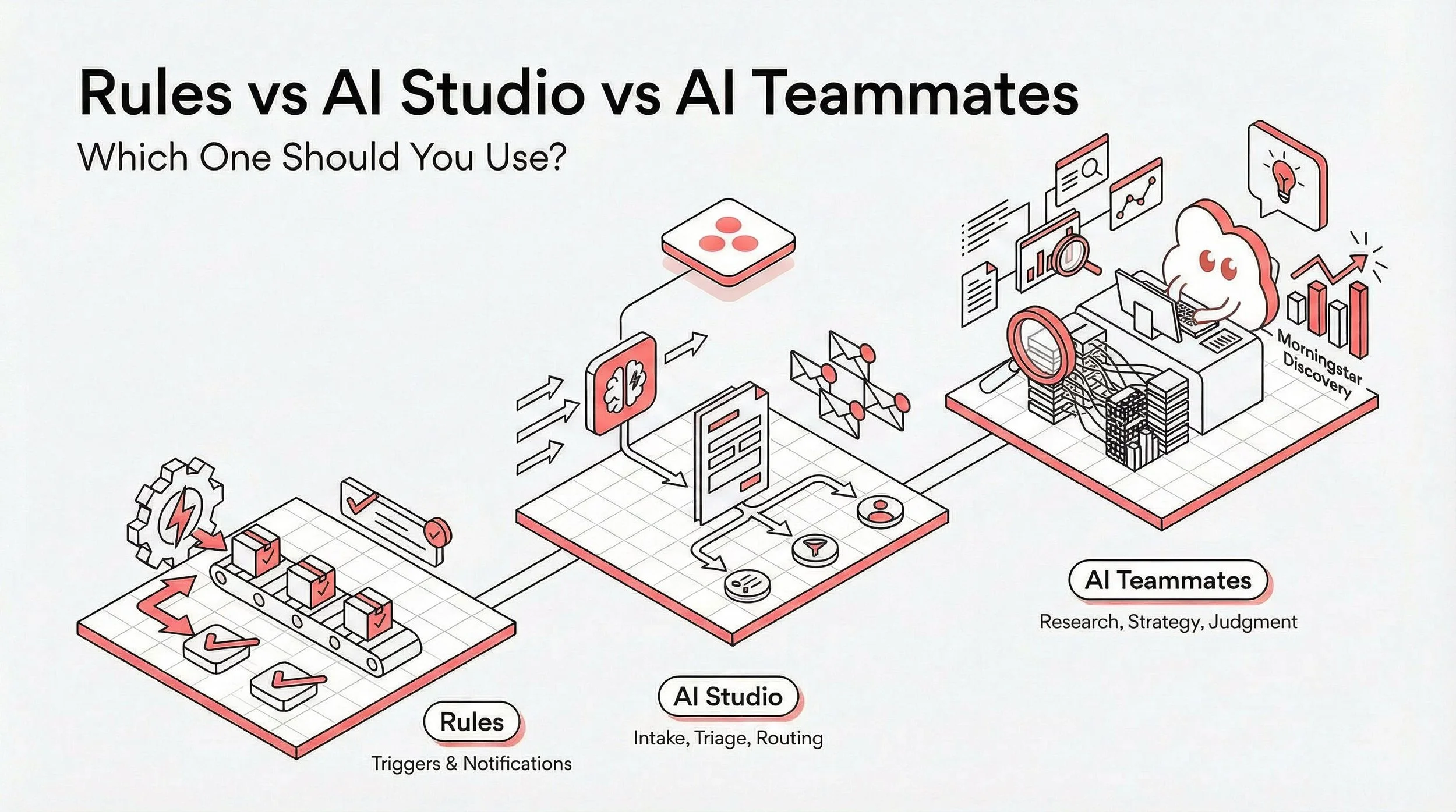
Asana gives you three different levels of workflow automation:
Rules for structured, repeatable actions
AI Studio for smart workflows that need AI to interpret language, summarize information, or generate content
AI Teammates for more complex, collaborative work that requires judgment and context
If you are looking for practical Asana rules examples, useful automation examples, or even the right automation template to help your team move faster, this guide will walk you through it.
By the end, you’ll know when to use a standard rule, when to upgrade to AI Studio, and when AI Teammates make more sense.
Quick Answer: When Should You Use Rules, AI Studio, or AI Teammates in Asana?
Use Asana Rules when your workflow follows clear, repeatable logic. These are the best fit when you want to automate structured actions like assigning tasks or triggering common follow-ups. If you are looking for straightforward Asana rules automation examples, this is where to start.
Use AI Studio when the workflow needs AI to interpret meaning, summarize information, or generate content. This is the better option when a simple rule is not enough and your team needs smarter automation.
Use AI Teammates when the work requires collaboration, judgment, and broader organizational context. These are best for more complex tasks that go beyond standard rules examples and require something closer to a capable digital teammate.
A good rule of thumb is this:
Start with Rules if the logic is predictable
Move to AI Studio if the workflow needs interpretation or generated output
Use AI Teammates if the work requires ongoing judgment and collaboration
| Tool | Best for | Use it when | Avoid it when |
|---|---|---|---|
| Rules | Structured, repeatable actions | Your workflow follows clear logic | The task requires judgment or interpretation |
| AI Studio | AI-powered workflow automation | You need AI to read, summarize, classify, or generate | The work is ongoing and collaborative |
| AI Teammates | Complex, context-rich work | The task requires judgment, synthesis, or back-and-forth collaboration | A simple trigger-action workflow would do the job |
Part 1: Asana Rules 101
What Are Asana Rules?
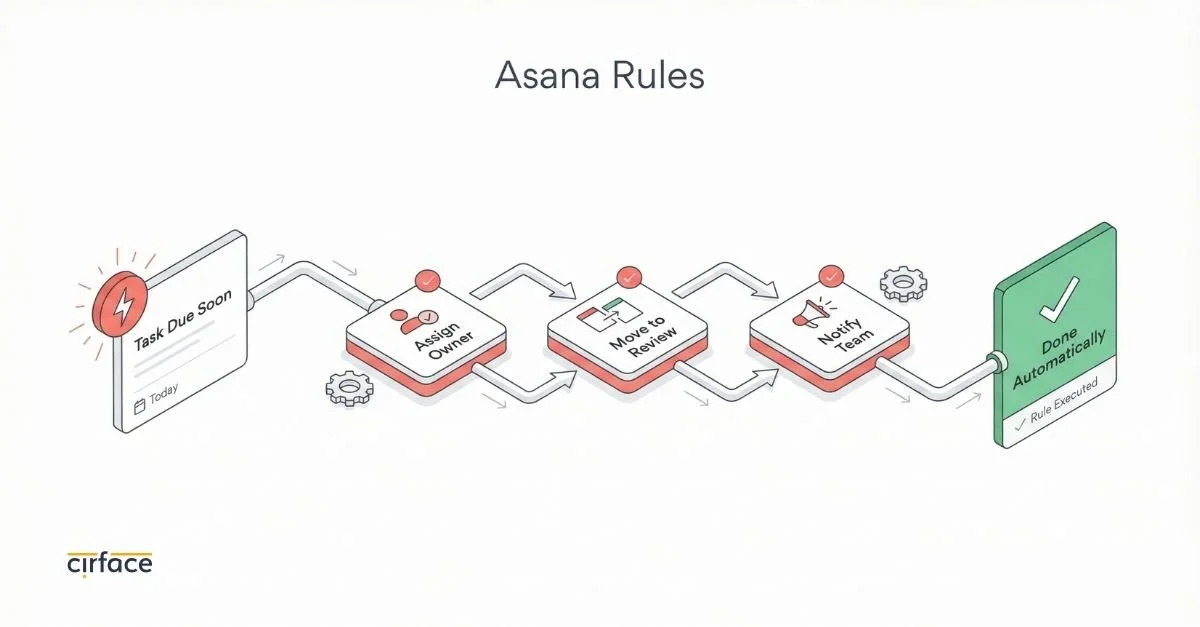
Rules are Asana's foundational automation layer, and for most teams, they're the right place to start. At their core, rules follow a straightforward if this, then that logic: when a specific trigger occurs, a defined action fires automatically.
Some of the most common Asana rules automation examples include:
Automatically assigning a task when it moves to a new section
Setting a due date when a priority field is updated
Notifying a teammate when a task is marked complete
Moving tasks to a specific project when a custom field changes
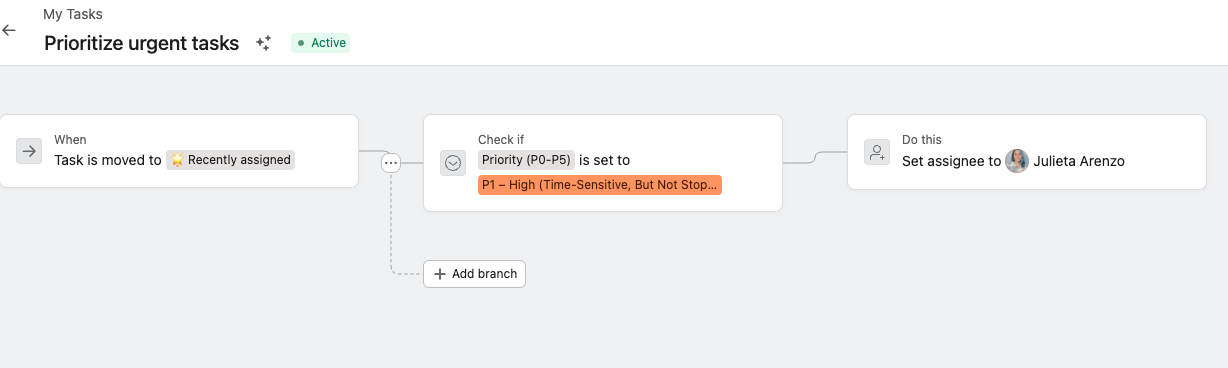
You can also add conditions to make rules more specific. For example: "When a task gets moved to Review, if the priority is High, assign it to Sarah." The condition narrows when the action fires, giving you more control without adding complexity.
How Do Asana Rules Work?
Rules follow a simple logic:
a trigger causes an action.
When something specific happens in your project, Asana automatically does the next step you’ve defined.
Common triggers include:
a task moves to a new section
a due date arrives
a custom field changes
a task is marked complete
From there, Asana carries out the action automatically.
Here are some simple Asana rules automation examples:
When a task is marked complete → notify a teammate
When a task is marked complete → move it to an Archived section
When a due date is approaching → update the priority field
When a new task is added → auto-assign it to the right team member based on task type
These are small automations, but they remove a lot of repetitive admin work.
Rules are built from pre-set components, so no coding is required.
In practice, most teams can set up their first rule in just a few minutes.
Where Do Asana Rules Live?
Rules can live in two places in Asana:
Inside projects, where they take action on tasks. This is the most common use case. When something changes on a task within that project, the rule fires.
Inside portfolios: Portfolio rules in Asana take action on projects or nested portfolios. This is useful for higher-level automation, like automatically removing a completed project from a portfolio or adding it to another one based on a status change.
Most teams start with project-level rules, and that's perfectly fine. Portfolio rules become valuable as you scale and need automation across multiple projects.

How Do You Create a Rule in Asana?
Setting up a rule takes less than a minute:
Open your project and click Customize in the top right corner.
Click Rules, then + Add.
Choose a pre-built rule from the gallery, or select ‘Start from scratch’ to build your own.
Click into each box to define your trigger, your condition (if you want one), and your action.
Click ‘Publish rule’.
That's it. The rule is live and will run automatically going forward.
Rule settings worth knowing
When you click the gear icon inside the rule builder, you’ll find a few useful settings worth knowing about.
General settings
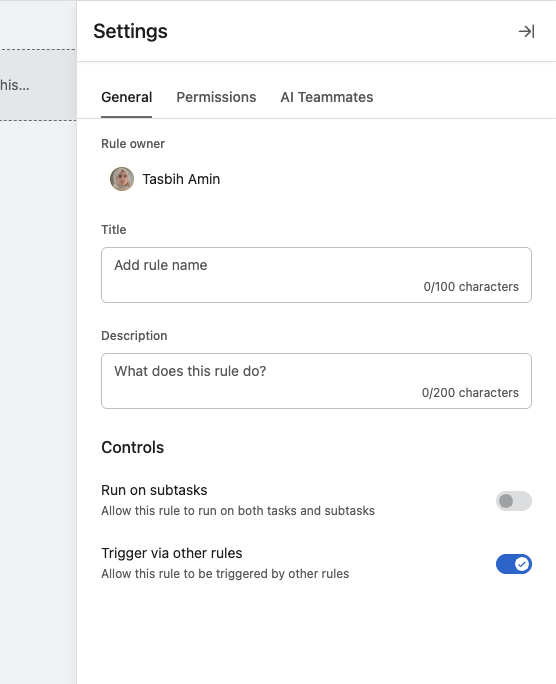
Run on subtasks: This lets you decide whether the rule should run only on parent tasks or on subtasks as well.
Trigger via other rules: This allows one rule’s action to trigger another rule, which is how you can chain rules together into more complex workflows.
You can also set the rule’s title and description here, which I recommend doing for any rule that is not immediately obvious. Your future self, and your teammates, will thank you.
Activate or pause the rule
Next to the rule name in the rule builder, you’ll also see the option to activate or pause the rule.
This is useful when:
you want to test a workflow before fully rolling it out
you need to temporarily stop an automation without deleting it
you’re troubleshooting a rule and want to prevent it from firing while you make changes
Pausing a rule gives you flexibility without forcing you to rebuild it later.
Check the Rule activity tab
Another helpful area is the Rule activity tab.
This tab shows:
every time the rule has run
whether each run was successful or not
any edits that have been made to the rule over time
If something is not behaving the way you expected, this is one of the first places to check. It gives you a clearer picture of whether the rule fired, what happened when it did, and whether a recent change may have affected the outcome.
5 Useful Asana Automation Rules to Start With
Here are five rules that work well across different types of teams. None of these require AI Studio.
1. Auto-assign tasks when they move to a section (Operations)
Trigger: Task is moved to the "In Review" section.
Action: Assign the task to your team's reviewer.
Why it works: No more pinging someone to let them know it's their turn. The handoff happens automatically.
2. Mark tasks complete when moved to "Done" (Any team)
Trigger: Task is moved to the "Done" section.
Action: Mark the task as complete.
Why it works: Keeps your project data accurate without relying on people to check the box after they've already moved the card.
3. Set a due date when a task is created via form submission (IT/Support)
Trigger: A task is added to the project.
Condition: The task was created from a form.
Action: Set the due date to 3 business days from creation.
Why it works: Every incoming request gets a consistent SLA without someone manually setting dates.
4. Add a collaborator when priority changes to High (Product)
Trigger: The Priority custom field is changed to "High."
Action: Add the team lead as a collaborator.
Why it works: Your lead gets visibility into urgent items the moment they're flagged, without anyone needing to remember to loop them in.
5. Move task to a section when a status field changes (Marketing)
Trigger: An approval task is changed to "Approved."
Action: Move the task to the "Ready to Publish" section.
Why it works: Content moves through your pipeline automatically based on its approval status, keeping your board view accurate.
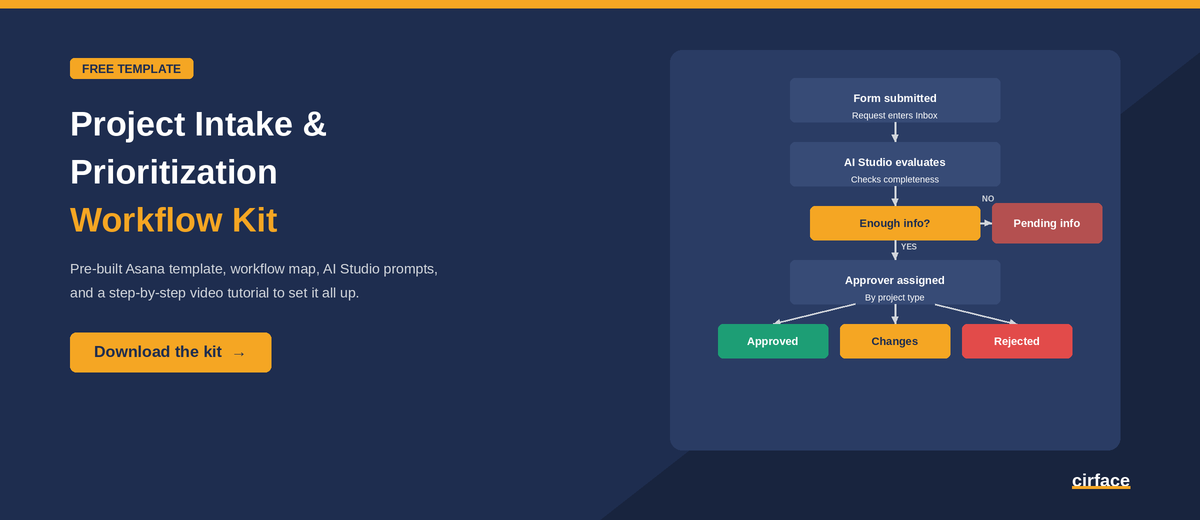
Want to see rules in action? Download our free workflow template, CSV file, and walkthrough video to set up a complete intake and approval process using Asana rules.
Scaling Rules Across Projects
Once you've built a rule that works well, you'll probably want it in more than one project. You have two options:
Duplicate the rule to another project. This works well for a handful of projects, but each copy is independent. If you update the original, the duplicates don't change.
Store the rule in a bundle. Bundles let you package rules (along with custom fields, sections, and task templates) and apply them across multiple projects at once. When you edit a bundle, the changes are reflected everywhere that bundle is used. This is the better option if you're standardizing a process across many projects or teams.
To create a bundle, go to the Customize menu in your project, click Bundles, and select Create bundle. Bundles are available on Enterprise and Enterprise+ plans. If you're on a Starter or Advanced plan, duplicating rules is your best path for now.
If you're not sure which approach fits your team's plan and setup,we can help you figure that out.
Part 2: AI Studio
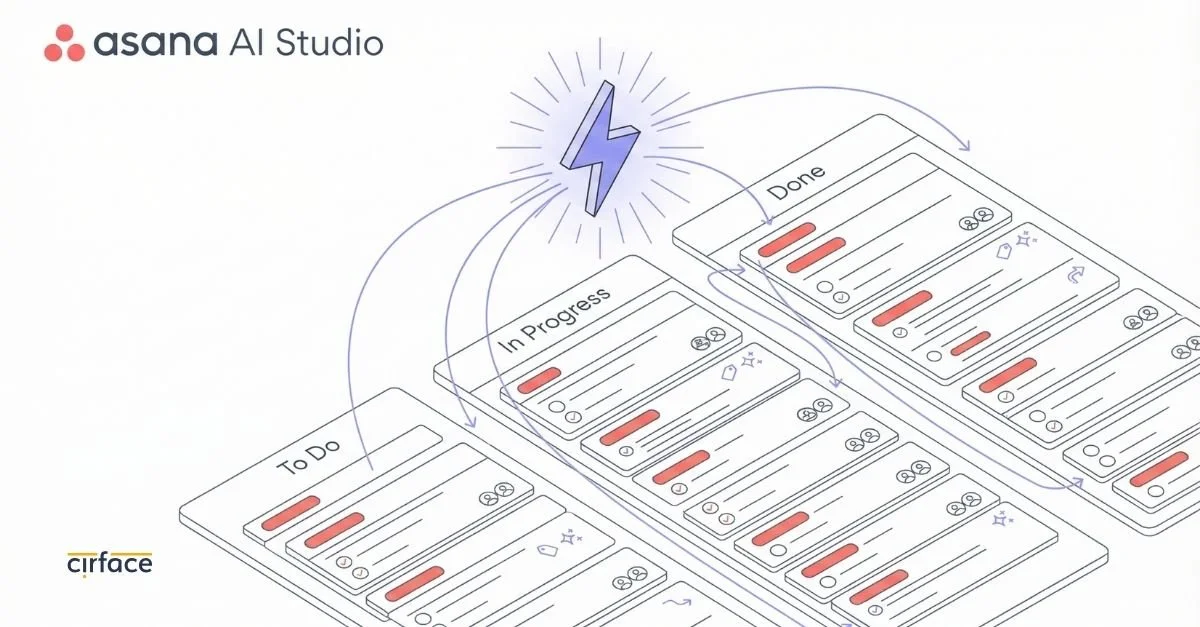
The rules examples covered so far represent what Asana's automation engine can do when you define the logic. AI Studio shifts that dynamic. Rather than manually building triggers and actions from scratch, AI Studio analyzes your existing workflows and proactively suggests automations tailored to how your team actually works.
What is AI Studio?
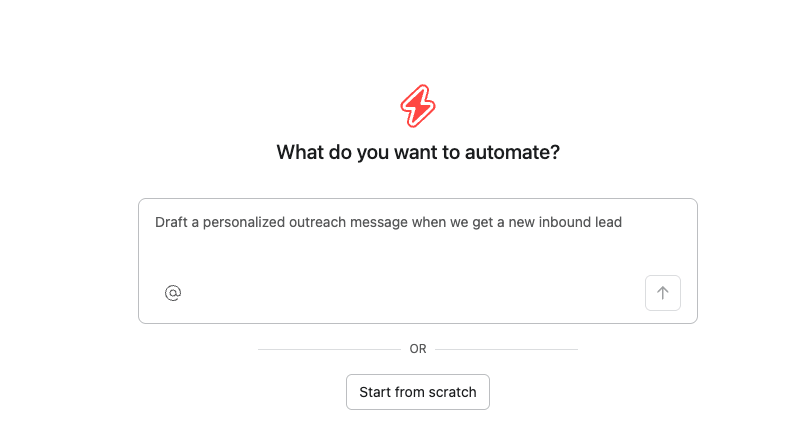
AI Studio is Asana's no-code builder for creating Smart workflows. It sits within Asana's rules engine, meaning it uses the same trigger-condition-action structure you already know, but adds the ability to give Asana AI natural language instructions for how to evaluate or act on tasks.
Instead of writing a rule that checks whether a dropdown equals a specific value, you can ask AI to read a task description, interpret its meaning, and decide what should happen next. That's the core difference: AI Studio lets you handle situations where the logic is too nuanced for a simple "if this, then that" rule.
AI Studio is available on all paid Asana plans (Starter, Advanced, Enterprise, and Enterprise+), and every paid plan includes a set of free AI credits to get started. This means your team can start using Smart workflows from day one, not just once you've "graduated" to a more advanced plan.
For a walkthrough of AI Studio in action,this video is a great place to start.
When Should You Use AI Studio Instead of Asana Rules?
Regular rules are powerful, but they have a ceiling. Here are five signals that it's time to bring AI into your workflows:
1. The condition requires understanding meaning, not just matching data.
A regular rule can check "if priority equals High." It cannot check "if this task description sounds urgent" or "if this request seems like it belongs to the wrong team." AI Studio can evaluate language and intent, not just field values.
2. You need to generate content as part of the action.
Regular rules can assign, move, notify, or even post a fixed comment. But they can't generate or tailor content on the fly. AI Studio can draft a response, summarize a brief, generate a project description, or produce a first-pass plan as the action itself.
3. The logic is too complex or has too many branches.
If you find yourself stacking eight rules to cover every variation of a scenario, AI Studio can often collapse that into one rule that reasons through the nuance rather than matching every case explicitly.
4. The input is unstructured.
Regular rules can work with text fields, but only for straightforward checks like whether a field contains a specific word. If the trigger involves interpreting the meaning behind free-text input, parsing email content, or understanding uploaded documents, you need AI Studio to make sense of it.
5. The action needs to adapt based on context.
A regular rule always does the exact same thing. AI Studio can tailor the output. For example, it can write a different kind of follow-up depending on what the original request actually said, not just what field it came from.
Let me walk through a quick decision example.
Say you run a client services team and you get a steady stream of new project requests through a form. Right now, someone on your team reads each submission, figures out the project type, and assigns it to the right account manager.
A regular rule can handle part of this: if the form has a dropdown for "Project Type" and the options map neatly to specific people, you can set up a rule that assigns based on that field.
But what if the requests don't fit into neat categories? What if the form has a free-text field where clients describe what they need, and the routing depends on interpreting that description?
That's where AI Studio earns its keep. You write a prompt telling AI how to evaluate the request, and it handles the judgment call for you.
Three AI Studio examples (with prompts)
Here are three Smart workflows you can build in AI Studio today. Each one includes the prompt you'd give to Asana AI.
Example 1: Auto-triage incoming requests (IT/Support)
Trigger: A task is added to the project (via form submission).
AI Instruction: "Read the task description and any attachments. Based on the content, determine the severity level (Critical, High, Medium, or Low) and set the Priority field accordingly. If the request mentions system outages, data loss, or security incidents, set it to Critical. If it mentions broken functionality affecting multiple users, set it to High. For individual user issues, set it to Medium. For general questions or feature requests, set it to Low."
Action: Set the Priority custom field based on AI's assessment, then assign to the appropriate support tier.
Example 2: Summarize a creative brief for the design team (Marketing)
Trigger: The Status custom field is changed to "Ready for Design."
AI Instruction: "Read the task description and any attached documents. Write a concise summary (3 to 5 bullet points) that captures the campaign objective, target audience, key messaging, required deliverables, and deadline. Post this summary as a comment on the task so the design team has a quick reference without reading the full brief."
Action: Add a comment with the AI-generated summary.
Example 3: Evaluate vendor proposals against requirements (Operations)
Trigger: A task is moved to the "Under Evaluation" section.
AI Instruction: "Review the attached vendor proposal and compare it against the requirements listed in the task description. Score the proposal on a scale of 1 to 5 for each requirement (cost, timeline, technical fit, and support). Write a brief evaluation summary with the scores and any red flags. Post this as a comment on the task."
Action: Add a comment with the AI-generated evaluation and set a custom field to "Evaluated."
Part 3: AI Teammates
What Are AI Teammates in Asana?
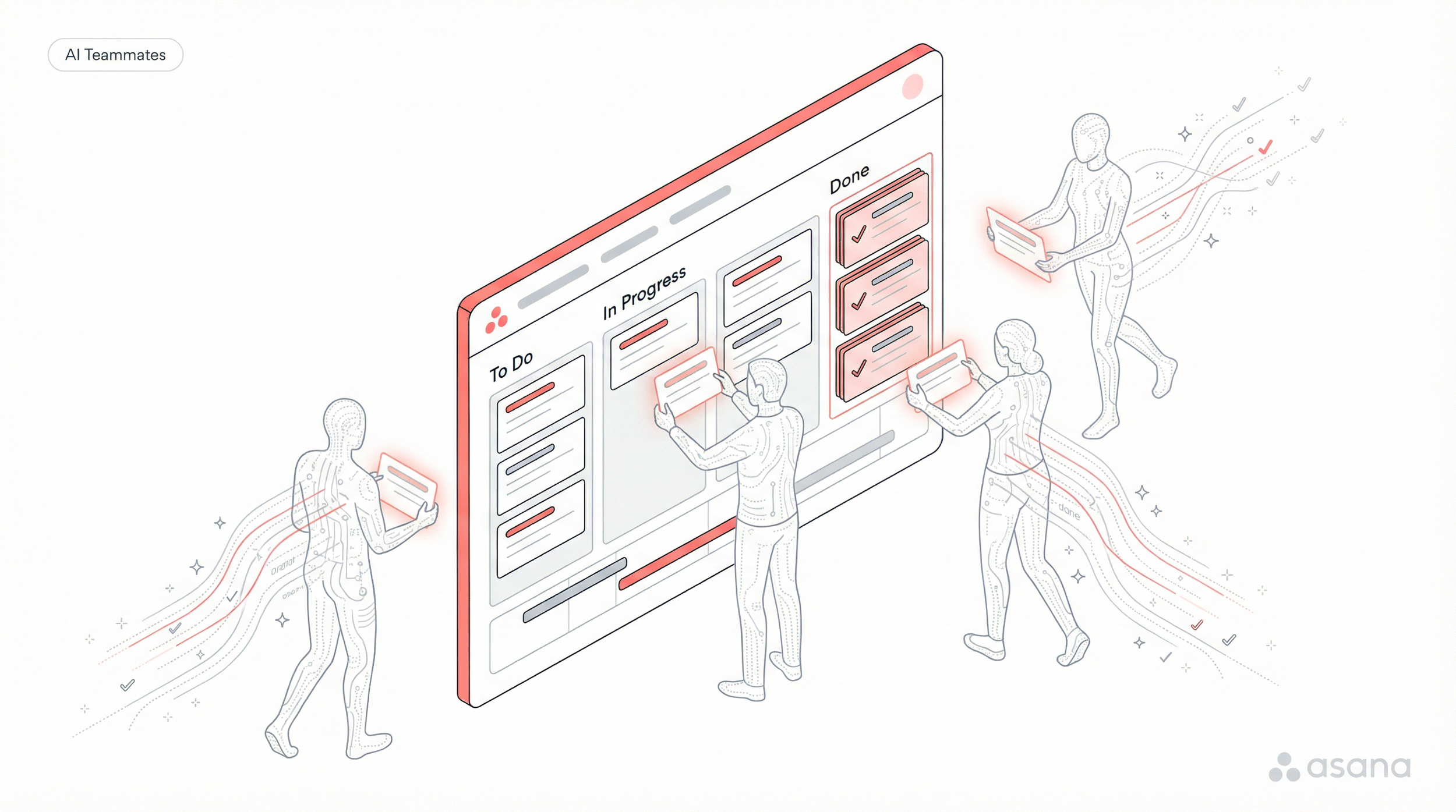
AI Teammates are purpose-built AI agents designed to work collaboratively within your team's projects, not just react to triggers. They’re a fundamentally different kind of tool in Asana; they aren't rules or workflows. They're collaborative AI that can be assigned tasks, collaborate with your team inside projects, and build context over time about how your organization works.
You can think of them this way: rules and AI Studio automate specific steps in a process. AI Teammates take on the kind of work that requires judgment, synthesis, and back-and-forth collaboration. The kind of work you'd normally hand to a capable team member.
Asana offers 21 prebuilt AI Teammates across Marketing, Operations, IT, and Product and Engineering, with roles like Campaign Brief Writer, Workflow Optimizer, IT Support Specialist, and Sprint Coach. You can also build your own custom AI Teammate using plain language, no coding required.
AI Teammates are available as an add-on to Starter, Advanced, Enterprise, and Enterprise+ plans.
AI Studio vs AI Teammates: What’s the Difference?
The simplest way to think about it: AI Studio handles routine, high-volume work. AI Teammates focus on complex, collaborative work that requires context and judgment.
AI Studio is still a rule. It fires when a trigger happens, processes data based on your instructions, and takes a predefined action. It's powerful for automating busywork at scale.
AI Teammates, on the other hand, can reason across ambiguous inputs, collaborate with your team over multiple interactions, and learn from your organization's context to improve over time.
Here's how to decide which one fits your situation:
Rules vs AI Studio vs AI Teammates: Which One Should You Use?
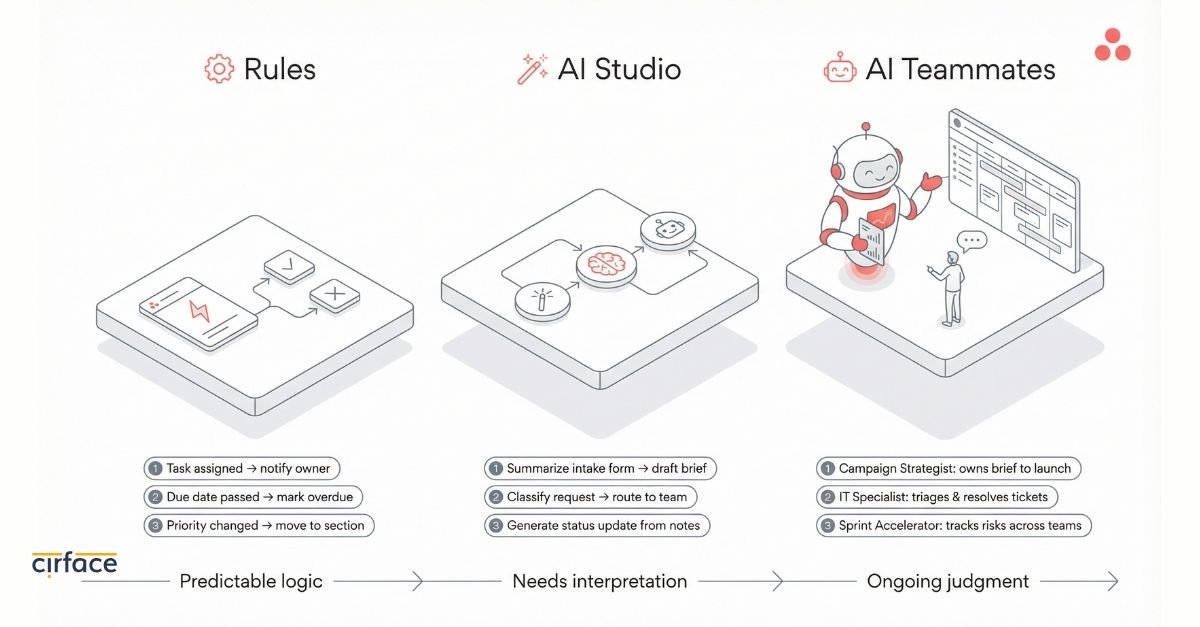
Repetitive intake and triage: AI Studio.
Your team gets dozens of similar requests every week. AI Studio triages them automatically based on the content, sets priority, and routes them to the right person. It's the same logic every time, just applied at scale.
Complex cross-functional research: AI Teammates.
A project requires pulling data from multiple sources, analyzing trends, and synthesizing findings into a recommendation. AI Teammates can reason across this kind of ambiguous, multi-step work in a way that a workflow rule simply cannot. Morningstar's CIO noted that in one use case, an AI Teammate completed weeks of complex research in hours, revealing hidden patterns in data that informed critical business decisions.
Standardized notifications and status updates: AI Studio.
Sending automated weekly status emails, escalation alerts, or deadline reminders based on project data is a perfect AI Studio job. It's rule-based, predictable, and high volume.
Campaign strategy and content drafting: AI Teammates.
An AI Teammate can serve as a Campaign Strategist that drafts campaign briefs, tracks deliverables, and reports on ROI. It can also act as a Creative Partner, accelerating creative development by drafting content, brainstorming variations, and reviewing assets against brand guidelines. This requires organizational context and evolving judgment, not a static trigger-action rule.
Workflow automation with triggers: AI Studio.
If you need AI to fire when a form is submitted, a task changes status, or a deadline passes, that's AI Studio territory. It embeds AI into your existing workflows at specific trigger points.
IT support that requires triage plus judgment: AI Teammates.
AI Teammates can handle IT tickets, categorize them by severity, troubleshoot some problems directly, hand others off to the most qualified human, and identify patterns in recurring issues to update the knowledge base. This blend of routing, learning, and judgment is beyond what a static workflow can do.
Process bottleneck analysis: AI Teammates.
AI Teammates can find bottlenecks in your workflows and suggest fixes so work keeps moving, drawing on memory and organizational context built over time. AI Studio can automate around a process, but it can't diagnose the process itself.
What to do next
If you're already using Asana and haven't explored rules yet, start there. Pick one repetitive task your team does every week and automate it with a simple rule.
Once you're comfortable, look for opportunities where AI Studio's ability to interpret language and generate content could save your team even more time. And when you're ready to hand off complex, judgment-heavy work, that's where AI Teammates come in.
Each of these tools builds on the one before it, and together they give your team a real automation stack that grows with you.
If you want help designing the right automation strategy for your team's workflows, whether that's setting up your first rules, building Smart workflows in AI Studio, or figuring out how AI Teammates fit into your operations,reach out and let's talk through it. And if you're looking for hands-on training to get your whole team confident with Asana's automation features,our Asana training is built for exactly that.
Want more practical Asana tips like this?Join our newsletter for weekly insights on workflows, automation, and making Asana work harder for your team.
Frequently Asked Questions
Do I need a specific Asana plan to use rules?
Rules are available on all paid Asana plans (Starter, Advanced, Enterprise, and Enterprise+). The custom rule builder, which lets you create rules from scratch with your own triggers and actions, is also available on all of these tiers. Portfolio rules require the Advanced plan or higher.
Can I use AI Studio on a Starter plan?
Yes. AI Studio Basic is automatically included on all paid plans that have Asana AI enabled. Every paid domain gets a set of free AI credits, so you can start building Smart workflows right away without an upgrade.
What's the difference between AI Studio and AI Teammates in one sentence?
AI Studio automates repeatable tasks within your workflows using AI-powered rules, while AI Teammates collaborate on complex, multi-step work that requires judgment and organizational context.
How do I decide if I need a rule, AI Studio, or an AI Teammate?
Start with a regular rule if your logic is straightforward ("if X happens, do Y"). Move to AI Studio when the condition or action requires interpreting language, generating content, or handling unstructured inputs. Use an AI Teammate when the work requires ongoing collaboration, cross-functional synthesis, or adaptive decision-making.
Can rules from AI Studio be shared across multiple projects?
Yes. Just like regular rules, Smart workflows built in AI Studio can be stored in bundles and applied across multiple projects. When you update the bundle, those changes flow through to every project using it. Bundles are available on Enterprise and Enterprise+ plans.
Can you run a rule manually in Asana?
Yes, you can run a rule manually in Asana using Manual Rule Triggers. This feature allows you to initiate specific automations on demand rather than waiting for an automatic event like a date change or task completion.