
Asana Plans Explained: Which Plan Is Right for Your Team?

You signed up for Asana. Maybe you picked a plan from a quick comparison chart, or maybe someone on your team chose the safest-looking Asana licenses plan and moved on.
A few months later, something feels off. You’re paying for features nobody uses, or you keep running into limits because the feature you actually need sits on the next tier.
Having worked with over 150 teams on Asana, it’s not uncommon for me to hear how unsure they are about their current Asana plan.
That is the problem this post is here to solve.
Instead of giving you another feature dump, I’m going to walk through what each Asana plan is really for, what kind of team it tends to fit, when it makes sense to upgrade, and where people often overspend. If you’re trying to compare Asana pricing plans and figure out what actually makes sense for your team, this is the simpler way to do it.
Quick Answer: Which Asana Plan Is Right for Your Team?
If you want the short version, here it is:
Starter is best for teams that need solid project management, automations, forms, templates, and dashboards without the more strategic cross-project features.
Advanced is best for teams that need visibility across multiple projects, portfolios, goals, reporting, and more operational oversight.
Enterprise is best for larger organizations that need stronger admin controls, security, standardization, and support.
Enterprise+ is best for regulated industries (healthcare for example) that need advanced compliance, data control, and auditability.
A simple rule of thumb:
Start with Starter if your team is managing work project by project
Move to Advanced when leadership needs broader visibility across projects and goals
Move to Enterprise when IT, admin, and security requirements start shaping the decision
Move to Enterprise+ when compliance requirements are non-negotiable
The right Asana plan is usually not about getting the most features. It is about getting the right level of capability for how your team actually works.

Before Comparing Asana Pricing Plans, Ask These 3 Questions
A lot of pricing confusion is not really about price.
It’s mostly not knowing what your team actually needs from the tool.
Before you compare Asana pricing plans, ask yourself these three questions first. They will narrow the field quickly and help you avoid paying for features that sound impressive but do not actually matter to your setup.
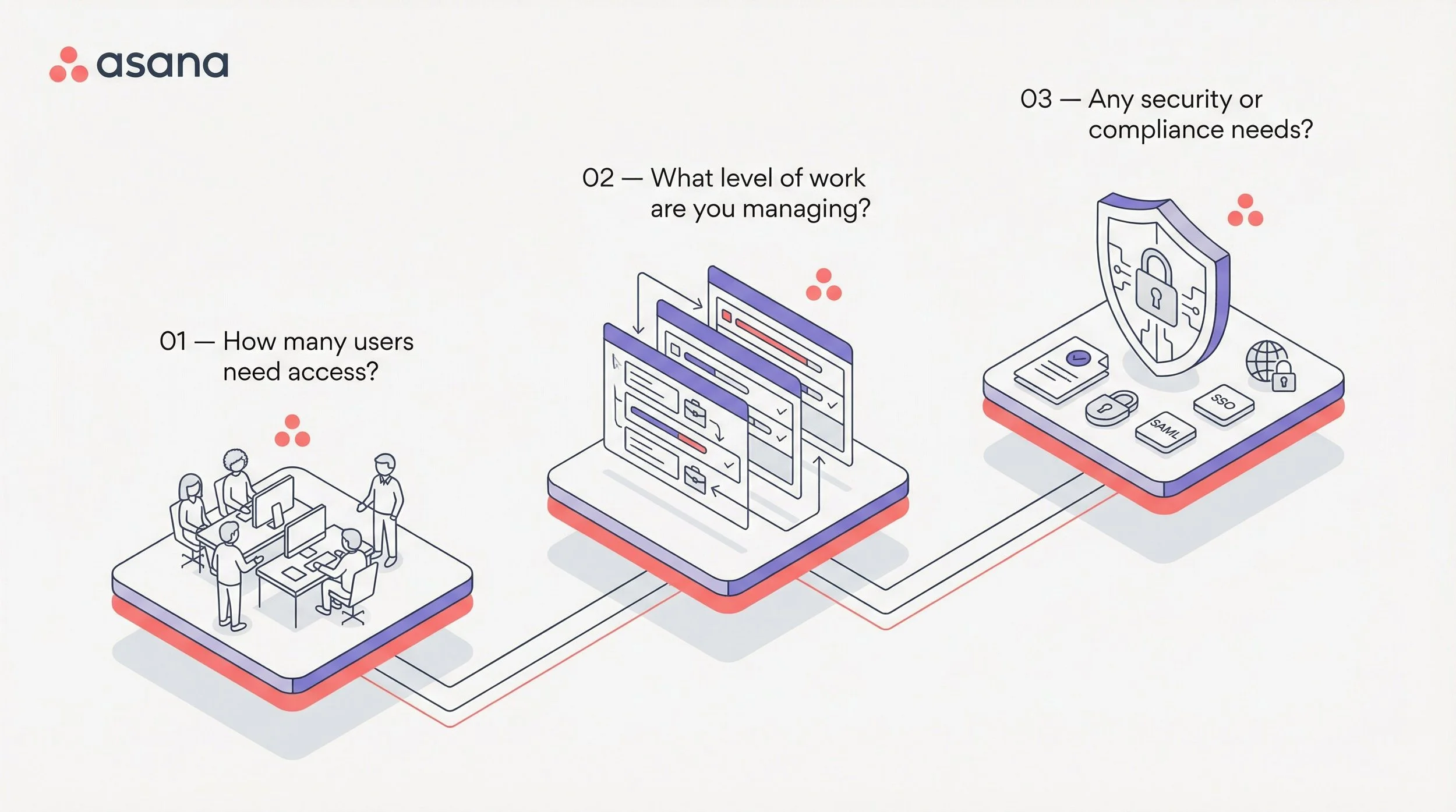
1. How many people need active access to Asana?
Not “how many people work at the company.”
Not even “how many people touch the work.”
Ask: how many people actually need to log in and use Asana regularly?
That number matters more than most teams realize.
From what I’ve seen over the years working at Cirface, I can tell you that a lot of companies assume everyone needs a paid seat when they first look at Asana pricing. That is not always true. External collaborators, contractors, freelancers, and clients may be better set up as guests rather than full members, depending on how your environment is structured.
If you overestimate how many paid seats you need, your pricing assumptions will be off before you even compare plans.
2. What level of work are you managing?
This is where the real plan decision usually happens.
If your team is mainly managing individual projects with clear owners, deadlines, and basic workflows, Starter will often cover what you need.
If you need to answer bigger questions like:
How are all of our initiatives going?
Are we on track for quarterly goals?
Where are projects getting stuck across departments?
What is leadership supposed to look at every week?
Then you are likely moving into Advanced territory.
The more your team needs visibility across projects rather than just within projects, the more likely it is that a higher tier makes sense.
3. Do you have security or compliance requirements?
This is the question many teams leave too late.
If your procurement, IT, or legal conversations include terms like:
SSO
SAML
SCIM
HIPAA
data residency
audit logging
then your decision may be less about workflow features and more about governance, control, and compliance.
That usually points toward Enterprise or Enterprise+.
A simple way to think about it
Before you spend too much time comparing every feature row by row, figure out:
how many people really need paid access
whether you are managing projects or a broader operation
whether security and compliance requirements will shape the decision
Those three questions do more to narrow the right Asana plan than any comparison chart.
What Each Asana Plan Is Really For (with team examples)
Feature tables are useful, but they do not tell you what a plan actually feels like in practice.
That is where most pricing confusion starts.
A team looks at a long list of features, sees a few things they vaguely recognize, and picks a tier that feels either safe or affordable. What they often do not get is a clear sense of who each plan is really for and when the extra cost is actually justified.
So instead of walking through a dry checklist, let’s look at each Asana plan through a more practical lens.
Asana Starter: Best for teams managing projects and workflows without a lot of cross-team complexity
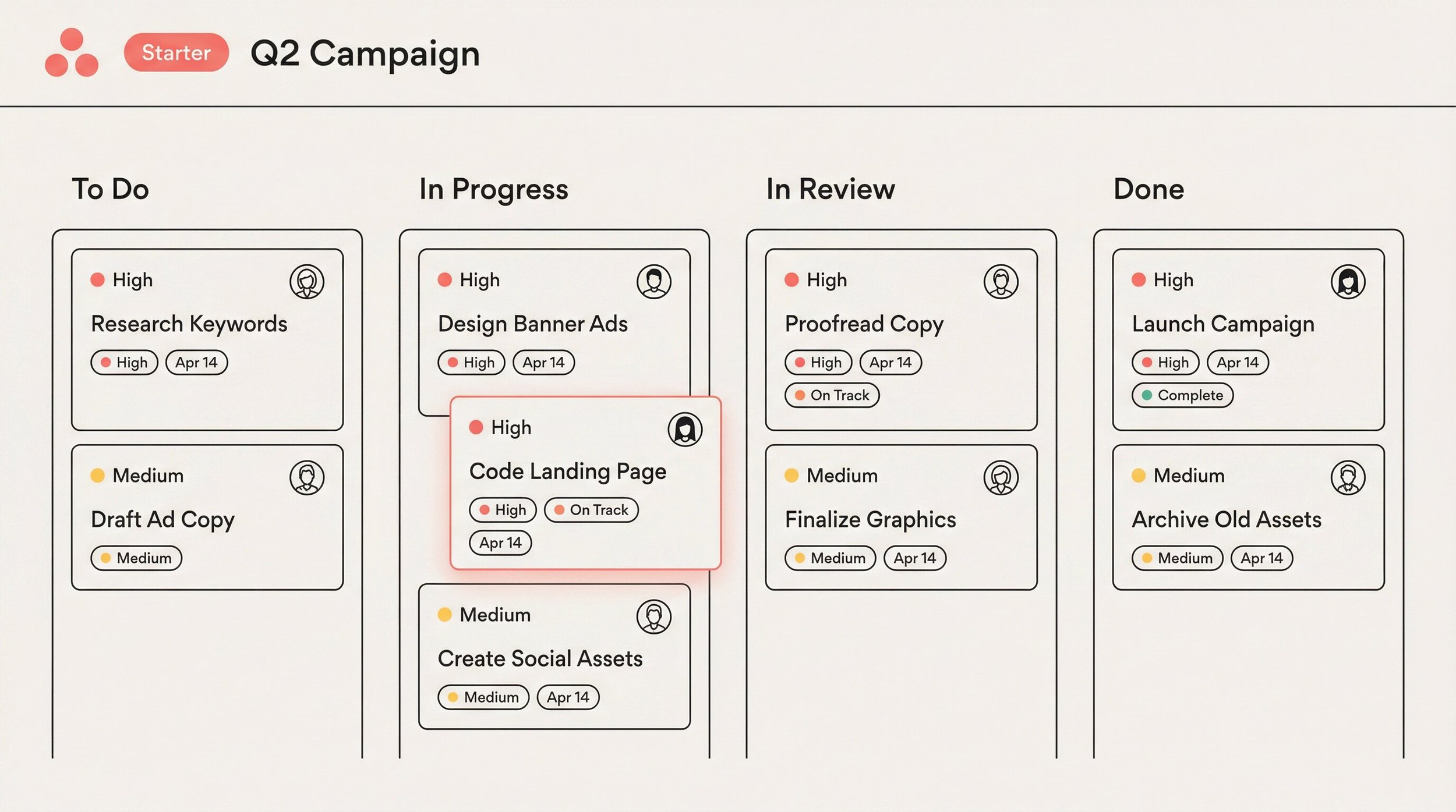
Asana Starter Plan ($10.99/user/month, billed annually)
Starter is where most small and mid-size teams should begin. It gives you everything you need to manage projects, automate repetitive work, and keep your team aligned without overcomplicating things.
What you can do with Starter:
Create unlimited projects with list, board, calendar, timeline, and Gantt views
Build custom fields to track the data that matters to your workflow
Set up workflow automations to reduce manual, repetitive tasks
Use forms to standardize how work comes in
Create projects from templates so you're not starting from scratch every time
Access project dashboards for real-time visibility into progress
Use AI Studio with included credits to start building smart workflows from day one. Every paid plan comes with AI credits, which means even small teams can take advantage of intelligent automations right away.
Example: A 15-person design agency
A boutique design agency uses Starter to manage client work. Each project uses board view with sections for every stage: Brief, In Progress, Review, Delivered.
The team uses custom fields to tag requests by client and priority level, forms for creative briefs from clients, and automations to assign tasks and notify the right person when work moves between stages.
Their three freelance designers? Added as guests at no cost. They see only the projects they're invited to, and the agency doesn't pay a cent extra for their access.
The creative director reviews everything during weekly standups. There's no need for cross-department goal tracking or portfolio views. Starter handles the full workflow.
Asana Advanced: Best for teams that need visibility across projects, goals, and departments
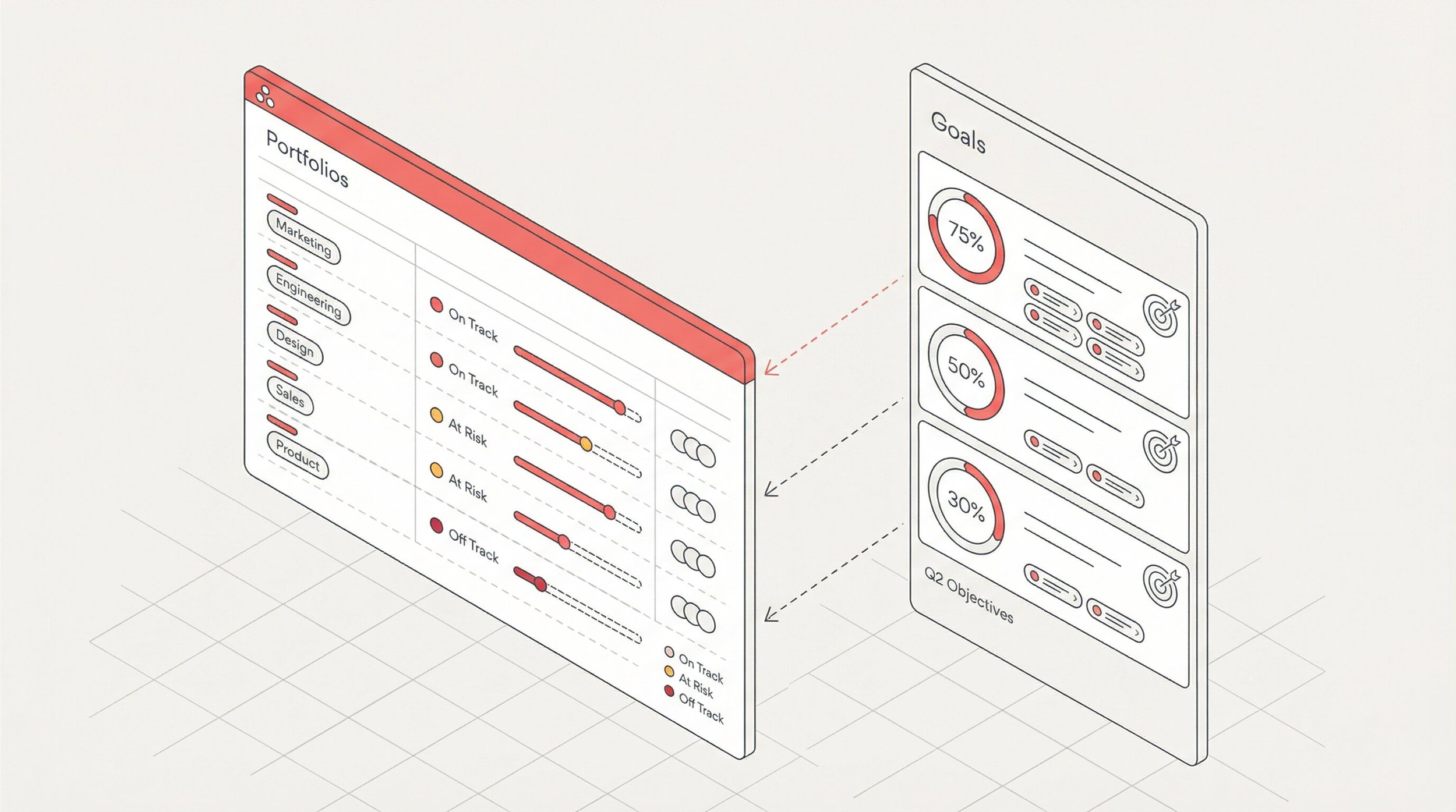
Asana Advanced Plan ($24.99/user/month, billed annually)
Advanced is where teams usually go when they have outgrown managing work one project at a time.
This is the plan for teams that need broader operational visibility.
If leadership is asking questions like:
How are all of our initiatives going?
Which projects are off track?
Are we actually making progress against quarterly priorities?
Where is capacity stretched across teams?
then Advanced starts to make much more sense.
Advanced adds more strategic visibility with tools like:
Goals to set and track objectives across departments
Portfolios to monitor multiple projects in a single view
Native time tracking on tasks and projects
Advanced reporting dashboards that pull data across projects, portfolios, and goals
Approval workflows for creative reviews, legal sign-offs, and other structured feedback
Formula custom fields for calculated data
This is not just “more features.”
It is a different level of management.
Starter helps teams run projects well.Advanced helps teams manage the operation around those projects.
Advanced is usually worth it when:
you need visibility across multiple projects at once
different departments are working in Asana and leadership wants one view
you need goals and portfolios, not just individual project tracking
time tracking, approvals, and broader reporting matter to how the team runs
Example: A 60-person e-commerce operations team
A growing e-commerce company has separate teams for marketing, logistics, and customer support. Each team manages their own projects in Asana, but the VP of Operations needs to see how everything connects.
With Advanced, she uses Asana portfolios to monitor all active initiatives across departments and goals to tie quarterly objectives to actual project outcomes. The marketing team relies on approval workflows for campaign assets, and the operations lead uses native time tracking to understand where the team spends hours versus where they should be spending them.
On Starter, this team had no way to connect individual project work to broader company objectives. The move to Advanced wasn't about getting more features for the sake of it. It was about giving leadership the visibility they needed to make better decisions.
Asana Enterprise: Best for organizations that need stronger control, security, and standardization
Asana Enterprise pricing ($35/user/month, billed annually)
Enterprise is where the conversation usually shifts.
At this level, teams are no longer asking only, “How do we manage our work in Asana?”
They are asking:
How do we manage Asana across the organization?
How do we control access?
How do we standardize workflows across teams?
How do we make sure the platform fits our IT and security requirements?
That is the real difference.
Starter and Advanced are geared towards helping teams run work.Enterprise is built to help the organization govern the platform itself.
What Enterprise adds:
SAML and SSO for centralized authentication
SCIM provisioning to automatically add or remove users when they join or leave the company
Workflow bundles to standardize processes across teams and offices
Universal workload for resource planning across the organization
Custom branding to match your company's identity
Guest invite permissions so admins control who can bring in external collaborators
Mobile app controls to manage downloads, screenshots, and data access on devices
24/7 support
Enterprise is usually the right fit when:
IT needs stronger identity and access controls
admins need more control over how Asana is used
workflows need to be standardized across departments or locations
security requirements are part of the decision
support and governance matter as much as project features
Common reasons teams move to Enterprise
Teams often move to Enterprise because they need things like:
centralized authentication
automated provisioning and deprovisioning
tighter admin permissions
workflow bundles for consistency
workload visibility at a broader level
more control over guest access and mobile usage
This is where Asana starts to function not just as a project management tool, but as an organization-wide operating system that needs proper oversight.
Example: A 300-person financial services firm
A financial advisory firm with offices in three cities has standardized on Asana for project management. Their IT team uses SAML to connect Asana to the company's single sign-on system, and SCIM handles provisioning automatically.
When an employee joins, they get access. When they leave, it's revoked the same day.
The operations director uses workflow bundles to ensure every office follows the same client onboarding process.
Guest invite permissions are locked down so only team leads can bring in external collaborators. And when a question comes up at 2 AM during earnings season, 24/7 support is there.
Without Enterprise, this firm would struggle to maintain consistency across locations and would face security gaps their compliance team wouldn't accept.

Asana Enterprise+: Best for heavily regulated environments with strict compliance requirements
Asana Enterprise+ pricing ($45/user/month, billed annually)
Enterprise+ is not for everyone.
In fact, most teams do not need it.
Enterprise+ is purpose-built for organizations where data residency, HIPAA compliance, audit logging, and data loss prevention aren't optional. If you're in healthcare, government, legal, or financial services with heavy regulatory oversight, this is the plan designed to meet those requirements.
Everything in Enterprise is included, plus audit log APIs, eDiscovery and archiving integration support, enterprise key management, data residency options, and HIPAA compliance eligibility.
Enterprise+ is usually the right fit when:
you operate in healthcare, government, legal, or other regulated industries
your team needs stronger support for data residency or auditability
compliance requirements shape your tooling decisions
security and legal stakeholders need features beyond standard enterprise controls
This is the key distinction
Enterprise is built for governance, control, and standardization at scale.
Enterprise+ is geared towards meeting stricter compliance and data-control requirements on top of that.
If your organization does not operate in a heavily regulated environment, Enterprise will often be enough.
Example: a regulated healthcare or legal environment
Imagine a large healthcare organization using Asana to coordinate operational work across departments.
The project management side may look similar to another large company on the surface. Teams still need projects, approvals, dashboards, and reporting.
But the decision about plan tier is being driven by a different set of questions:
Where is data stored?
What level of auditability is required?
Are there specific compliance obligations we have to meet?
What does legal need before approving this platform?
That is where Enterprise+ becomes relevant.
It is not about whether the team would “like” extra controls. It is about whether those controls are mandatory.
When Should You Upgrade Your Asana Plan?
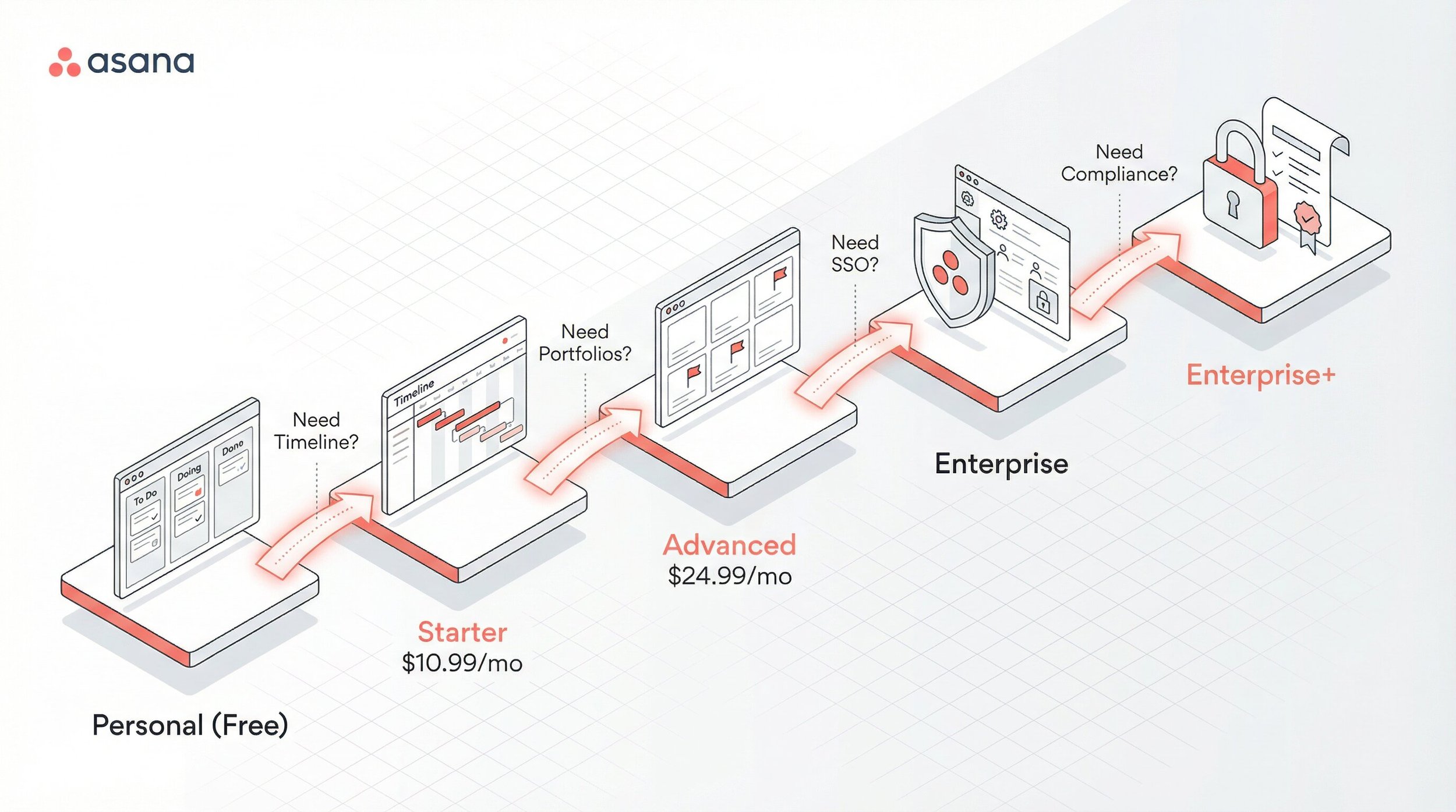
Upgrading your Asana plan isn't always about team size.
A bigger team does not automatically need a higher tier, and a smaller team is not always fine on a lower one.
The real question is this:
Is your current plan still helping your team work better, or is it starting to create friction?
That is usually the clearest signal.
Here are the upgrade points I would watch for.
From Personal (Free) to Starter:
Your team has more than 2 people who need access
You're managing work in spreadsheets or docs alongside Asana because you lack custom fields, forms, or automations
You need to standardize how requests come in and how tasks move through stages
From Starter to Advanced:
Leadership is asking for visibility across projects or progress against company goals
You're managing more than a handful of projects and need a way to see them all at once
You need time tracking built into the tool instead of using a separate app
Teams are requesting approval workflows for review and sign-off cycles
From Advanced to Enterprise:
Your IT or security team requires SSO, SCIM, or centralized admin controls
You need to standardize workflows across multiple departments or offices
You want to control who can invite guests or how Asana is used on mobile devices
From Enterprise to Enterprise+:
You have regulatory requirements around data residency, HIPAA, or audit logging
Your legal or compliance team needs eDiscovery or archiving integration support
You require enterprise key management for encryption control
How Asana Guest Accounts Work and Why They Matter for Pricing
Guest access is one of the most misunderstood parts of Asana pricing, and understanding it can save you real money.
The short version: in Asana organizations, guests are free on all paid plans and don't count toward your seat total.
A guest in Asana is someone you invite to collaborate on specific projects who doesn't share your organization's email domain. This free guest access applies specifically to organizations. In workspaces, guest access is not available (more on that later).
Think contractors, freelancers, clients, or external partners. They can view and interact with the projects you invite them to, but they can't see everything across your organization.
This means a team of 10 full members with 5 external collaborators only pays for 10 seats, not 15. For teams that work heavily with outside partners, this can make a significant difference in what you spend.
A few things to keep in mind about guests:
Guests are invited to specific projects, not to your entire organization
On Enterprise plans, admins can control who has permission to invite guests
Guest access is designed for collaboration on shared work, not for giving external users broad access to your setup
For a deeper dive into how Asana handles subscriptions, seat counts, and billing, check outAsana's official guide to subscriptions and pricing.
Asana Organization vs Workspace vs Division: What’s the Difference?
This is another area where teams frequently get confused, especially when they're setting up Asana for the first time or inheriting an existing setup. Luckily, we have our Asana licenses expert Jessica to clear this up.
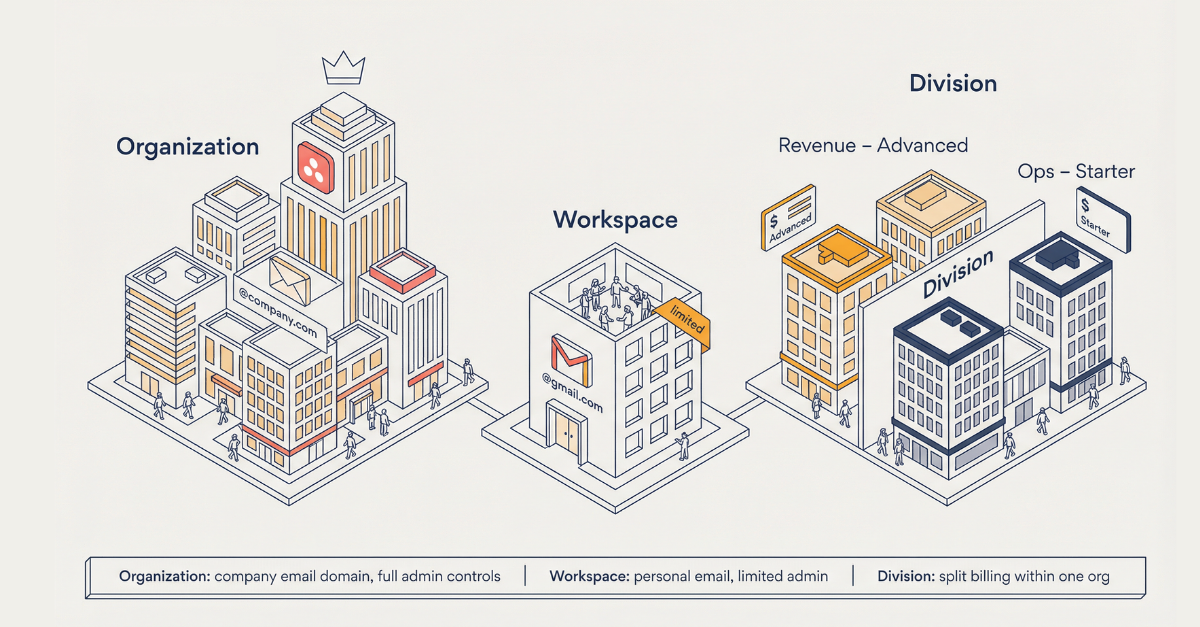
Organization
An Asana organization is the standard setup most companies should be using.
When you sign up for Asana using a company email (like @yourcompany.com), Asana automatically creates an organization.
Everyone who signs up with that same email domain is added to the same organization. This is the standard setup for most companies and gives you the full range of admin controls, team structures, and features tied to your plan.
Workspace
An Asana workspace is a simpler environment that is often more limited from an administrative point of view.
If you sign up with a personal email (like a Gmail or Outlook address), Asana creates a workspace instead. Workspaces have fewer administrative features: they don't support teams (everyone operates as a single group), and they lack many of the organizational controls you'd get with a proper organization.
For most business use cases, an organization is the better choice. If you're currently in a workspace and want to move to an organization, it's worth exploring that transition sooner rather than later.
Division
An Asana division is a way to segment a large organization into distinct billing groups, each with their own plan tier and admin controls.
For example, your Revenue department could be on an Advanced division while your Operations department runs on Starter.
This is useful for companies that need paid features for specific teams without upgrading the entire organization. Each division manages its own billing and membership independently, while everyone can still collaborate across the same organization.
For the full technical details on how these structures work, seeAsana's FAQ on workspaces and organizations.
The simplest way to think about it
Organization = the main company-level setup
Workspace = a more limited setup, often less ideal for growing businesses
Division = a segmented group inside a larger organization for billing or management purposes
Not sure which plan fits? Talk to someone who does this every day.
Figuring out the right Asana tier isn't just matching features to a checklist. It's understanding how your team works today, where you're headed, and what will actually get used.
Picking the wrong plan means either paying for capabilities that sit untouched, or hitting limitations that slow your team down.
As an Asana partner, we help teams navigate this decision regularly, and can offer discounted Asana licenses on top of the guidance. If you'd rather not figure it out alone, book a free call with Jessica, our Asana Licenses expert. She'll walk you through your options, help you understand what you're currently paying for, and make sure you land on the plan that actually fits.
And if you're already on Asana but suspect your setup could be working harder for you, anAsana audit can help you identify what's working, what's not, and what to change.
Frequently Asked Questions
Can different teams use different Asana plans in the same company?
Not at the organization level. Asana requires all users in an organization to be on the same plan tier.
However, if you use divisions, different departments can be on different tiers within the same organization. For example, your Sales team could be on Advanced while your Support team stays on Starter.
If some teams need Advanced features like goals and portfolios but others only need Starter-level functionality, divisions can be a smart way to manage costs.
It’s worth weighing the trade-offs carefully, and talking it through with my team if you're unsure.
How does Asana seat pricing work and do I have to buy seats in bulk?
For teams of 2 to 5 people, you can add seats one at a time on both the Starter and Advanced plans.
Once you pass 5 members, seats are sold in increments of 5 (so 10, 15, 20, and so on).
Both Starter and Advanced require a minimum of 2 seats. That means if you have 7 people, you'll be paying for 10 seats. It's worth factoring this into your budget as your team grows.
Is Asana Starter or Advanced better for a small team?
It depends on how the team works, not just how many people are on it.
A team of 12 managing multiple client accounts and reporting on quarterly goals might benefit more from Advanced than a 50-person team running a few straightforward projects.
The features that usually justify the upgrade are goals, portfolios, and advanced reporting. If you don't need cross-project visibility or strategic tracking yet, Starter is likely enough.
Do AI features cost extra?
All paid Asana plans include built-in AI features like smart statuses, smart editor, smart summaries, and smart fields, so your team can start using AI right away without paying anything extra.
Plans also come with AI Studio credits for building AI-powered workflows, with the number of credits varying by tier. If you need more, you can purchase additional credits at any time.
For AI teammates specifically, you'll need to talk to Asana's sales team regardless of which plan you're on, as they require a separate add-on.
What if I realize I'm on the wrong plan?
Asana lets you change your plan at any time through your admin console. You can upgrade to a higher tier, downgrade, or adjust your seat count without waiting for your renewal date.
If you want a second opinion before making a change, my team can evaluate your current Asana setup and recommend the right tier going forward.
What is the difference between an Asana organization, workspace, and division?
These three terms describe different levels of structure inside Asana.
An organization is the main company-level setup and is usually the right structure for most businesses. It’s created when you use your company email domain.
A workspace is a more limited environment and is often less ideal for companies that need stronger governance, team structure, or long-term scalability. It’s created when you use a free email domain.
A division is a segmented group inside a larger organization that can help separate billing or management across different parts of the business.
Want more practical Asana guidance like this?Sign up for the Cirface newsletter for weekly tips your team can actually use.