
How to Use Asana for Project Management [2026 Guide]
Most teams do not have a project management problem. They have a visibility problem.
Work gets started without context. Deadlines get missed because no one knew they were approaching. Status updates live in someone's head, a Slack thread, or a spreadsheet that stopped being accurate two weeks ago. And by the time a project is off the rails, it is already too late to course-correct without a lot of noise.
Asana is built to solve that. Not just as a task list but a full operating layer for how your team plans, executes, and communicates around work.
In this guide, I am walking you through how to use Asana for project management from start to finish, based on what we’ve learned working with over 500 teams inside Asana. We are covering project setup, tasks, custom fields, automation rules, Gantt charts, dashboards, intake forms, and status updates. Everything you need to run a real project the right way.
If you prefer to watch instead of read, the full tutorial is on YouTube here.
At Cirface, we work with teams every day as an Asana Platinum Solutions Partner, helping them get more out of the platform than they thought was possible. This Asana tutorial is built for anyone starting from scratch or looking to do more with a setup that already exists — consider it your Asana project management training in written form.
Quick answer: Asana is a cloud-based work management platform that helps teams plan, track, and execute projects in one place. For project management specifically, it connects tasks to the people responsible for them, the deadlines they carry, the projects they belong to, and the organizational goals they contribute to. The result is a single source of truth for all project work with built-in automation, reporting, and communication tools so nothing falls through the cracks and no one has to chase a status update.
What is Asana and why use it for project management?
Asana is a work management platform built around what the company calls the Work Graph — a model that connects tasks to the people responsible for them, the projects they belong to, and the goals they move forward. That connection is what makes Asana different from a simple to-do list or a spreadsheet.
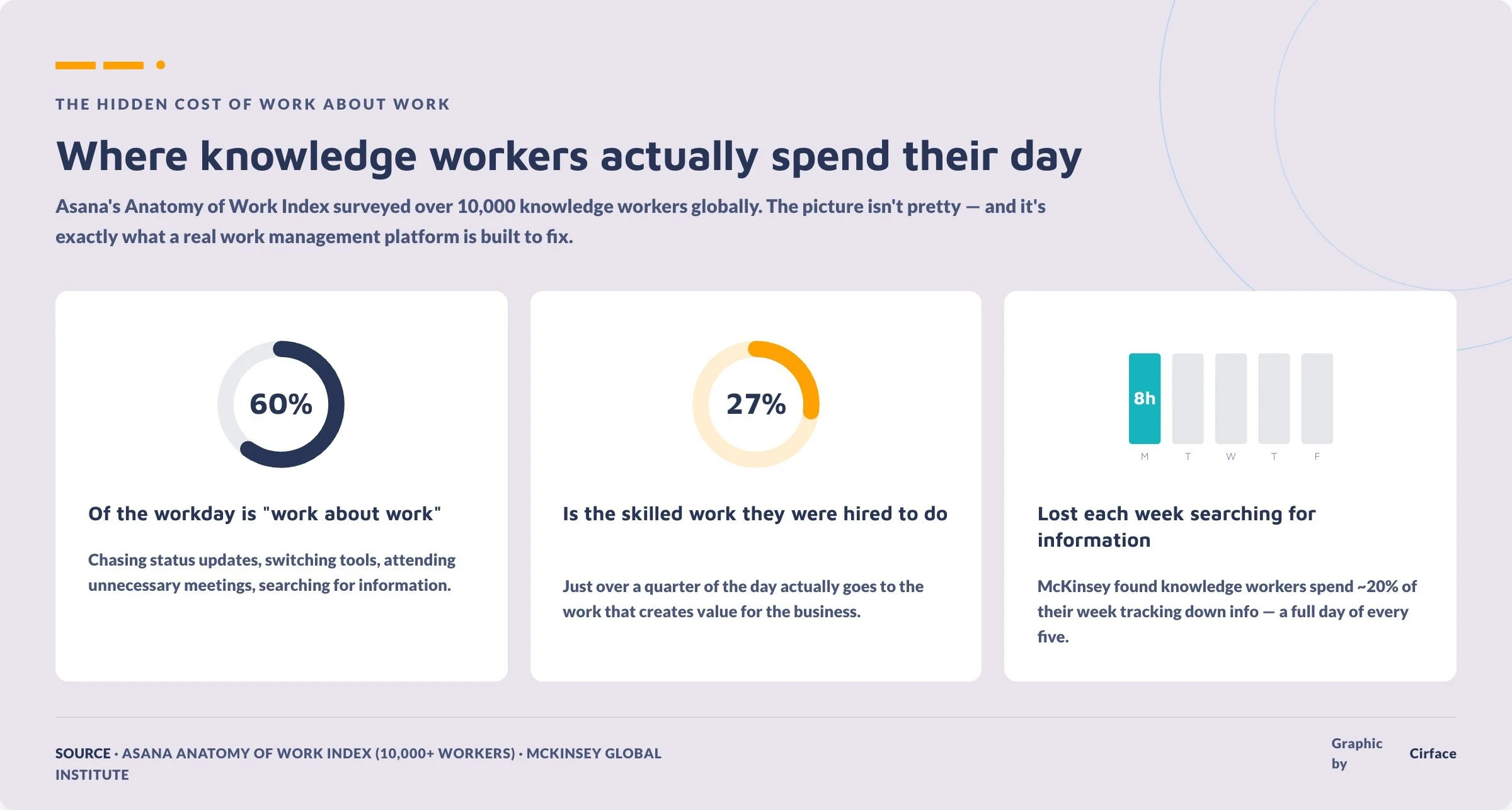
The scale of the underlying problem is worth understanding. Asana's Anatomy of Work Index, which surveyed over 10,000 knowledge workers globally, found that 60% of the average workday is spent on "work about work" : chasing status updates, switching between tools, attending unnecessary meetings, and searching for information. Only 27% of the day is spent on the skilled work people were actually hired to do. That is the gap Asana is built to close.
The information-search problem compounds things further. A McKinsey Global Institute study found that the average knowledge worker spends nearly 20% of their workweek searching for internal information or tracking down colleagues for help with specific tasks. In a 40-hour week, that is roughly eight hours lost before any real project work begins.
In a spreadsheet, a row is just a row. In Asana, a task carries an assignee, a due date, a description, attachments, comments, custom data, dependencies, and a direct link to the strategic outcome it contributes to. That is a fundamentally different relationship with work.
For teams using Asana for project management, and especially for those using Asana for beginners, the practical benefit is accountability without micromanagement. Everyone knows what they own, what is due, and what is blocked, without a manager having to chase anyone for updates.

Setting up your first Asana project
Creating a blank project
Start by creating a new project from scratch. Skip the templates for now — building from blank gives you a clear understanding of what every element is actually doing.
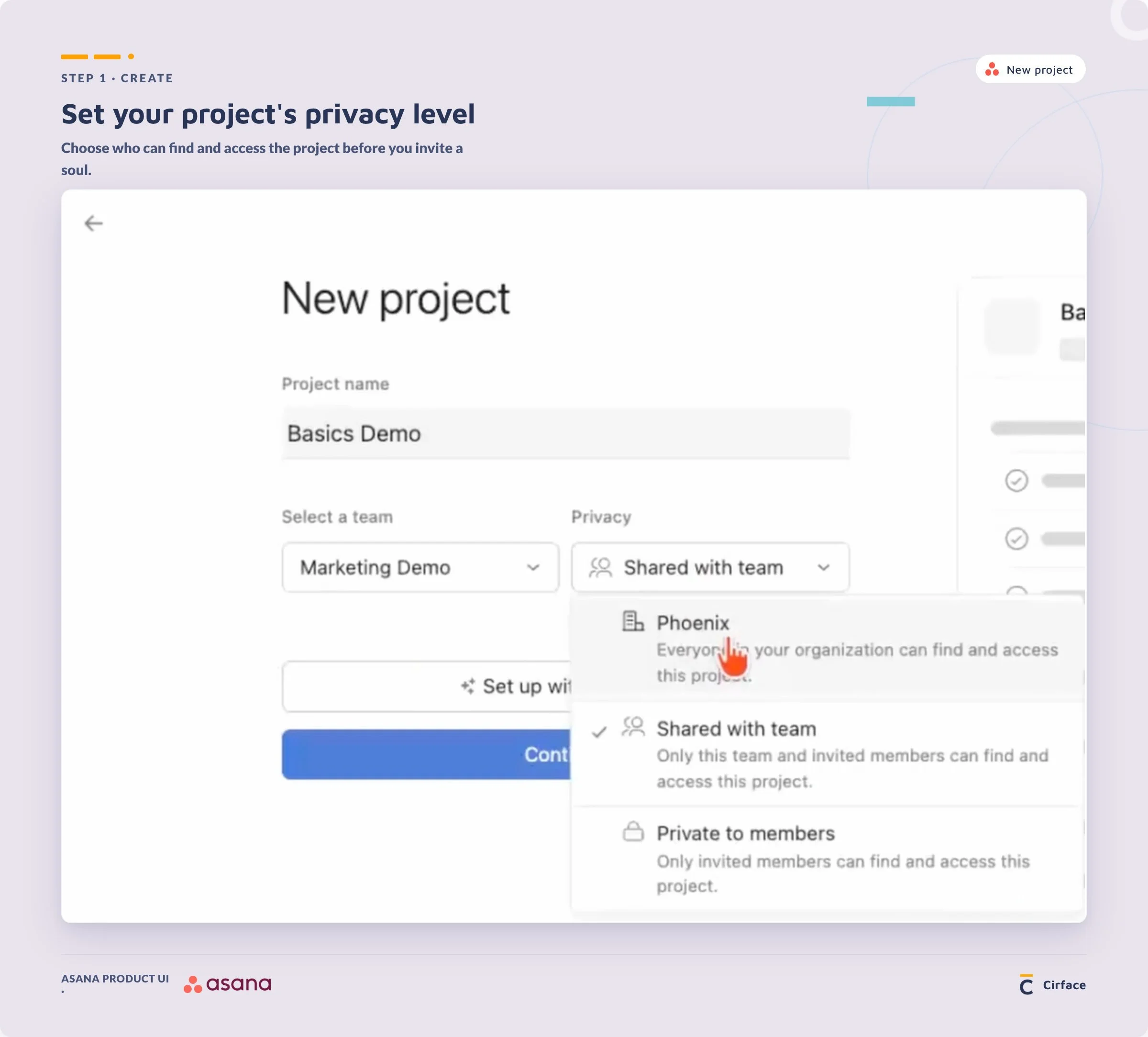
Give your project a name, assign it to the relevant team, and set your privacy level. Your three options are:
Public to the organization — anyone in your Asana space can find and view it
Shared with the team — visible to all members of the team the project lives in
Private to members — only visible to the people you explicitly add
For most projects, shared with the team is the right default. Private is appropriate for sensitive work like executive planning or HR-related projects.
Choosing your views
When creating a project, Asana asks which views you want to start with. You can always add more later, but it is worth enabling the ones you know you will need upfront:
List view — the default, best for day-to-day task management
Board view — Kanban-style, good for visual workflow stages
Timeline / Gantt chart — for scheduling and dependency management
Dashboard — for reporting on project data
Overview — a one-pager showing project health, stakeholders, goals, and key resources
Adding team members and setting permissions
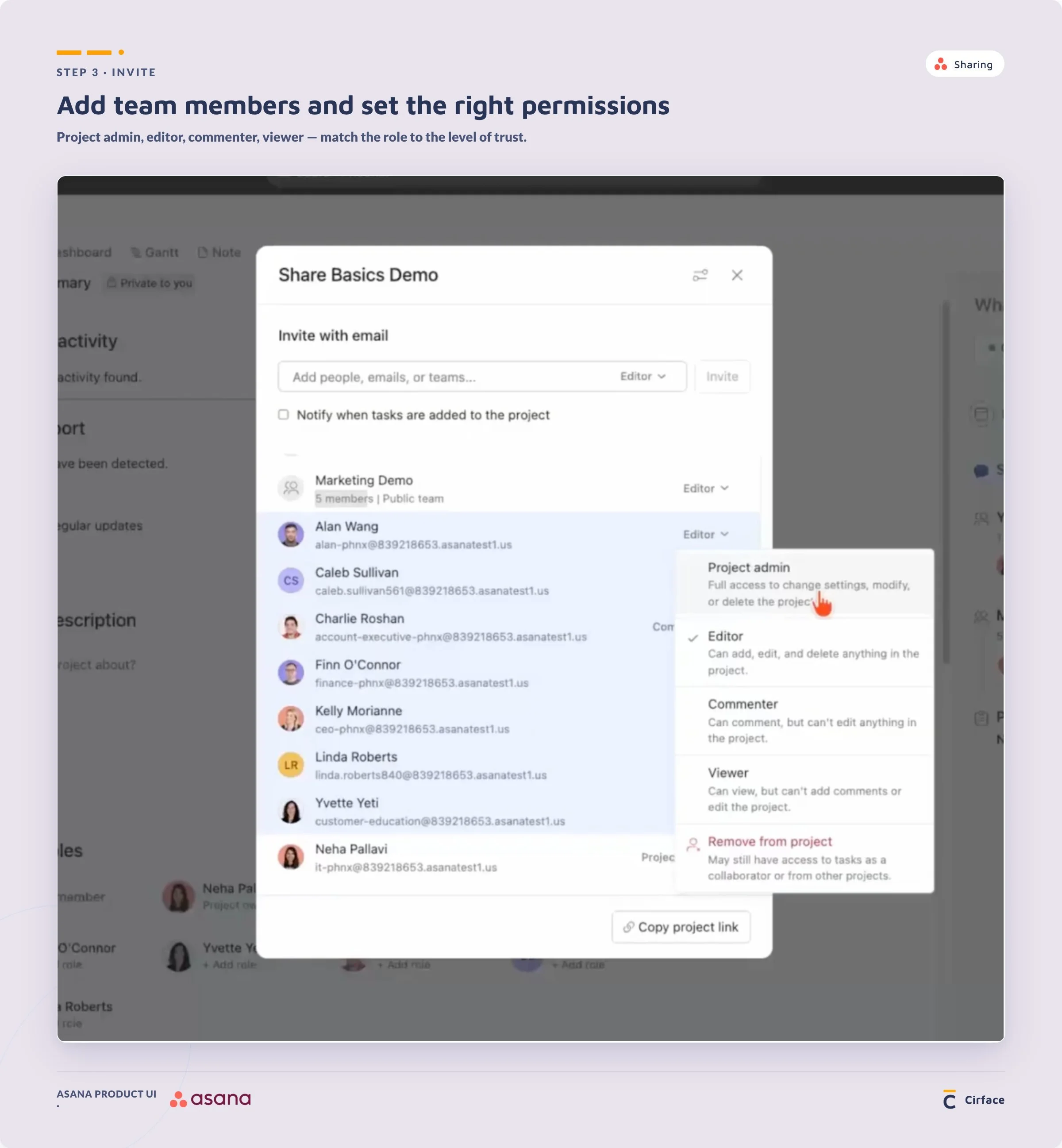
Once your project is created, add collaborators from the overview tab. Asana gives you four permission levels:
Project admin — full access, including the ability to modify and delete the project
Editor — can create, edit, and move tasks
Commenter — can view and comment but cannot edit
Viewer — read-only access
Best practice: always have at least two project admins. If the primary owner is out of office or leaves the organisation, someone else needs to be able to govern the project without interruption.
You can also add people from outside your team — from finance, operations, or sales, for example — without giving them access to everything else in your team space. They will only see the projects they are added to.
How to create and manage tasks in Asana
What makes a complete Asana task
A task is not complete until it has three things: a descriptive title, an assigned owner, and a due date. Without all three, the task is incomplete regardless of how well it is written.
There is a fourth element that many teams skip: context. Context lives in the task description. It answers the questions the assignee will have before they start — what does done look like, what reference materials exist, what constraints apply. A task without context creates back-and-forth, and back-and-forth kills momentum.
Asana supports embedding links, attaching files from Google Drive, SharePoint, Box, or Dropbox, and pulling in documents directly into the task description. Use all of it.
Using subtasks — and when not to
Subtasks let you break a parent task into smaller units of work, each with their own assignee and due date. This is useful when one deliverable requires contributions from multiple people.
For example: a parent task called "Draft thought leadership article" might have subtasks for the outline, the first draft, the editorial review, and the final approval — each assigned to a different person.
That said, Asana recommends keeping subtask depth to one or two levels maximum. Going five or six levels deep creates a hierarchical structure where tasks get buried and lost. Keep the bulk of your context in the parent task and use subtasks for parallel or sequential contributions, not for endless decomposition.
Multi-homing: adding a task to multiple projects
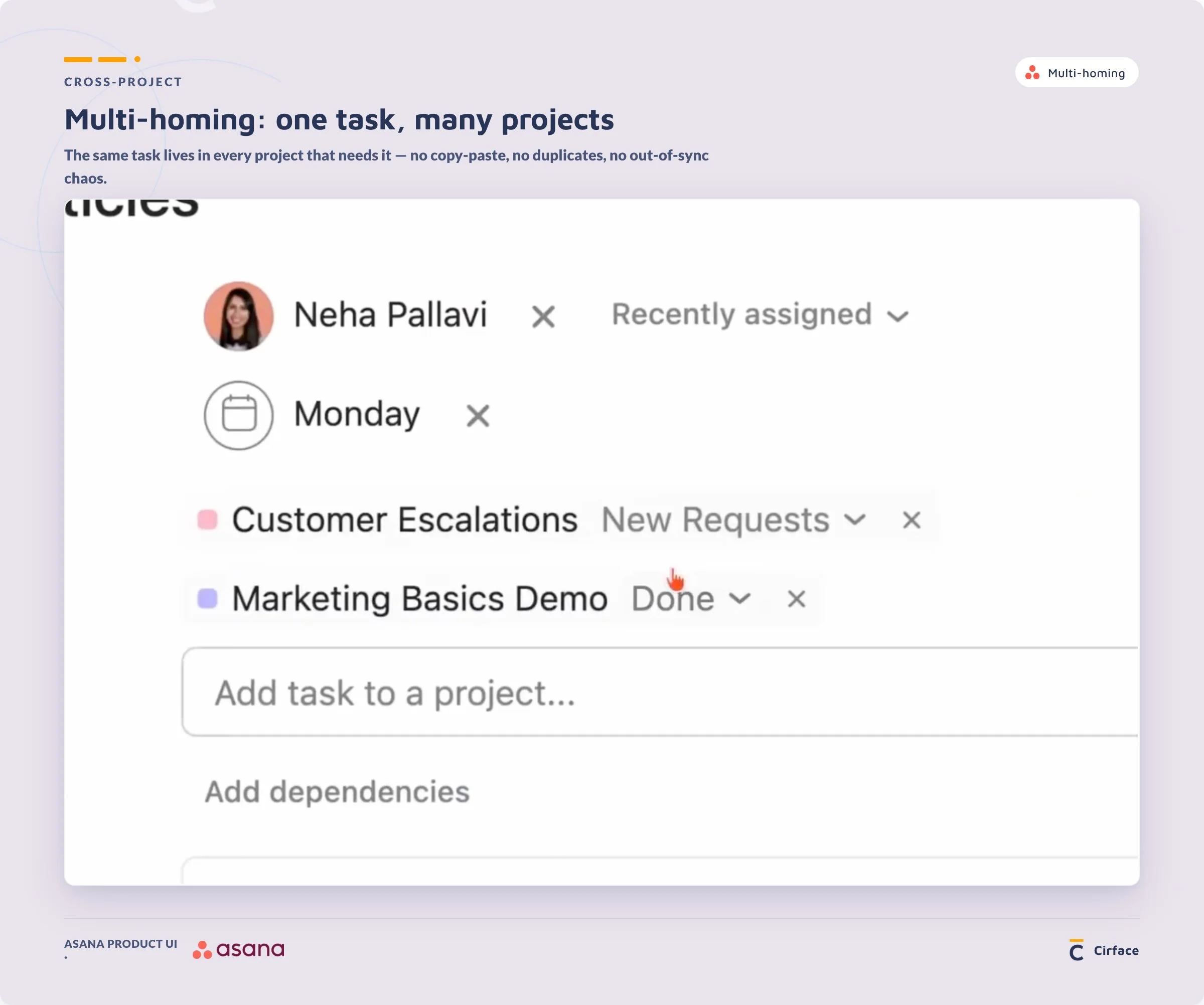
One of the most powerful and underused features in Asana is multi-homing — the ability for a single task to live in more than one project simultaneously.
When a task is multi-homed, every update, comment, and change is reflected across all projects it belongs to. There is no duplication. The same task, with the same conversation, visible to every team that needs it.
This matters in practice because work rarely belongs to just one team. A content task might be relevant to marketing and to client delivery. A request might originate in one project and need to be tracked in another team's workflow. Multi-homing removes the need to copy tasks or switch between platforms to stay aligned.
Comments, attachments, and activity log
Every task in Asana has a built-in activity log that tracks every change — when it was created, when it was assigned, when the due date changed, and every comment that was left. That log is permanent and visible to everyone on the task.
Use the @mention feature in comments to notify specific people. Attach files directly to the task so there is one place for everything related to that piece of work.
Using Asana custom fields
What are Asana custom fields and why they matter
Asana custom fields are additional data columns you add to your project to track information that is specific to your workflow. They can be single-select dropdowns, multi-select, dates, people, numbers, text, formulas, or time-tracking fields.
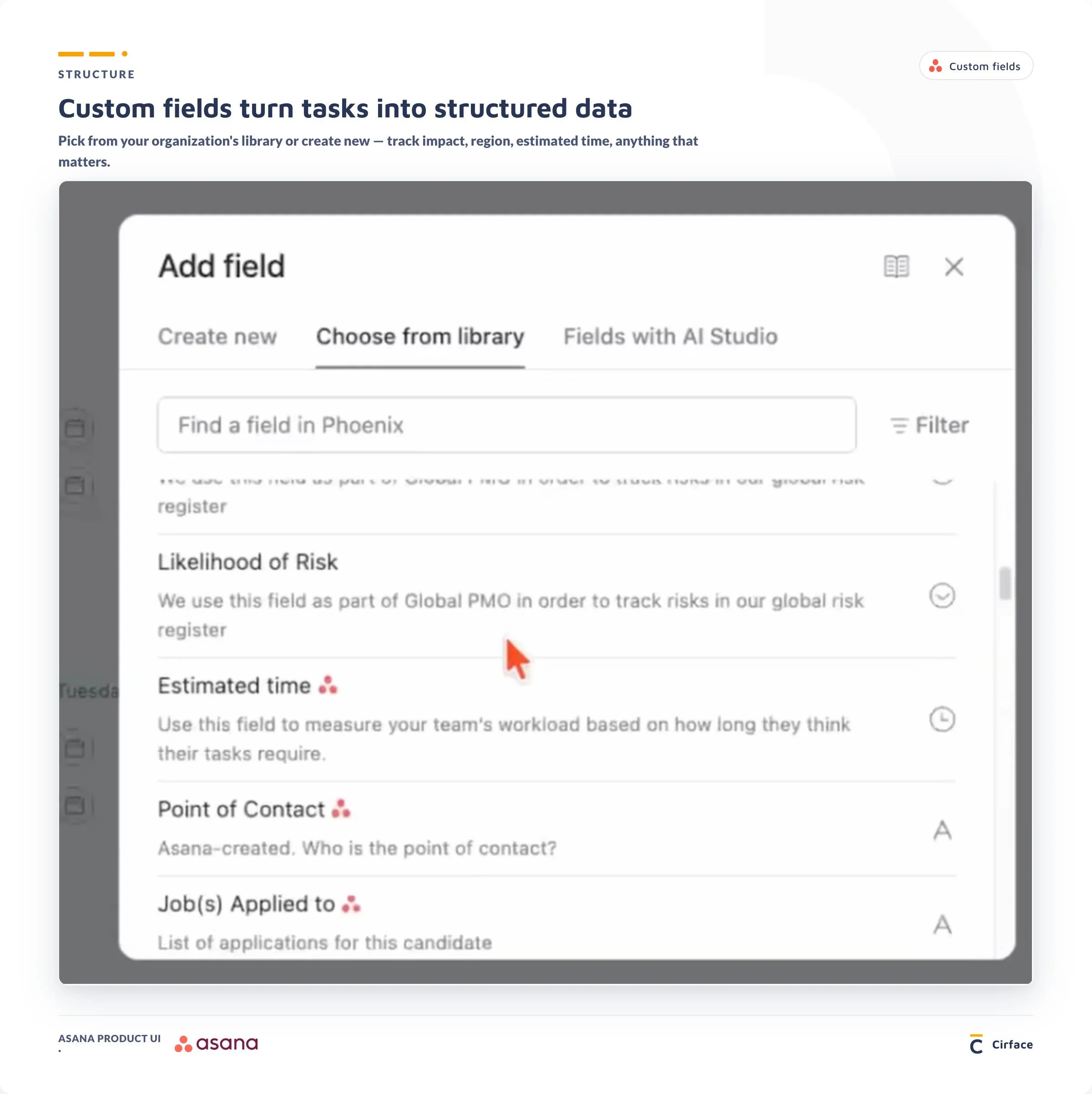
The reason they matter: you can only report on what you track. If you want a dashboard showing how many tasks are in creative review versus in progress, you need a custom field capturing that status. If you want to filter your task list to see only high-impact work assigned to a specific region, you need fields for impact and region.
Custom fields are the foundation of every dashboard, every automation rule, and every meaningful view in Asana.
Always start from the field library
Before creating a new custom field, check the library. Your organisation's field library is a shared repository of every custom field that has already been created across your Asana space.
If a "Task Status" field already exists, you do not want to create a second version with slightly different options. That fragments your data and makes it harder to report consistently across projects. Use the library to standardise.
Field types worth knowing
Single select — best for status fields, stage tracking, priority levels
Multi-select — useful when a task can belong to multiple categories
People — for tagging stakeholders beyond the assignee
Formula — for calculated fields like estimated effort or weighted priority scores
Time tracking — for logging hours against tasks, available with time-tracking integrations
How Asana workflow automation works
What are Asana rules?
Asana rules are automated workflows that execute actions when specified conditions are met. The structure is always the same: when something happens, if certain conditions are true, then do this.
Asana rules eliminate the manual work of updating statuses, reassigning tasks, sending notifications, and creating follow-up actions. They run in the background so your team can focus on the work itself.

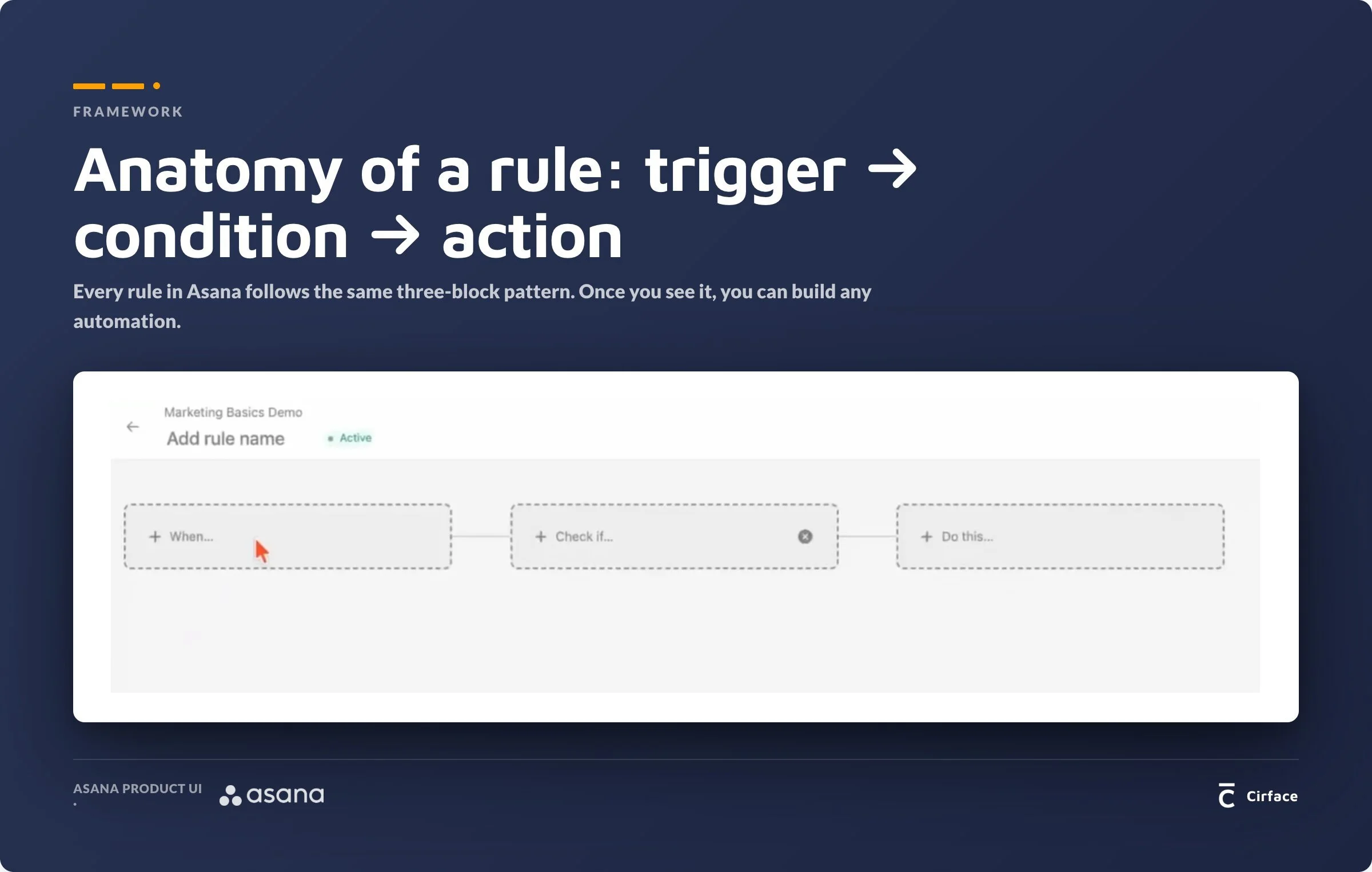
The trigger-condition-action framework
Every rule has three components:
Trigger — the event that starts the rule (e.g. a task is completed, a custom field changes, a form is submitted, a due date approaches)
Condition — an optional check that must be true for the rule to proceed (e.g. only if the status is set to "Creative Review")
Action — what Asana does when the trigger fires and the condition is met (e.g. create a subtask, reassign the task, move it to a section, post a comment, add a collaborator)
Practical rule examples from this guide
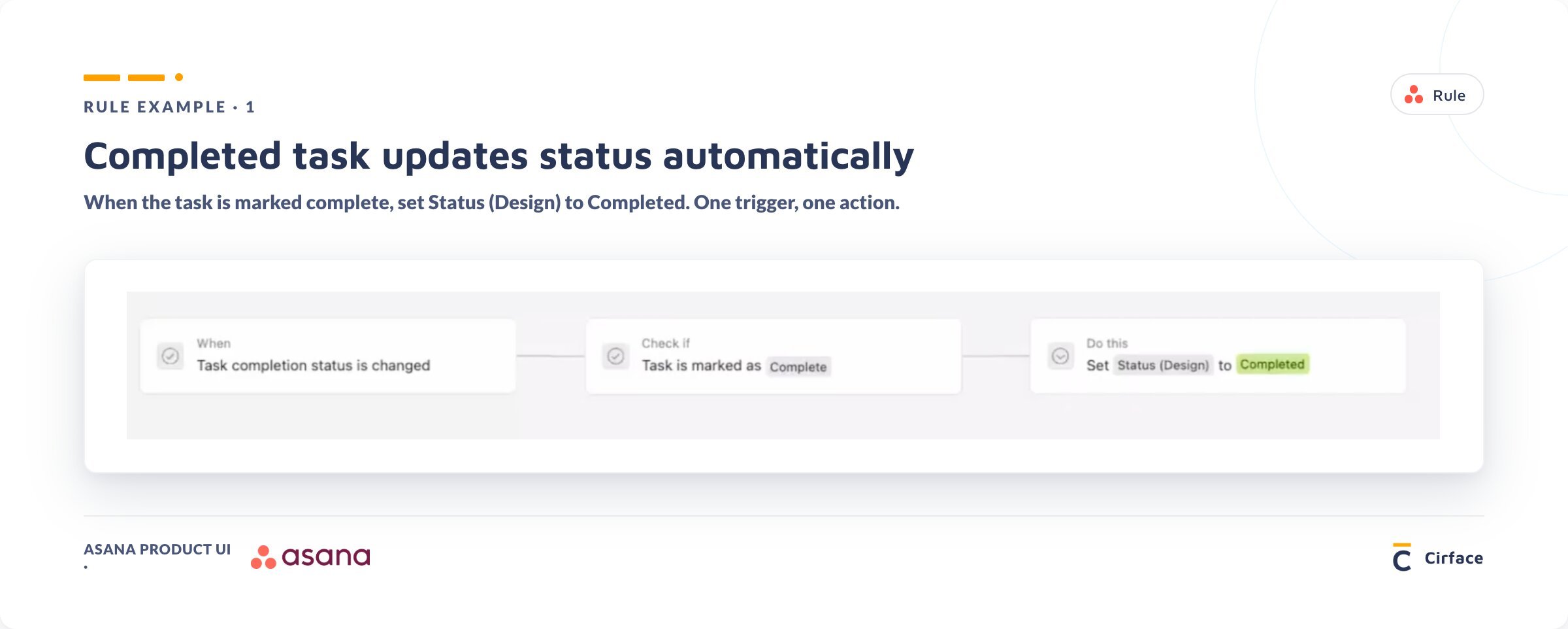
Rule 1 — Completed task updates status automatically Trigger: task is marked complete Condition: none needed Action: set the "Status Design" custom field to "Completed"
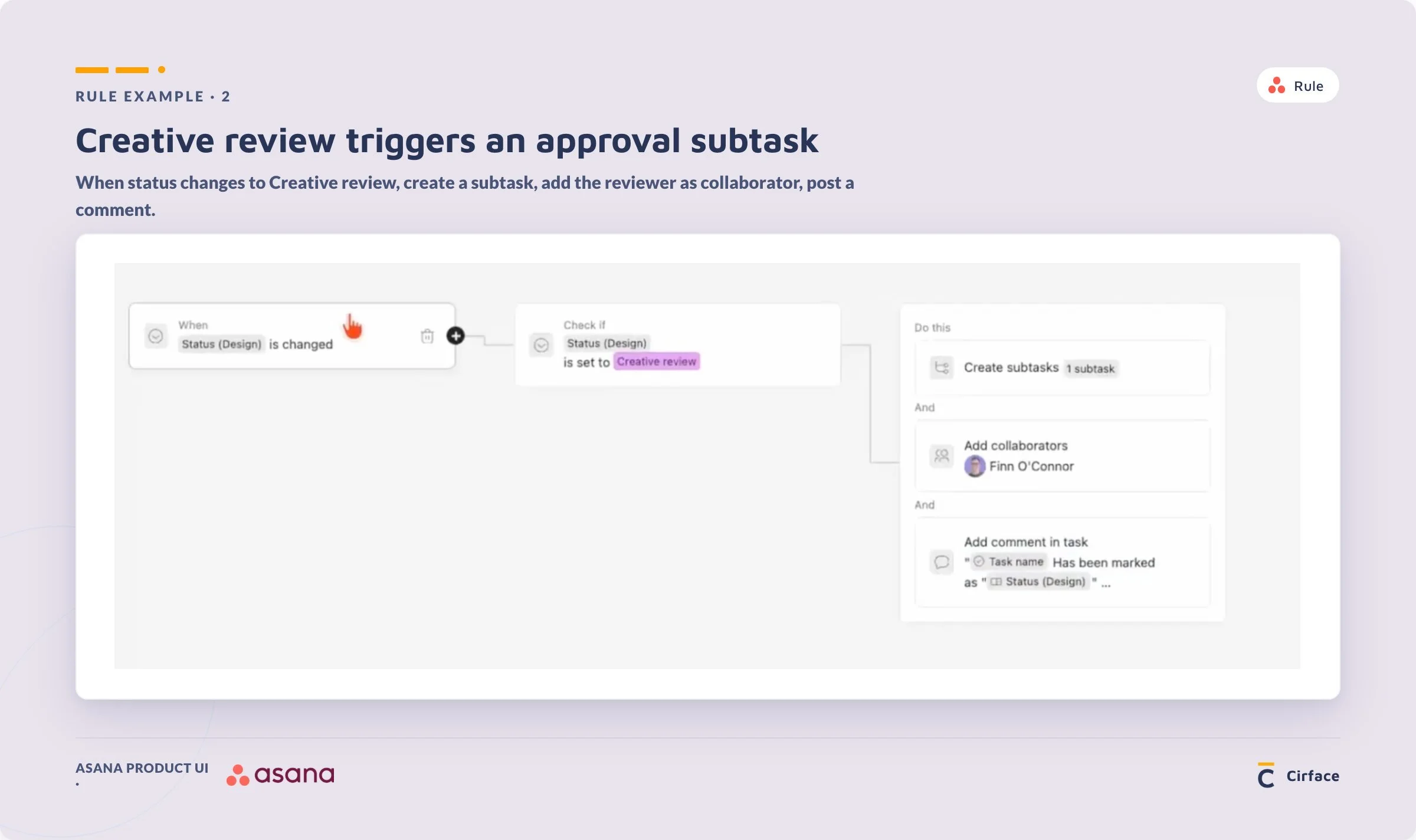
Rule 2 — Creative review triggers an approval subtask Trigger: Status Design field changes Condition: Status Design is set to "Creative Review" Action: create a subtask titled "Please approve [task name]" assigned to the approver, due two days from trigger date, with a comment tagging the relevant collaborators
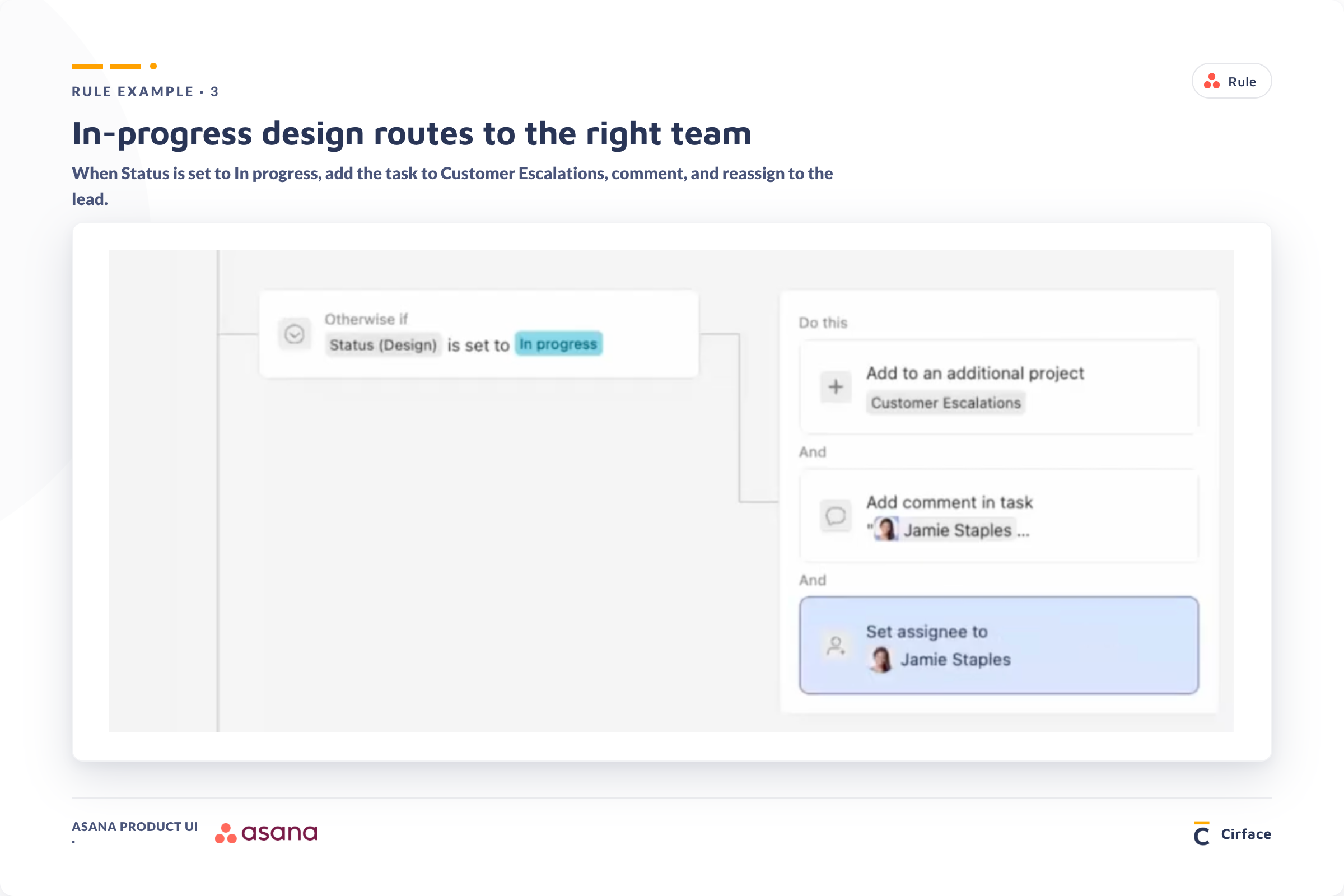
Rule 3 — In progress triggers cross-team assignment Trigger: Status Design changes to "In Progress" Action: add task to the customer escalations project, assign to the relevant team member, post a comment notifying them.
The productivity case for rules
The investment in setting up rules pays off quickly. Asana's ROI of Work Management Report, which surveyed over 3,000 knowledge workers in partnership with Sapio Research, found that 87% of respondents see a direct correlation between using a work management platform and improved productivity — with those benefits compounding the longer the platform is in use. Automation is one of the primary drivers of that result: rules remove the manual overhead of status updates, task routing, and follow-up reminders that would otherwise fall on a project manager to handle manually.
Best practices for naming and governing rules
Name your rules by the trigger, not the action. "Status design changes" is a better rule name than "Create approval subtask" because a single rule can contain multiple branches, each handling a different condition. Consolidating related automations into one well-named rule makes your rule list manageable and easy to audit when something needs updating.
Aim to stack your "if/otherwise if" branches within one rule per trigger, rather than creating a separate rule for every possible outcome.
Asana views: list, board, Gantt chart, and dashboard
List view and saved views
List view is the default and the most flexible. You can group tasks by section, by custom field, by assignee, or by status. You can layer filters on top — for example, showing only high-impact tasks in a specific region — and save that combination as a personal tab that does not change the default view for the rest of the team.
This is especially useful on large projects with hundreds of tasks. Rather than scrolling through everything, each team member can save a view filtered to what is relevant to them.
Board view for visual workflow management
Board view displays your project sections as columns, with tasks as cards that move through the stages. It is a Kanban-style format that works well for content pipelines, design review processes, and anything with a clear stage-by-stage workflow.
Board view is also useful for teams who are transitioning from tools like Trello — the visual format feels familiar while giving them access to Asana's deeper functionality underneath.
Asana Gantt chart and timeline view
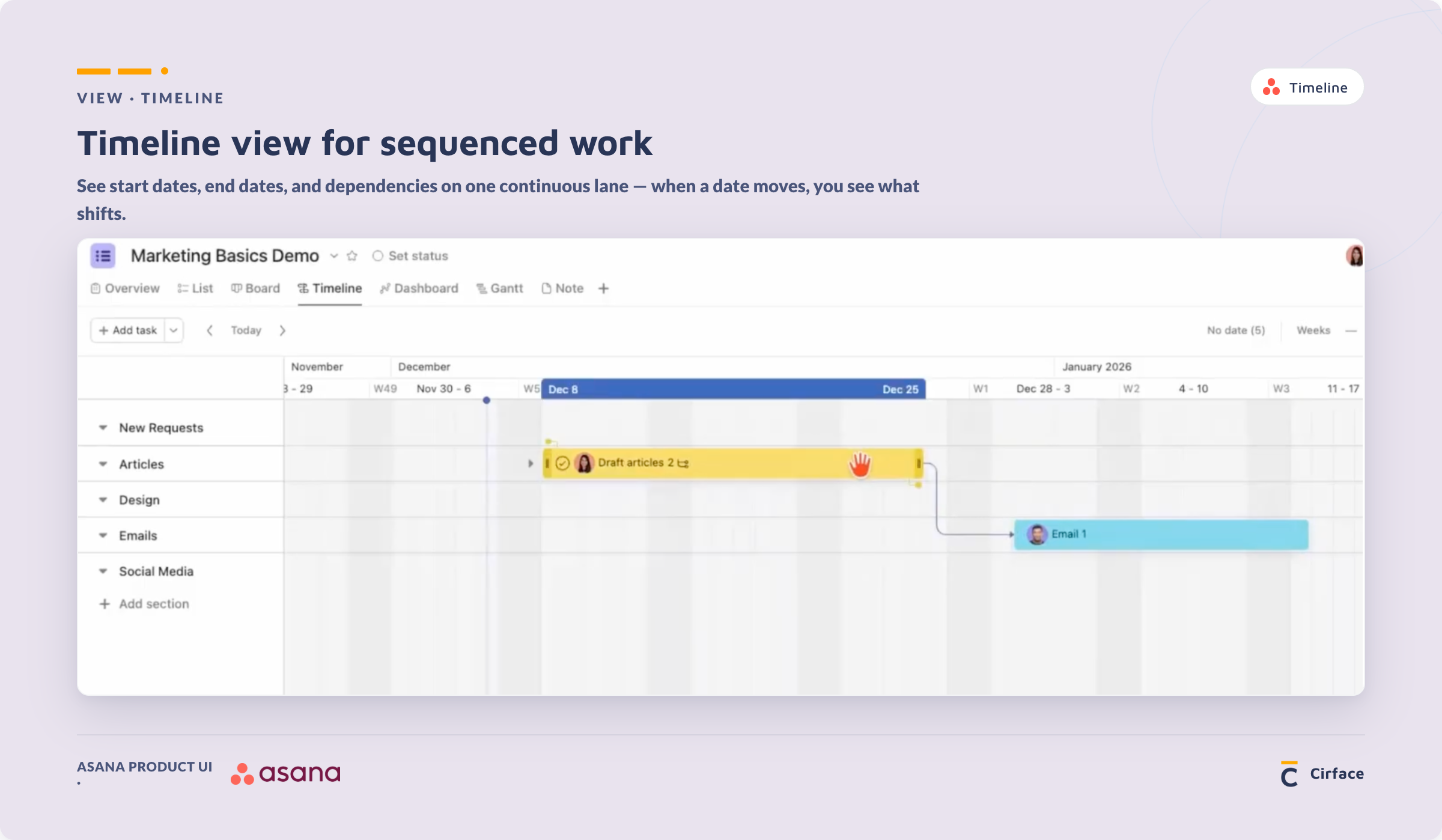
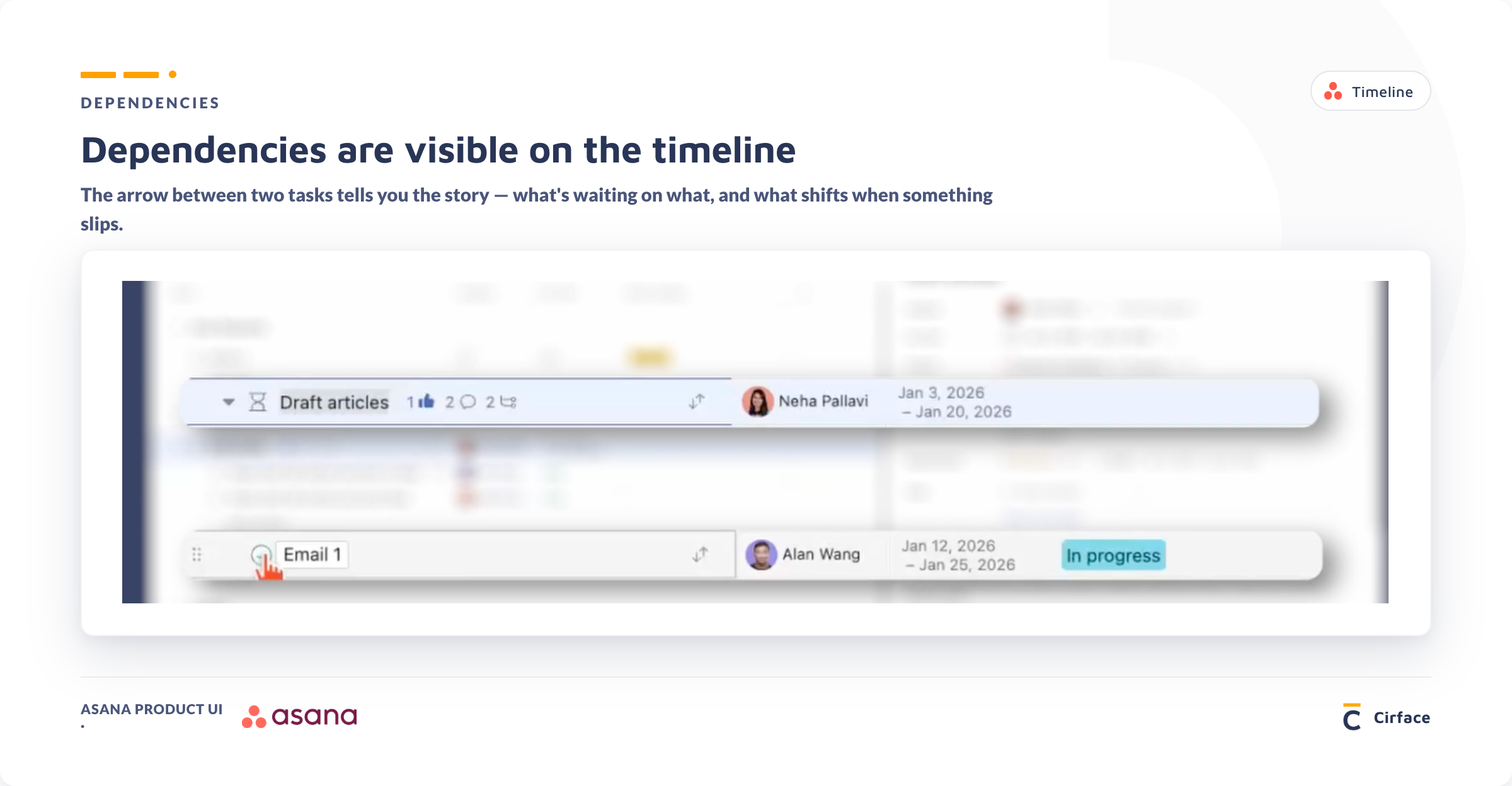
The Asana Gantt chart and timeline views plot your tasks against a calendar, giving you a visual representation of your project schedule. You can drag task bars to adjust start and end dates, and connect tasks to create dependencies by dragging from one task node to another.
Two views, slightly different purposes: the timeline view is better for high-level planning across longer timeframes, while the Gantt view gives more granular detail for closely sequenced work.
Dependencies and project dependency settings
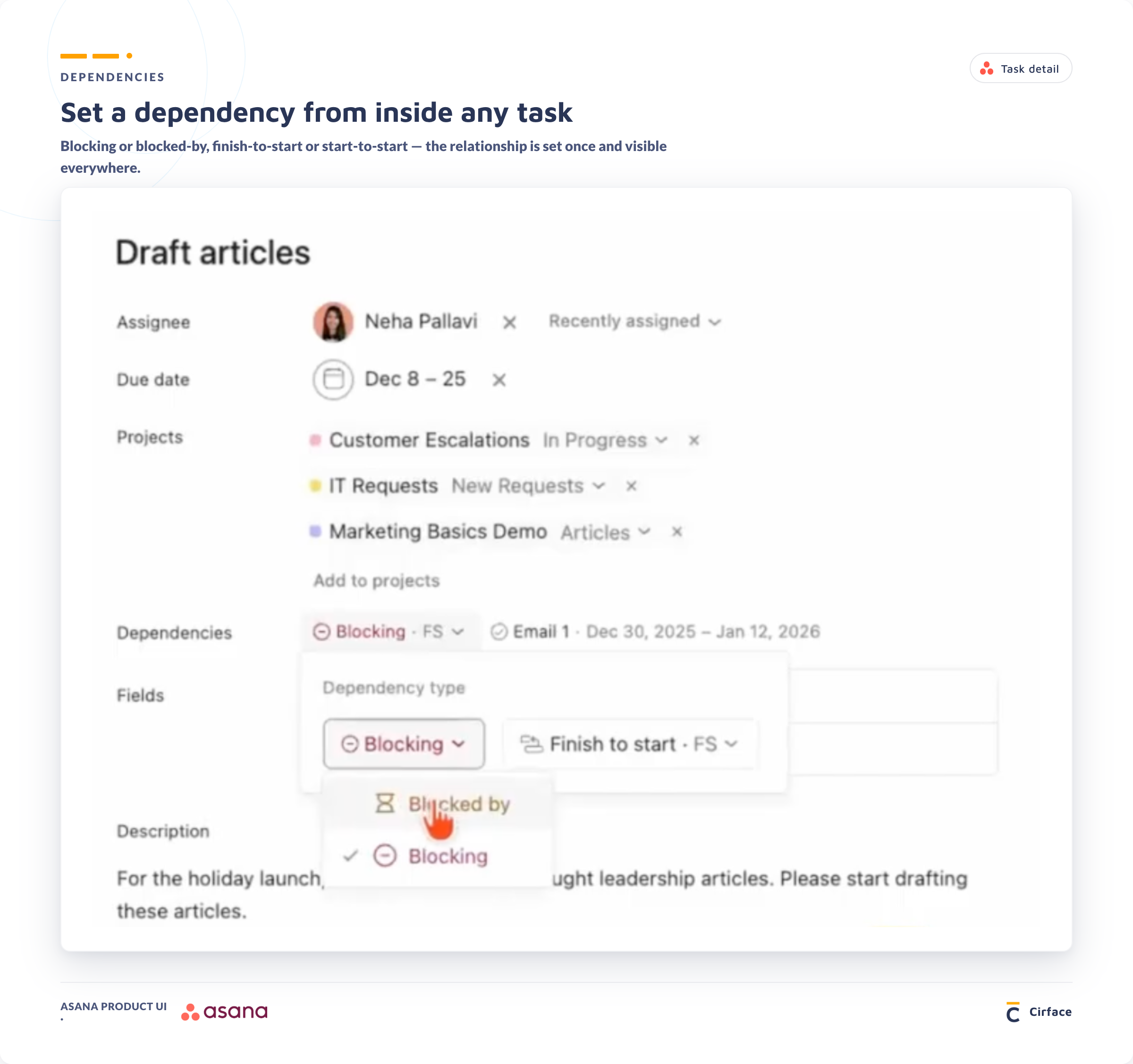
Dependencies define the relationship between tasks — specifically, which tasks cannot start until others are complete. When you mark Task B as dependent on Task A, Asana notifies the owner of Task B the moment Task A is completed, so they know they can start.
For dependency behaviour on the timeline, you have three settings:
Consume buffer — the dependent task shifts forward when a predecessor moves later, but does not shift back when the predecessor moves earlier
Maintain buffer — dependent tasks maintain their spacing relative to predecessors in both directions
No change — tasks behave independently regardless of what happens to predecessors
Choose based on how your project handles schedule changes. For client-facing work with SLAs, maintain buffer is usually the right call.
Building intake forms in Asana
Asana forms are shareable links that allow people inside or outside your organisation to submit requests directly into a project — with the fields they fill out automatically populating as task data.
A well-built intake form solves one of the biggest project management problems: requests arriving without enough information to act on.
How Asana forms work
When someone submits an Asana form, it creates a task in a section you specify (typically a "New Requests" or "Backlog" section). The fields they fill out — priority, region, due date, description, attachments — populate directly as custom field values on the task.
You control which fields are required versus optional, whether the form is available to anyone or restricted to your organization, and whether submitters are automatically added as collaborators.
Connecting forms to automation rules
The real power of forms comes when you pair them with rules. A rule triggered by form submission can automatically assign the task to the right person, set the status to "Request," and post a comment prompting triage — all without anyone having to touch the task manually.
The result is a consistent, repeatable intake process where nothing falls through the cracks.
Project dashboards and status updates
Building dashboards with custom charts
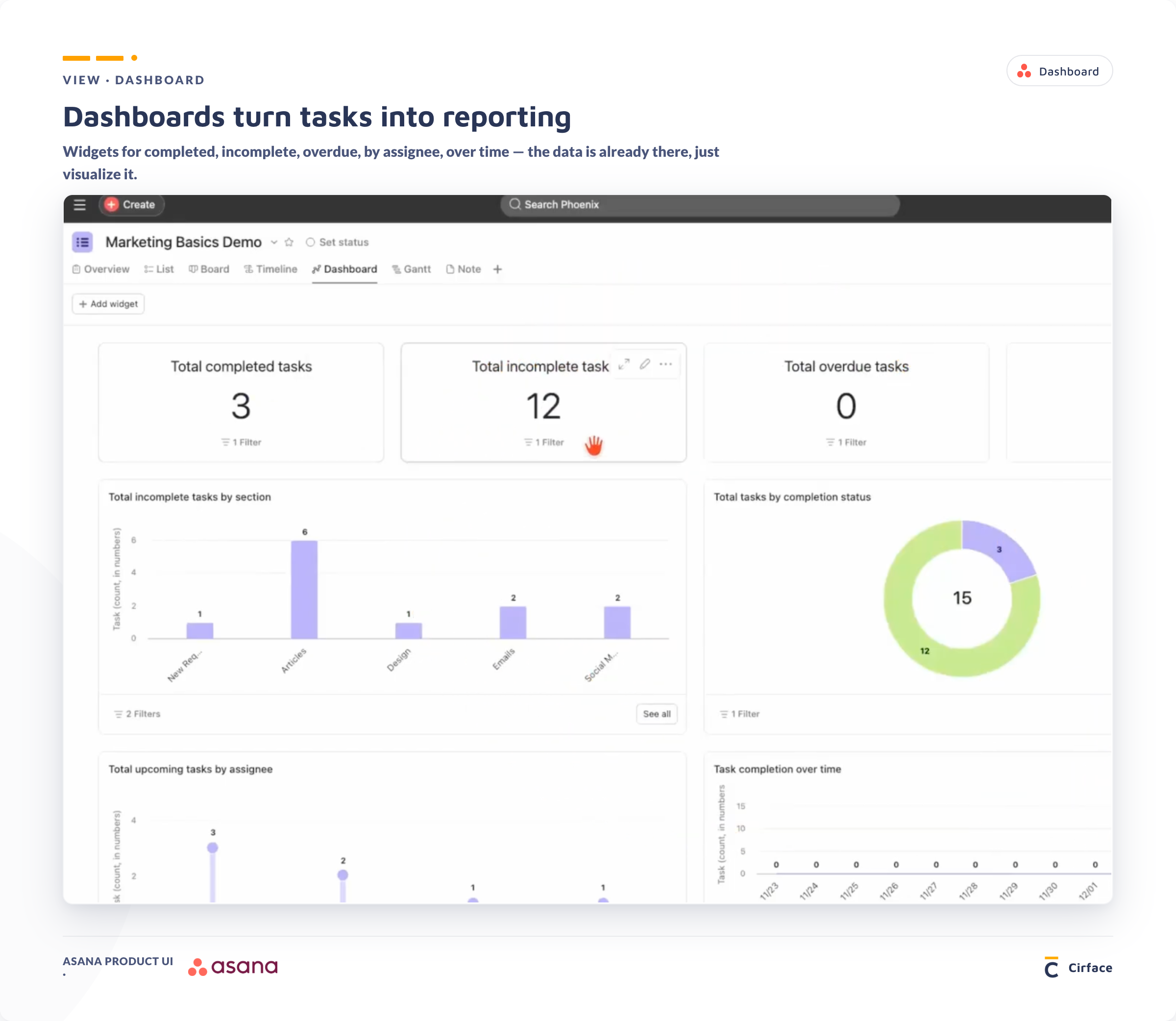
Asana creates a default dashboard for every project, but the most useful dashboards are the ones you customise based on the custom fields you have set up.
Chart types available include bar charts, stacked bar charts, donut charts, burnup/burndown charts, line charts, and lollipop charts. You can filter any chart by custom field, assignee, due date, or completion status. Check out this full Asana tutorial we recorded on creating helpful dashboards in Asana.
A useful pairing: one donut chart showing incomplete tasks by status, and one showing completed tasks by status over the last two weeks. Together they give you a live picture of project health at a glance.
If you cannot report on something, you do not have a custom field for it. Build the fields first, and the dashboards become straightforward.
Writing and sharing status updates
Asana's status update feature lets you post a formatted project update that goes out to every collaborator and stakeholder in one action. No email threads. No slide decks. No one chasing you for information.
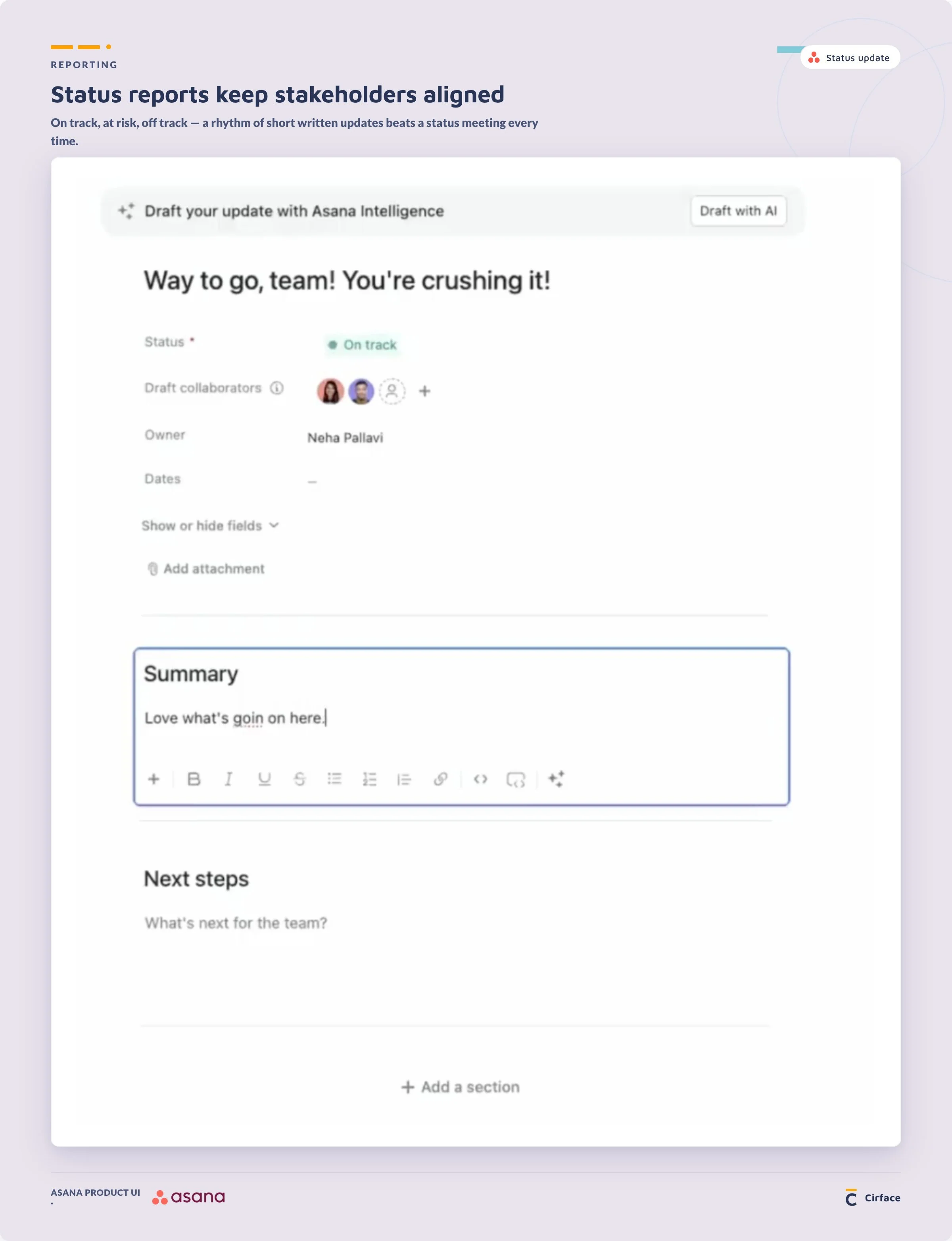
Structure your update using Asana's highlight blocks:
What's done — tasks and milestones completed in the last period
What's blocked — overdue tasks or items waiting on dependencies
What's next — upcoming tasks and milestones
You can set a recurring reminder to post updates every Friday, pull tasks directly from your project into the update by dragging them in, and add external stakeholders as recipients without giving them full project access.
Frequently asked questions about Asana project management
What is the difference between a task and a subtask in Asana?
A task is a standalone unit of work assigned to a person with a due date. A subtask is a child item nested under a parent task, used to capture smaller pieces of work that contribute to the parent. Subtasks have their own assignees, due dates, and descriptions, but they are connected to the parent task and can be tracked together.
Can a task live in more than one Asana project?
Yes. Asana calls this multi-homing. A single task can be added to multiple projects, and all activity on that task — comments, updates, status changes — is reflected across every project it belongs to. The task is not duplicated; it is the same task with shared visibility.
What are Asana rules and how do they work?
Asana rules are automated workflows built on a trigger-condition-action framework. When a specified event occurs (the trigger), Asana checks whether a condition is met, and if so, executes one or more actions automatically. Common uses include updating custom fields when a task is completed, creating approval subtasks when a review stage is reached, and routing tasks to the right person when a form is submitted.
What are custom fields in Asana?
Custom fields are additional data columns you add to a project to track information specific to your workflow. They can be dropdowns, multi-select options, dates, people, numbers, or formulas. Custom fields are the foundation of dashboards, filters, and automation rules — you can only report on and automate what you are actively tracking.
What is multi-homing in Asana?
Multi-homing is Asana's term for adding a single task to more than one project. It allows different teams to track and act on the same piece of work within their own project workflows, without creating duplicate tasks or losing conversation context. All comments and updates remain on the one task, visible to everyone it is shared with.
How do I set up a Gantt chart in Asana?
When creating a project, select the Timeline or Gantt view during setup. You can also add it to any existing project at any time. Once in Gantt view, assign start and end dates to tasks by dragging the task bar, and create dependencies by hovering over a task's node and dragging to a connected task.
What is the Asana Work Graph?
The Work Graph is Asana's underlying data model. It maps the relationships between tasks, projects, teams, and goals — showing not just what work exists, but who owns it and what organisational objective it contributes to. It is the reason Asana can surface risk reports, AI summaries, and dependency notifications automatically.
How do I automate status updates in Asana?
Asana can generate and send automatic project status updates to your inbox and via email on a schedule you set (for example, every Friday). You can also use rules to automatically update custom field statuses — for example, a rule that marks the "Status Design" field as "Completed" whenever a task is ticked off, without the assignee needing to update it manually.
What permissions can I assign to project members in Asana?
Asana has four project-level permission roles: project admin (full access), editor (can create and edit tasks), commenter (can view and comment but not edit), and viewer (read-only). Best practice is to have at least two project admins on every project to ensure continuity if one person is unavailable.
Key takeaways
Work about work is the real productivity killer. Asana's Anatomy of Work Index found that 60% of the average knowledge worker's day is spent on coordination overhead rather than skilled work. A properly configured Asana setup addresses this directly.
A task is only complete when it has three things: a descriptive title, an assigned owner, and a due date. Context in the description is the fourth element that separates a task someone can act on from one that generates more questions.
Custom fields are the foundation of everything. You cannot report on, filter, or automate what you have not defined as a field. Build your field library before you build your dashboards or rules.
Rules should be consolidated, not multiplied. Use trigger-based naming and stack your conditions within one rule per trigger. A manageable rule list is one you can actually govern when things change.
Multi-homing removes silos without duplicating work. A single task can live in multiple projects, with all comments and updates shared across every instance. This is how cross-functional teams stay aligned without switching platforms.
Forms plus rules equal a consistent intake process. A well-built form ensures requests arrive with the information needed to act on them. A paired automation rule ensures they land in the right place, with the right person assigned, automatically.
87% of teams using a work management platform report improved productivity — and the gains increase over time. The setup investment is small compared to the compounding return.
Next steps
If this guide gave you a strong foundation for how to use Asana for project management, the next step is putting it into practice on a real project.
And if your team already has Asana but is not using it to its full potential — the setup is inconsistent, Asana workflow automation is not configured, or adoption has stalled — that is exactly what we help with at Cirface.
As an Asana Platinum Solutions Partner, we work with teams to audit their current Asana setup, rebuild it around how their work actually flows, and deliver Asana project management training that sticks.
Get in touch to learn more about our Asana consulting services →