
Asana dashboard for goals: how to build one, with example charts
Short answer: To report on goals you build an Asana dashboard in Reporting, which sits under Strategy in your sidebar. From there you add a custom chart and select Goals under Report on, then choose how the goals should be grouped, whether that is by status, owner, team, time period, or since December 2025 by any custom field in your organization's field library. Four configurations worth building are below.
Our last post covered why teams miss their goals. Most of the reasons came down to structure: no owner, no clear progress source, no link between the goal and the work.
Say you fixed that. Goals are in Asana, connected to the projects delivering them. Then the quarterly review comes around and you are not sure how to show the progress.
That is what this post covers: where the goal charts live, the four worth building, and the two other views that sometimes answer the question faster.
What you need before you build
Every goal should have four things filled in:
An owner
A time period
A status
A progress source, which can be subgoals, projects, or tasks
This matters more than it sounds. Group a chart by goal owner while half your goals have no owner and those goals do not appear as a problem. They just do not appear. Same with time period. The dashboard looks clean and the picture is quietly incomplete.
So audit first, build second.
If the structure is not there yet, that is what our Goals package is for. If it already exists, we can help you design the reporting layer on top of it so leadership sees the same picture every quarter instead of a new spreadsheet every time someone asks.
How to create a goals dashboard in Asana Reporting
Click Strategy in the sidebar.
Click Reporting.
Click + Add Dashboard. A new dashboard is created and Asana's template charts appear.
Click Add custom chart.
Under Report on, select Goals.
Reporting on goal data requires the Advanced, Enterprise or Enterprise+ plan, or the legacy Business and Legacy Enterprise plans. If you are not sure which one you are on or what the differences are, ourAsana pricing guide breaks it down.
One thing worth knowing before you start clicking. There is only one template chart for goals, found under the Work connection section. You type in a goal name and it brings back the progress preview that lives on the goal page, along with the time period, the owner and the latest status. Everything else on your dashboard is built as a custom chart.
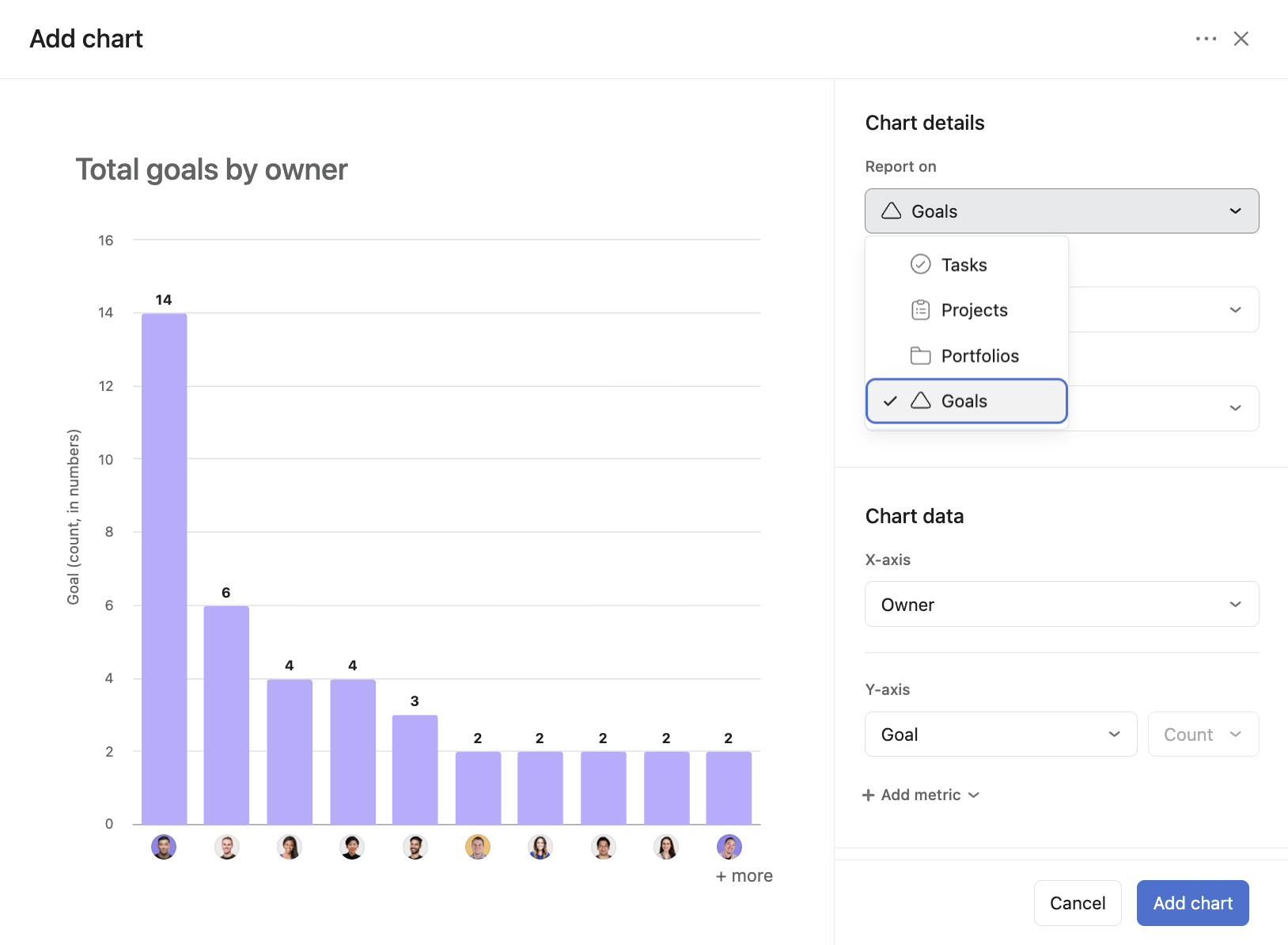
Every custom goals chart has four things you have to set:
Chart type. Bar, Stacked Bar, Grouped Bar, Line, Donut, Number or Lollipop.
Goal level. All goals, company goals, or team goals.
X axis. Goal status, goal owner, team, goal time period, or a custom field. Choosing goal time period lets you view by quarters, halves, years, or all. Custom fields arrived on goals in December 2025, so anything in your field library, region for example, can now group a goals chart.
Y axis. Goal count by default. Number and formula custom fields used on goals also work here. Less common, but available when you need to sum a value rather than count goals.
Then, optionally:
Filters. Goal owners, team, subgoals, goal status, time period and custom fields.
Data annotations. Turn data labels on or off, and add benchmark values.
Four Asana goals dashboard examples you can copy
Asana does not offer a goals dashboard template, so here are four configurations to build directly. Together they cover the questions that actually come up in a quarterly review.
| Chart | Chart type | Goal level | X axis | Filter or view | The question it answers |
|---|---|---|---|---|---|
| Company goal health | Donut | Company goals | Goal status | Current time period | Are the company goals on track right now? |
| Who needs help | Stacked column, grouped by goal status | All goals | Goal owner | Status set to your at risk and off track values | Which owners need support before the quarter closes? |
| A single goal, at a glance | Goal progress template chart | Not applicable | Work connection, then Goal | Type in the goal you want to feature | Where has this specific goal actually got to? |
| Goal health by custom field | Stacked column, grouped by goal status | All goals | Region, or any custom field | Current time period | Where is the pressure sitting across the business? |
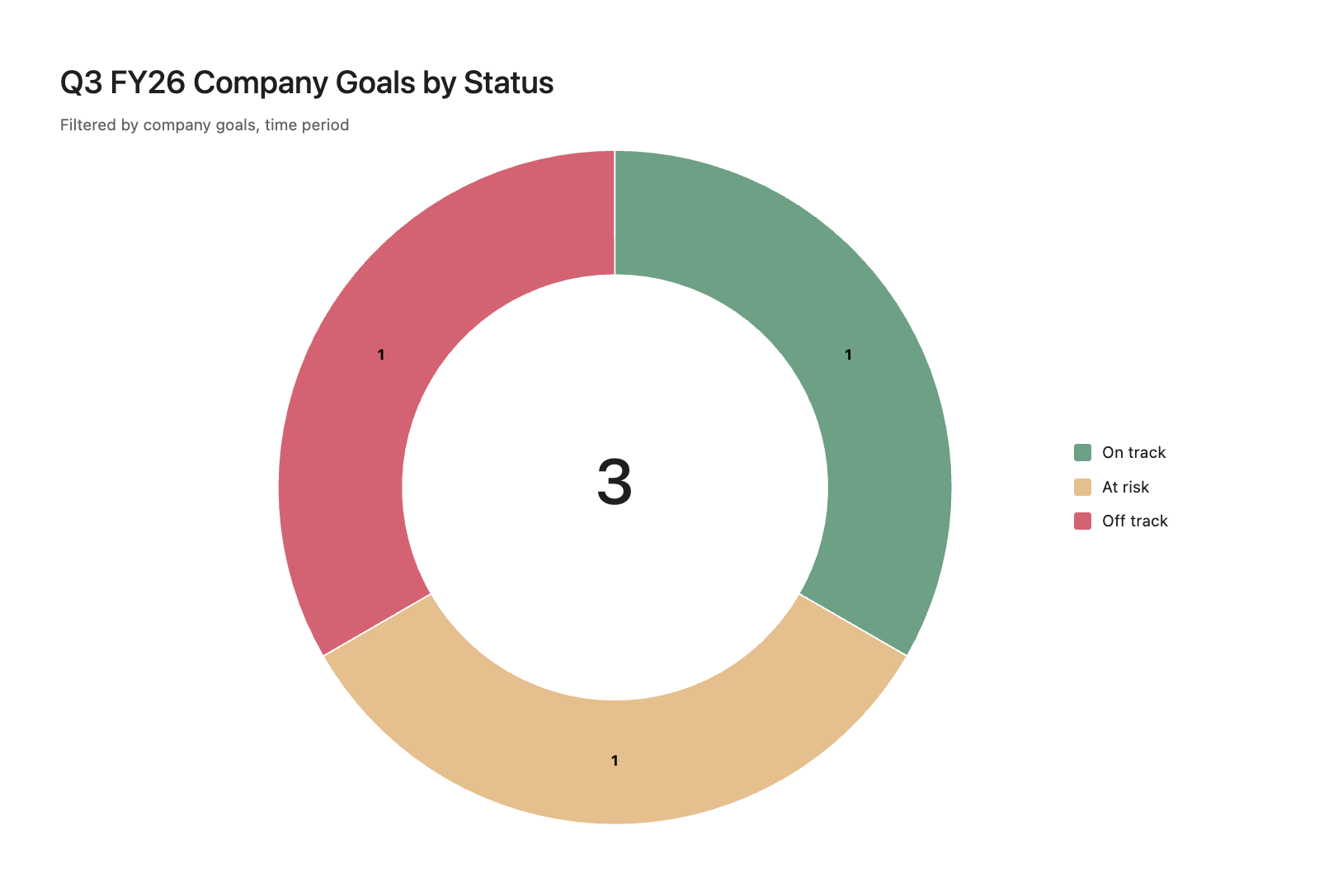
1. Company goal health
Chart type: Donut
Goal level: Company goals
X axis: Goal status
Y axis: Goal count
Filter: Current time period
The chart the leadership meeting opens with. It replaces the ten minutes everyone spends agreeing on what the numbers are before anyone can make a decision.
2. Who needs help
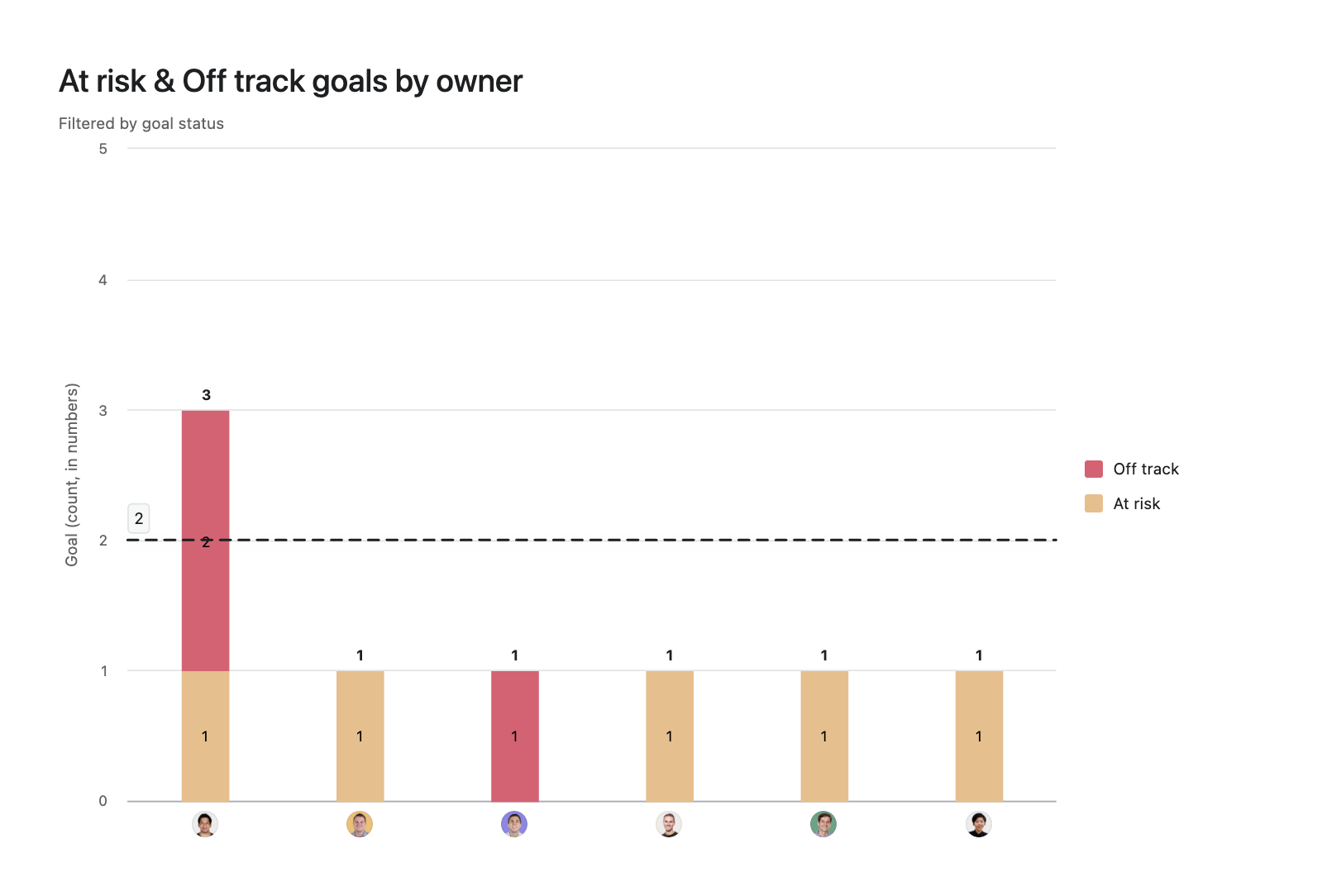
Chart type: Stacked column
Goal level: All goals
X axis: Goal owner
Y axis: Goal count
Group by: Goal status
Filter: Goal status set to your at risk and off track values
This one focuses on supporting the owners whose goals are not going as expected, so you know who to check in with before the quarter closes.
You can also add a benchmark here under data annotations. Set the line at two, for example, and anyone carrying more than two goals in trouble stands out without anyone having to read the numbers.
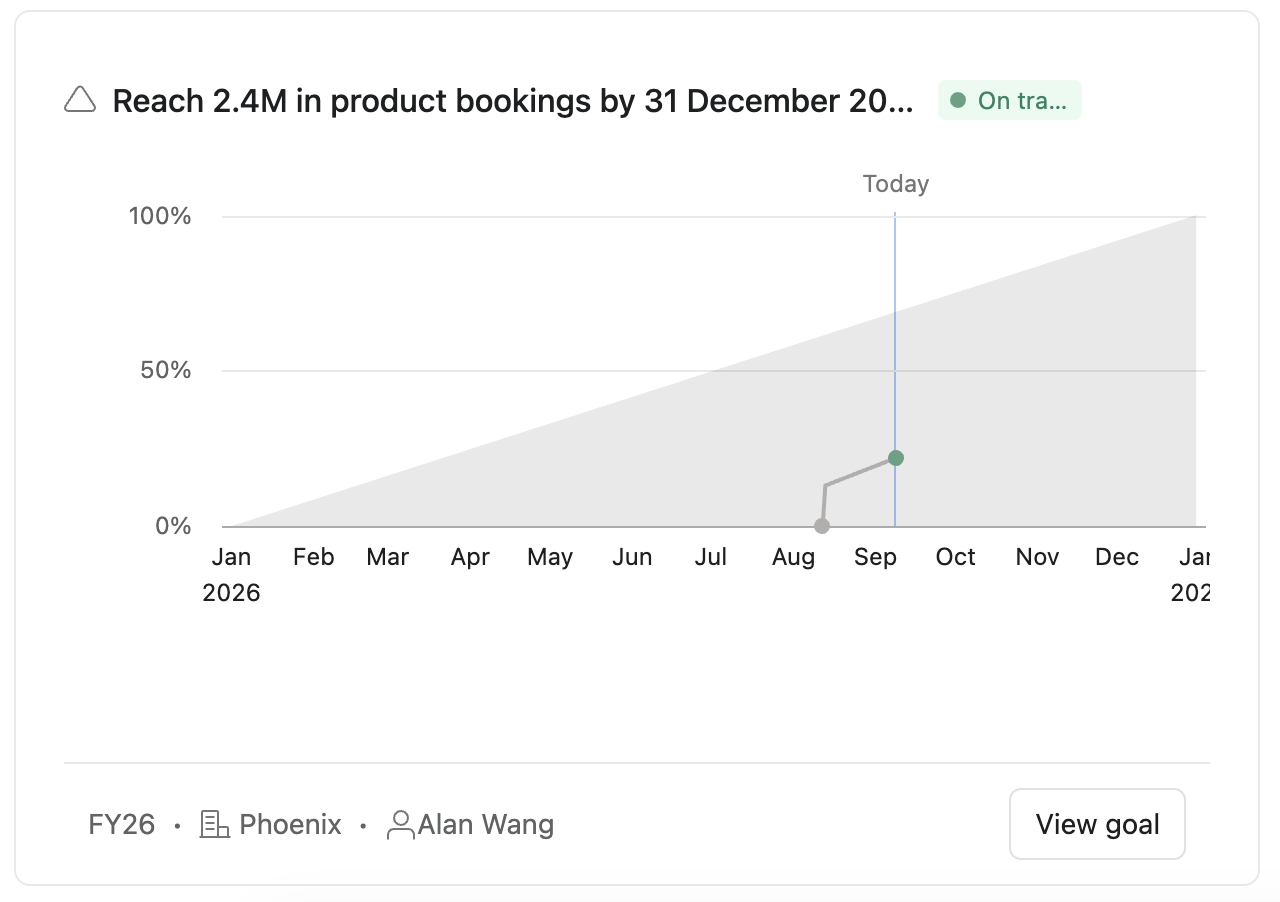
3. A single goal, at a glance
Chart: Work connection, then Goal
Goal: type in the goal you want to feature
This is new, and it is the only template chart for goals. It pulls the progress preview from the goal page and puts it on the dashboard next to your other charts, with the time period, owner and latest status attached.
Use it for the two or three goals leadership always asks about by name, so the specific numbers sit beside the aggregate view rather than someone having to click through to find them.
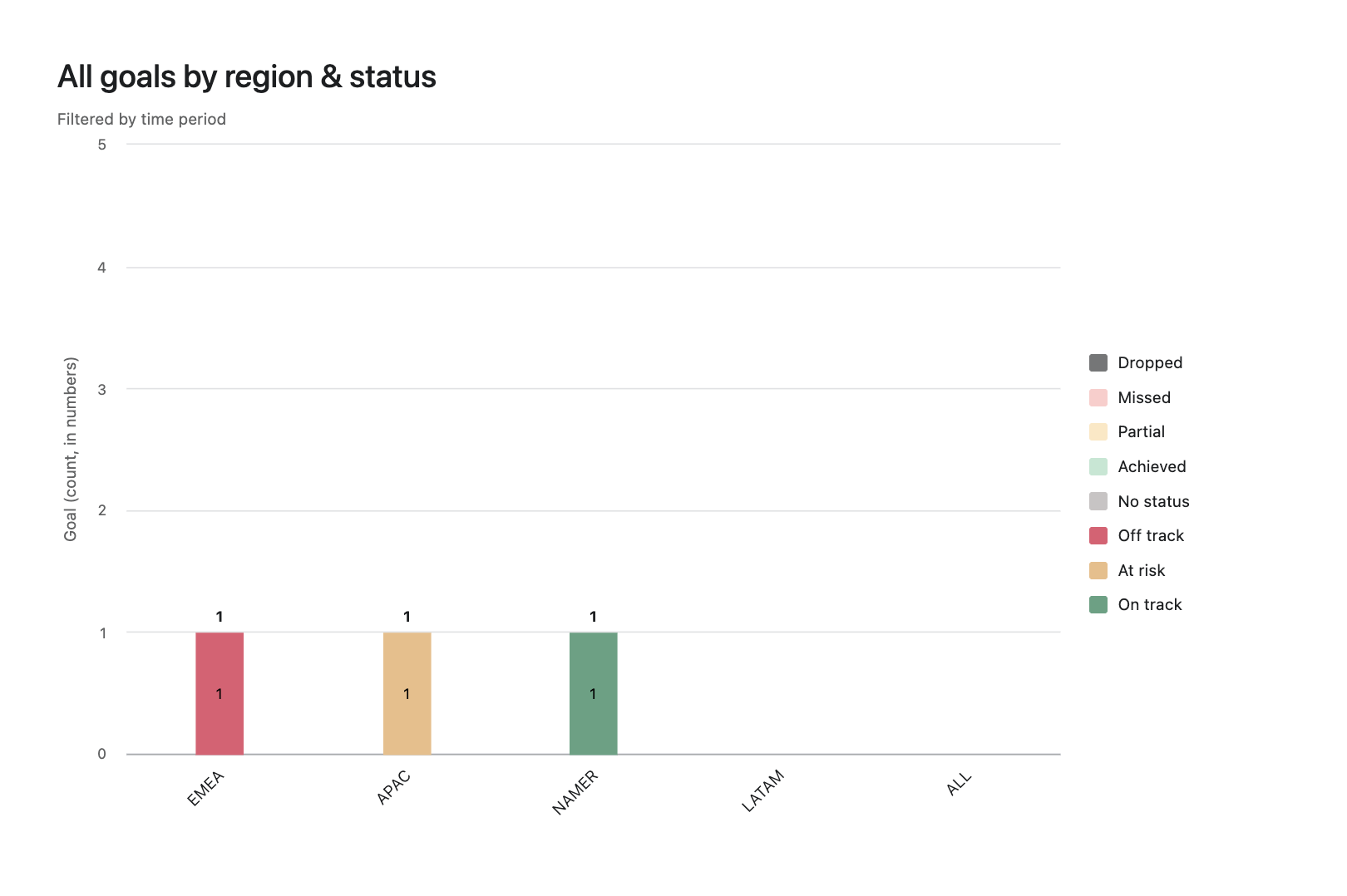
4. Goal health by region, or any custom field
Chart type: Stacked column
Goal level: All goals
X axis: Region, or whichever custom field matters to you
Y axis: Goal count
Group by: Goal status
Filter: Current time period
This is what custom fields on goals unlocked. Before, you could only slice goals by the fields Asana gave you. Now you can slice them by how your business is actually organized.
For a company running across several regions, goals grouped by region shows where the pressure sits far faster than a list of owners does. Swap in whatever field you already use, whether that is business unit, product line, or funding source.
The other ways to view goals in Asana
A dashboard is not always the right answer. Asana has two other ways to look at goals, and depending on what someone is asking for, one of them will get there faster.
The goal lists. Company goals, Team goals and My goals, built in and ready without any configuration. This is the day to day view, and it is also where you do the audit from the top of this post. Every goal sits in a row with owner, time period, status and progress as columns, so blanks are obvious at a glance and you can fill them in without opening each goal one at a time.
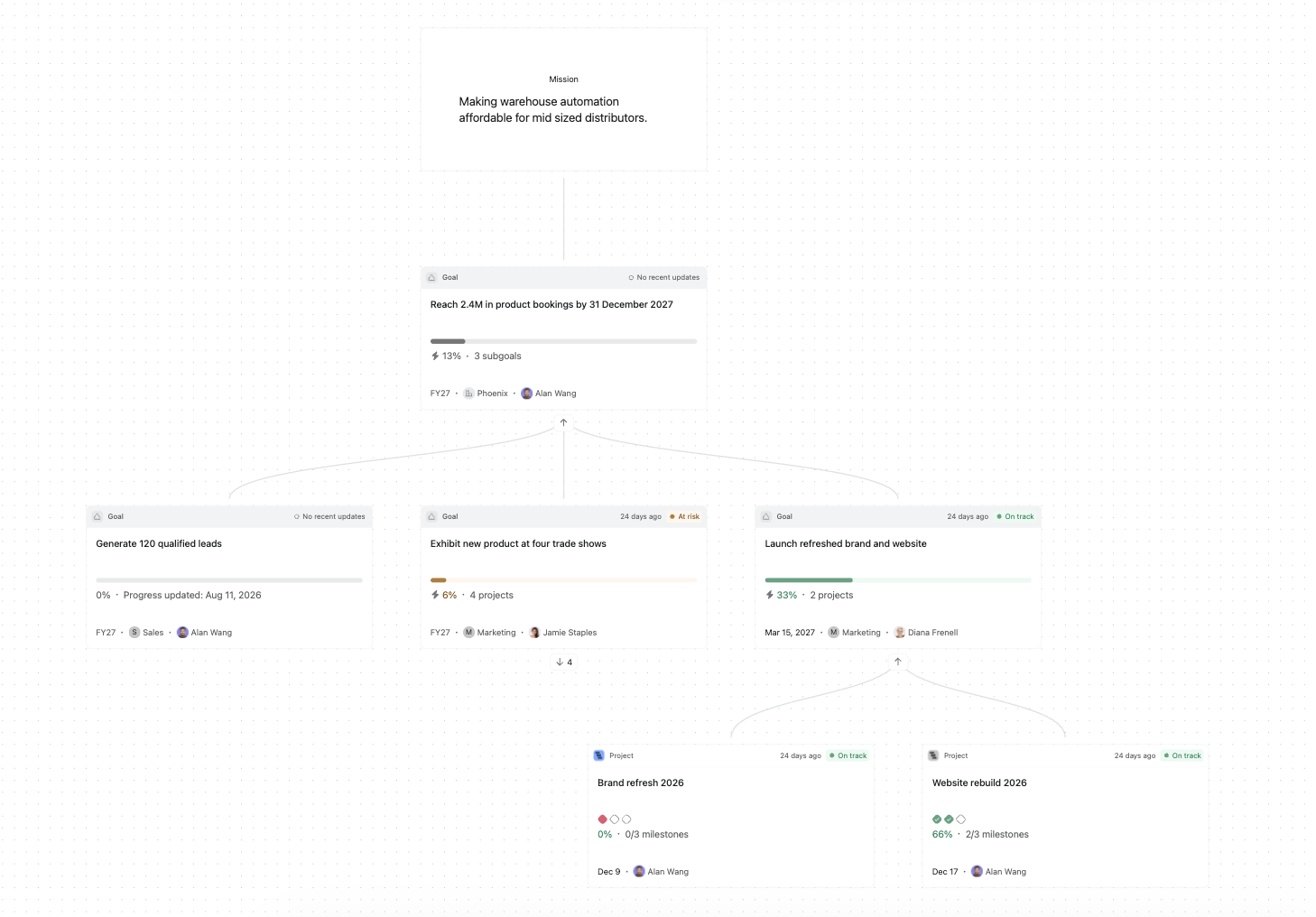
Strategy Map. A visual of how company goals connect down to team goals and then to the projects underneath them. You can navigate around it and zoom in and out, so you can look at the whole picture or drill into one branch. This is the one for planning meetings, where the question is how everything fits together rather than what the current status is.
Dashboard sharing and permissions
Dashboards are private to whoever creates them, so nothing is visible until you share.
Three things to know before you do:
Members, whether individuals or Asana teams, get read only access.
There can only be one dashboard admin. Make someone else the admin and you lose edit access yourself.
Clicking into a chart segment only reveals the goals that person already has permission to see.
That last one matters most when the dashboard is being read alone rather than presented in a meeting. In a room, you are driving and everyone sees the same screen. Sent to five leaders to review on their own, each one sees only the goals they already have access to, and nobody realizes their version is incomplete.
So before you share, check that every viewer has access to the goals behind the charts.
Adding the narrative layer: goal status updates
Charts tell you where the goals are. They do not tell you what changed or what anyone is doing about it.
That matters in two moments. While the goal is still open, the update is how everyone outside the leadership meeting knows what is happening and where they can help.
At the end of the period, it is the record of why the goal landed where it did, which is the difference between a real retrospective and everyone trying to remember what happened in March.
In Asana that lives in status updates on the goal itself, written by the goal owner. What makes it work is the rhythm rather than the tool:
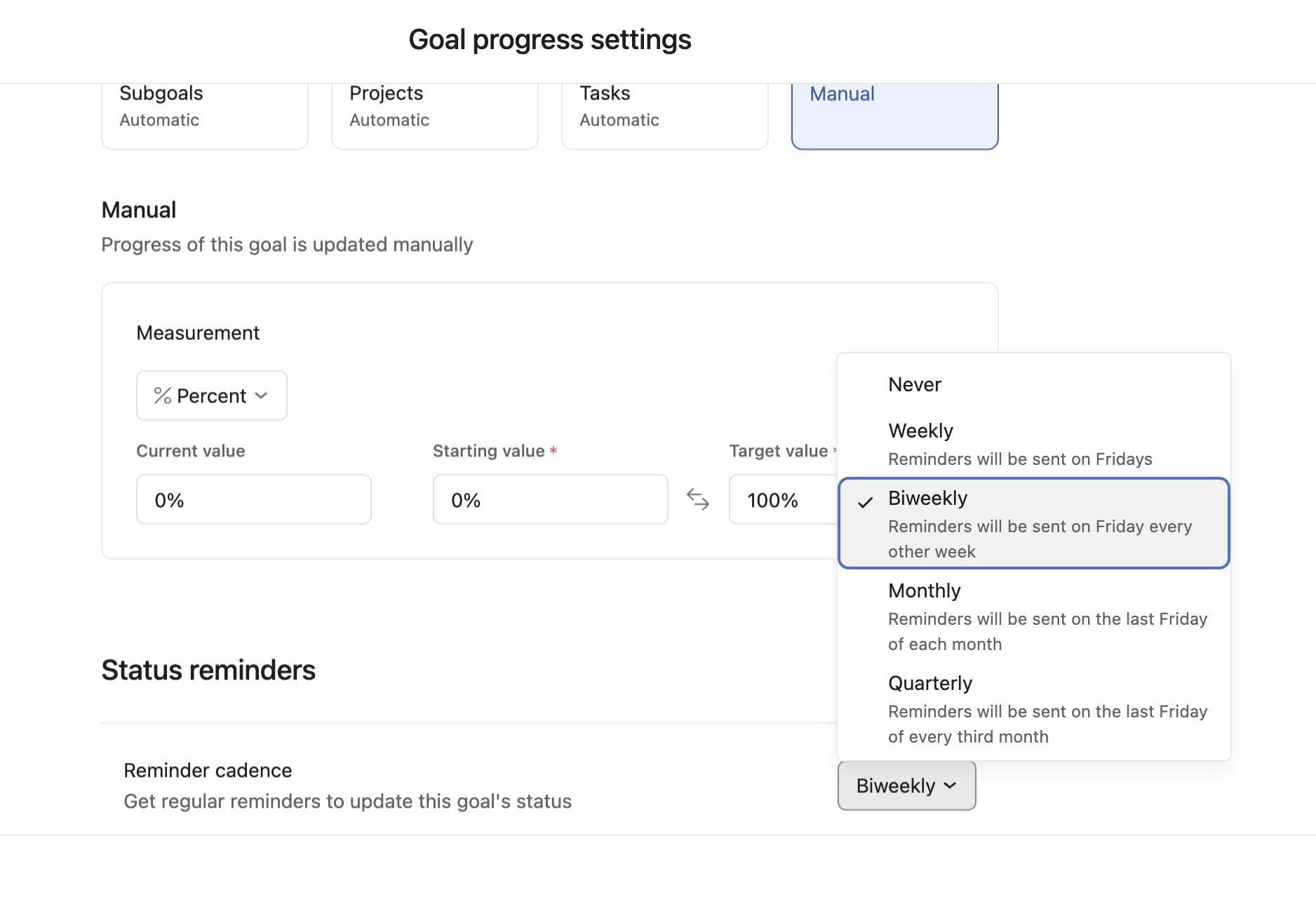
Status reminders, set when you create the goal. Choose weekly, biweekly, monthly or quarterly and Asana creates a task for the goal owner to post the update.
Agreement on what an update covers, so you get context and not just a percentage. What moved, what is blocked, whether the target is still realistic.
Asana AI can draft a smart status update as a starting point, which the owner then edits.
On that second point, status update templates are not available for goals yet. Until they are, and that is not confirmed, the workaround we recommend is an Asana page listing the sections and items every goals update should include. Save the page link inside your goals template so it travels with each new goal, or share it with the team directly if you have not built goals templates yet.
Using AI Teammates for goal reporting
If you would rather not review every status update by hand and then turn them plus your dashboard into an executive summary, this is where AI Teammates help.
The prebuilt one we recommend is the Insights Analyst. Its description talks about compiling live project and portfolio data into clear, audience specific reports and narratives, which does not sound goal related. But it has Asana's Goal tracking skill built in, and that skill fires on exactly the questions you would ask it:
Check progress on our goals
How are we doing against OKRs
Which goals are at risk
Map our work to our objectives
I need to update the team on goal progress
It is also the one to reach for when someone is prepping a QBR, running a planning cycle, or putting together an executive update and needs a view of goal attainment.
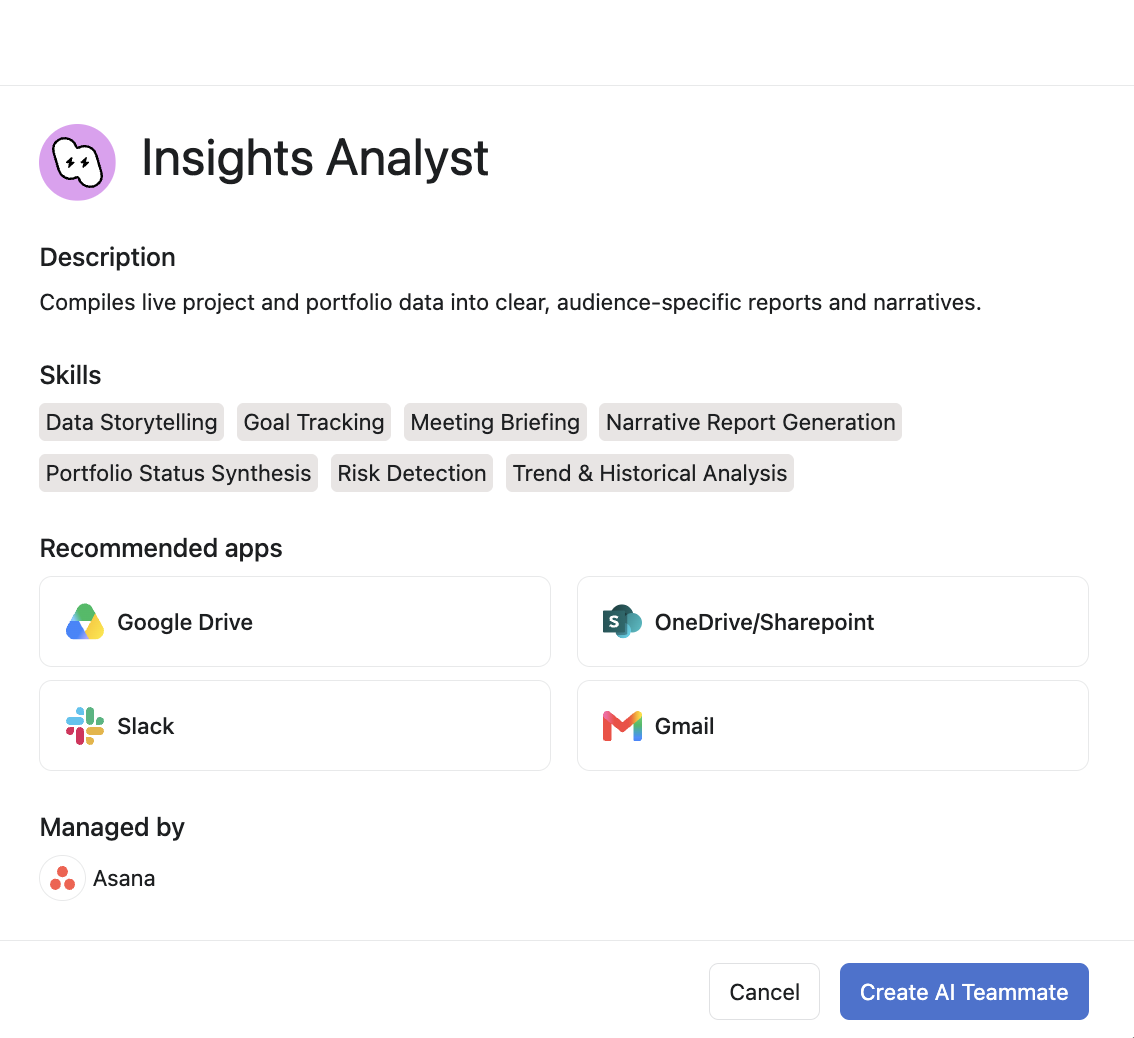
Adding a custom AI teammate
You do not have to pick a template. On the same screen there is a text box where you describe what you want, and the teammate gets built around that.
A prompt as simple as this is enough:
I want an AI teammate that reviews goal progress and status updates, analyzes goal charts, and creates bi weekly executive summaries.
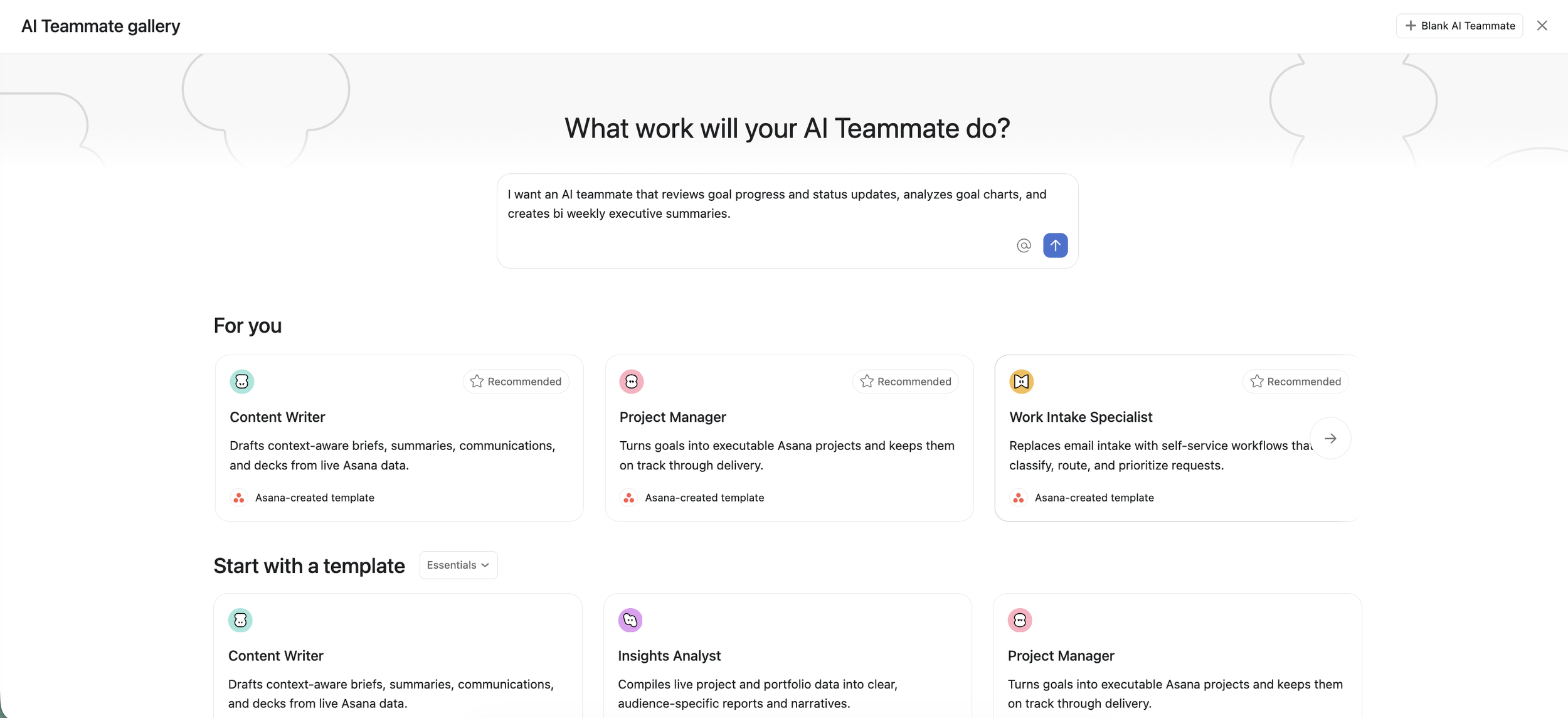
That returns a teammate along the lines of Goals Reporting Analyst, with instructions already drafted across communication style, output format and working instructions. All of it is editable, and that is where you make it fit your workflow.
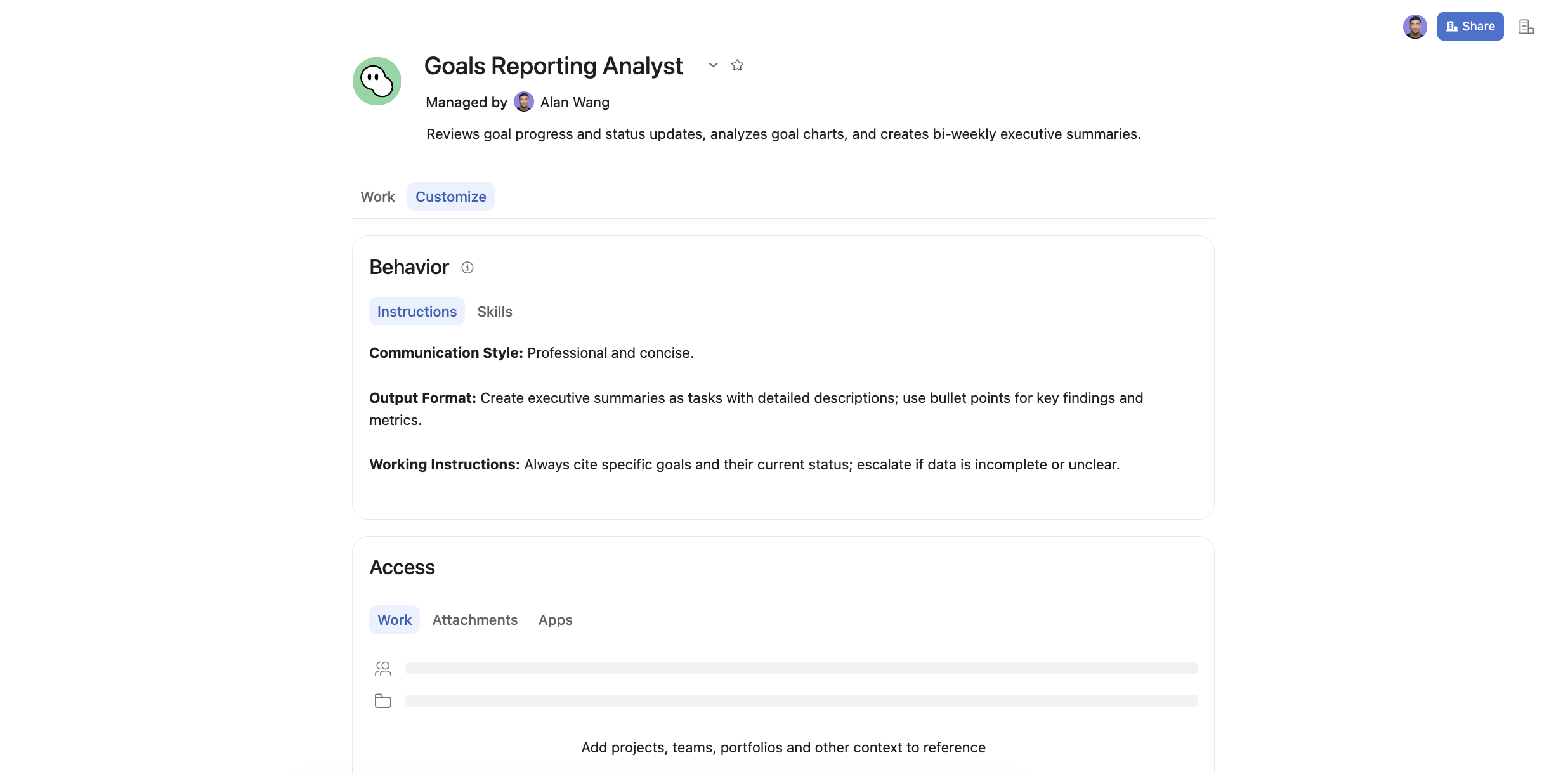
A few ways to take it further:
Want a document rather than a summary in a task description? Connect Drive or Outlook and add your own template, and the teammate will follow it.
Need a monthly report instead of every two weeks? Change the timeframe in the instructions.
Want to check it works before trusting it? Create a task, assign it to your teammate, and watch what it produces.
On skills, add Asana's Goal tracking skill, then customize from there based on how your team actually reports.
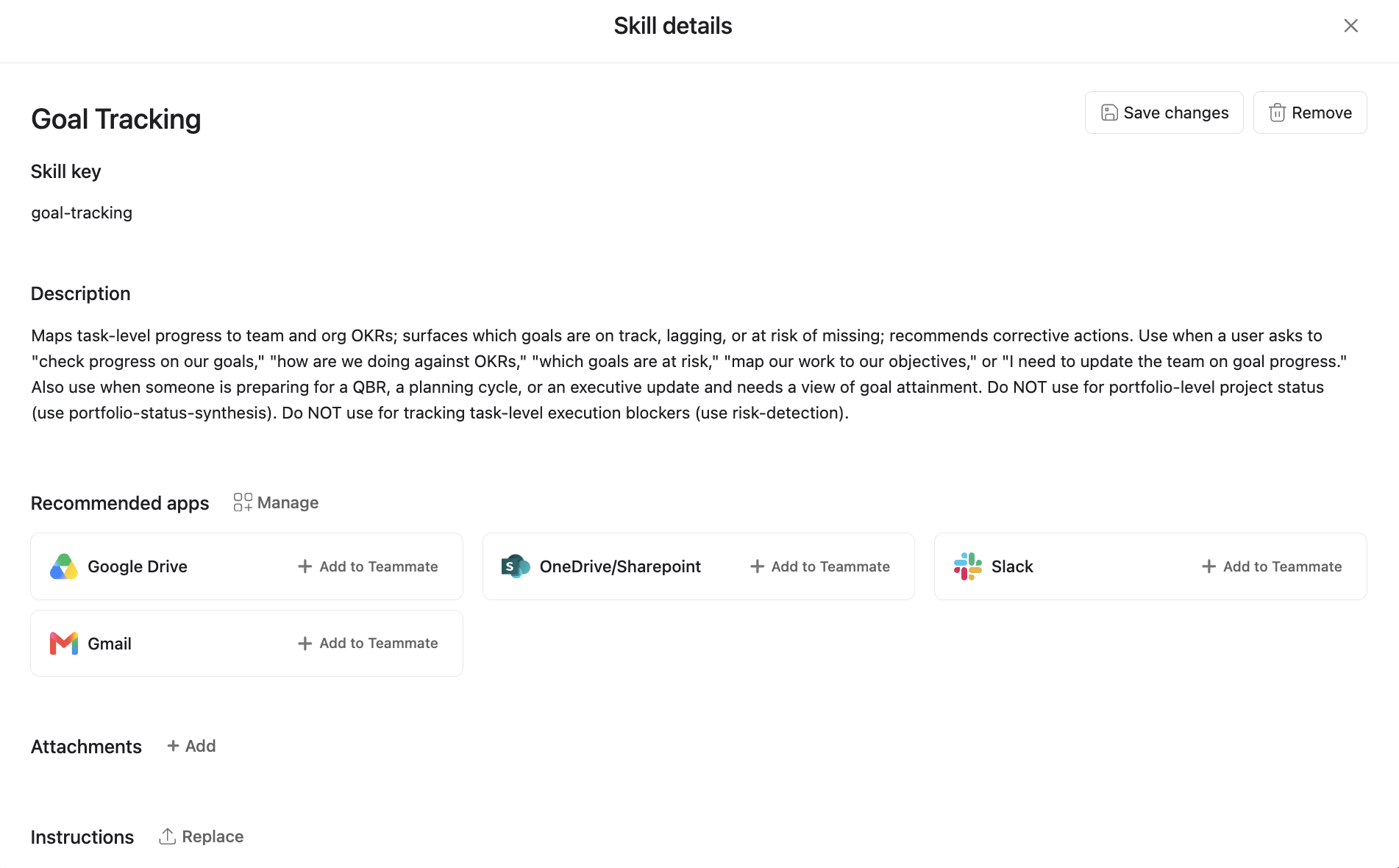
If you would like expert support building your AI teammate and wiring it into your workflows, get in touch.
Watch: Asana Goals end to end
What to do next
Audit your goals for owners, time periods, statuses, and progress sources.
Build charts one and two from the list above.
Turn on status reminders so every chart has a written explanation behind it.
You built goals in Asana so strategy would stay visible next to the work. Reporting is what keeps it visible after the kickoff energy wears off.
If you want help with any layer of that, reach out and let's talk it through.
Frequently asked questions
Is there an Asana goals dashboard template?
Not as a downloadable template. There is one template chart for goals, under the Work connection section, where you type in a goal name and get its progress preview. Everything else is built as a custom chart, and the four configurations above can each be rebuilt in a couple of minutes.
Where do I find goal charts in Asana?
Click Strategy in your sidebar, then Reporting. Create a dashboard, add a custom chart, and select Goals under Report on.
Which Asana plan do I need for a goals dashboard?
Charts on goal metadata require Advanced, Enterprise, or Enterprise+, or the legacy Business and Legacy Enterprise plans.
Can I chart goal progress over time?
Yes. The goal progress chart summarizes the progress that lives on the goal itself, and it can now sit on a dashboard alongside charts like goals by status and goals by owner. So you can show aggregate goal health and the detail of a specific goal's progress in the same view.
How do I see all my goals in one list rather than a chart?
Open Goals and pick the list you need, whether that is company goals, team goals or your own. Each one lays the goals out in rows with columns for progress, owner, status and time period.
How do connected goals work in Asana?
Asana gives a goal four progress sources, and three of them connect it to other work:
Subgoals, which in turn connect to their own projects or tasks
Projects, where you choose whether all tasks or only milestone completion moves the goal forward
Tasks, for a specific set of tasks rather than a whole project
The fourth is manual, where the owner sets the progress themselves. The other three move on their own as the work does.
How is a goals dashboard different from a project dashboard in Asana?
A project dashboard reports on the tasks inside one project, and a portfolio dashboard reports on the work inside that portfolio. A goals dashboard is built in Reporting and reports on the goals themselves, so it answers whether the outcomes are on track rather than whether the work is getting done.
Do I need AI Teammates to report on goals?
No. Dashboards and status updates cover reporting on their own. AI Teammates help when you want the review and the executive summary handled for you rather than written by hand.