
Asana Timesheets and Budgets: How the Add-on Works and When It Makes Sense
If your team already tracks work in Asana, there’s a good chance you’ve also tried to track time there too.
For a while, that meant using estimated time, actual time, and dashboard charts to understand how much effort work was taking. Helpful? Yes. Complete? Not always.
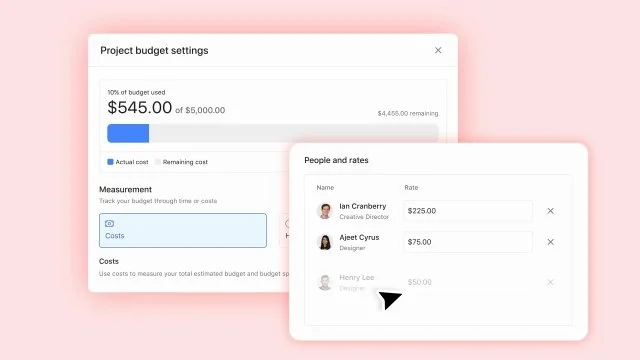
The Asana Timesheets and Budgets add-on gives teams a more connected way to manage time, project budgets, approvals, and reporting. Instead of tracking time as a loose project field, teams can now use weekly timesheets, submit time for review, connect actual time to project budgets, and report on time or financials inside Asana.
I believe this feature presents a big shift for teams that need visibility on project budget tracking, billable time, capacity planning, or cost visibility.
Our team at Cirface has already introduced Timesheets and Budgets to several clients, who have quickly recognized the great impact this add-on has on optimizing their existing workflows.
Let’s get into it.
Quick Answer: What Does the Asana Timesheets and Budgets Add-on Do?
The Asana Timesheets and Budgets add-on gives teams a fuller time tracking and budget management experience inside Asana.
With the add-on, teams can:
track time in a weekly timesheet
add time to projects or specific tasks
mark time as billable or non-billable
submit timesheets for review
approve or reject submitted timesheets
connect actual time to a project budget
track project budgets by cost or hours
report on time entries and financials in project dashboards
view workload by estimated cost, not just estimated time
manage time tracking and budget settings from the admin console
The simplest way to think about it:
Asana time tracking used to help teams understand effort. The Timesheets and Budgets add-on helps teams connect that effort to review, reporting, and budget control.
Table of Contents
- Timesheets and Budgets vs. Asana’s Existing Time Tracking
- What Is the Asana Timesheets and Budgets Add-on?
- How Much Does the Asana Timesheets and Budgets Add-on Cost?
- How Asana Timesheets Work
- How Timesheet Submission and Time Review Work in Asana
- How Project Budgets Work in Asana
- How to Track a Project Budget by Cost
- How to Track a Project Budget by Hours
- How Budget Threshold Notifications Work
- How Timesheets Connect to Actual Time
- How to Report on Time and Budget Data in Asana
- How to View Workload by Cost
- Admin Settings Worth Knowing
- Who Should Use the Asana Timesheets and Budgets Add-on?
- What to Set Up First
- The Key Takeaway
- Frequently Asked Questions About Asana Timesheets and Budgets

Timesheets and Budgets vs. Asana’s Existing Time Tracking
Before this add-on, teams could already track time in Asana using estimated time and actual time. They could also build dashboard charts to compare estimates against actuals.
That still matters.
But the add-on adds a more complete workflow around that data. Below is a simple breakdown based on what we've discovered playing around with Asana’s timesheets and budgets add-on.
| Capability | Existing time tracking in Asana | Timesheets and Budgets add-on |
|---|---|---|
| Estimated time | Yes | Yes |
| Actual time | Yes | Yes |
| Dashboard charts | Yes | Yes |
| Weekly timesheet view | No | Yes |
| Submit timesheets for review | No | Yes |
| Approve or reject submitted time | No | Yes |
| Track time to projects and tasks | Limited | Yes |
| Connect time to project budgets | Limited | Yes |
| Report on time entries and financials | Limited | Yes |
| View workload by cost | No | Yes |
The main difference really is in the structure. You are no longer just tracking time on tasks. You are giving users a dedicated timesheet experience and giving managers a way to review that time, connect it to budgets, and report on it.
What Is the Asana Timesheets and Budgets Add-on?
The Asana Timesheets and Budgets add-on is an add-on that lets selected users track time in a dedicated timesheet area inside Asana.
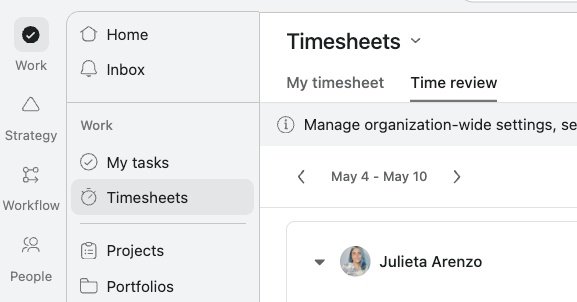
Once enabled, users can access Timesheets under Work. From there, they can add projects to their weekly timesheet, track time by day, and submit their time at the end of the week.
The budget side connects that tracked time to a project budget. A project budget can be tracked by cost or by hours, depending on how your team manages project planning.
That makes the add-on useful for teams that need to answer questions like:
How much time did we spend on this project?
How much of that time was billable?
Are we staying within the project budget?
Are actual hours lining up with estimates?
Which team members are contributing time?
What is the cost behind the workload?
That last point matters. We’ve quickly learned from our own experience working within Asana that time tracking is not only for tracking hours, but more so understanding the cost of delivery.
How Much Does the Asana Timesheets and Budgets Add-on Cost?
The Asana Timesheets and Budgets add-on costs US$5.99 per user, per month when billed annually.
According to Asana, the add-on is available on:
Starter
Advanced
Enterprise
Enterprise+
This means teams do not need to be on an enterprise-level plan to use the add-on. Teams on Starter and Advanced can also purchase it if they need more structured time tracking, timesheet approvals, project budget tracking, and cost visibility inside Asana.
The key thing to remember is that this is an add-on, not a standard feature included automatically in every plan. If your team wants weekly timesheets, project budgets, rate cards, and budget tracking, you’ll need to account for this extra cost when evaluating your Asana setup.
How Asana Timesheets Work
The timesheet experience is built around a weekly view.
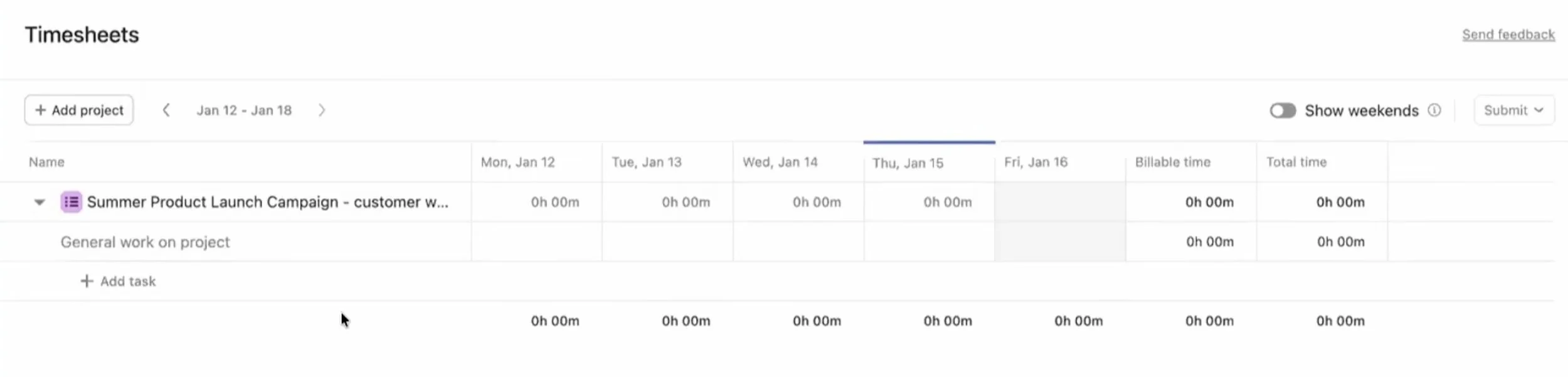
Time submitters can add projects to their timesheet, then enter time across the days of the week. If weekends are relevant, those can be displayed as well.
How to Track Time to an Asana Project
Users can track time to a project as a whole.
For example, if someone worked four hours on a product launch campaign, they can add that project to their timesheet and enter the time directly into the correct day.
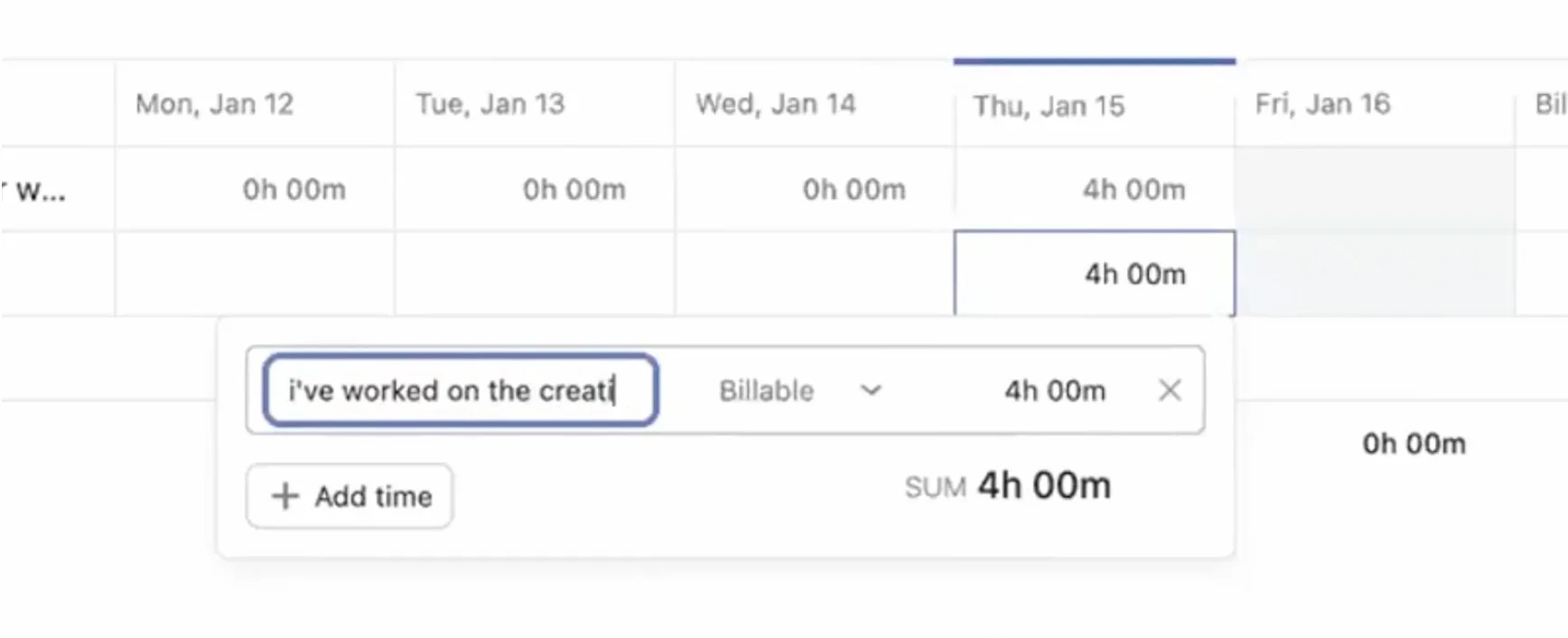
When adding time, users can also:
mark the time as billable or non-billable
add an optional description
explain what they worked on
That gives time for your reviewers and project managers more context than a number alone.
How to Track Time to a Specific Asana Task
Teams can also get more granular by tracking time to specific Asana tasks within the project.
Once a project is added to the timesheet, users can add tasks from that project and track time against those tasks directly.
Task-level time tracking gives teams a clearer picture of where time is going. Instead of only knowing that four hours were spent on a campaign, you can see that two hours went to the kickoff task, another hour went to creative brief development, and so on.
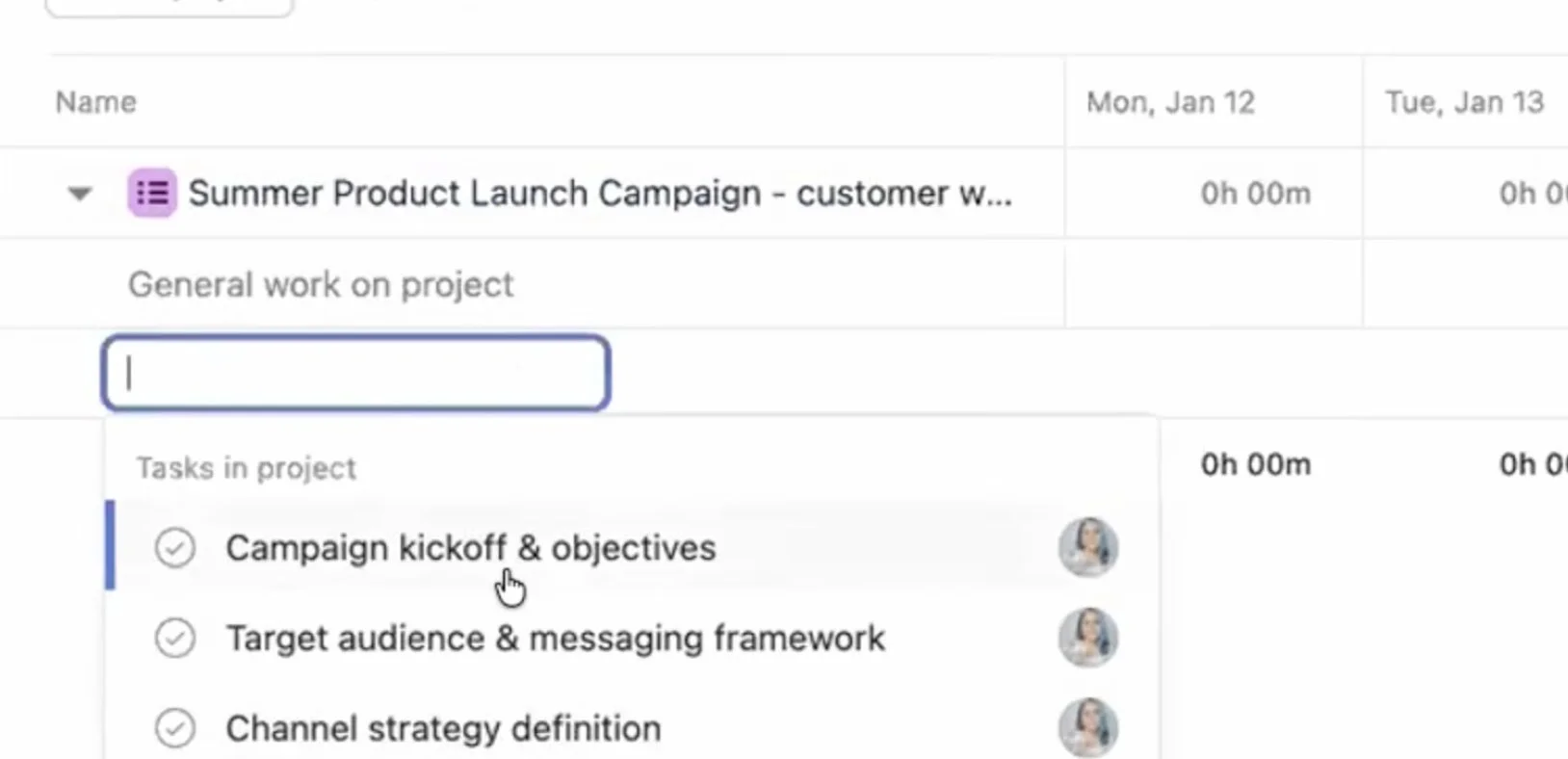
Use the Timer for Task-Level Work
When users track time to a specific task, they can enter time manually or start a timer.
That is helpful for people who want to begin work, let the timer run, and stop it when they are done. The time then connects back to the task and the project.
We’d also note that we found that the time does not live in a separate system. It connects back into the project’s actual time data, so you are not manually copying time entries into Asana later.
How Timesheet Submission and Time Review Work in Asana
Once a user has entered time for the week, they can submit their timesheet.
When they submit, Asana shows a summary of the time tracked, including billable time and total time. The submitter can also add a note for the time reviewer.
After submission, the timesheet moves into review.
What Time Reviewers See When an Asana Timesheet Is Submitted
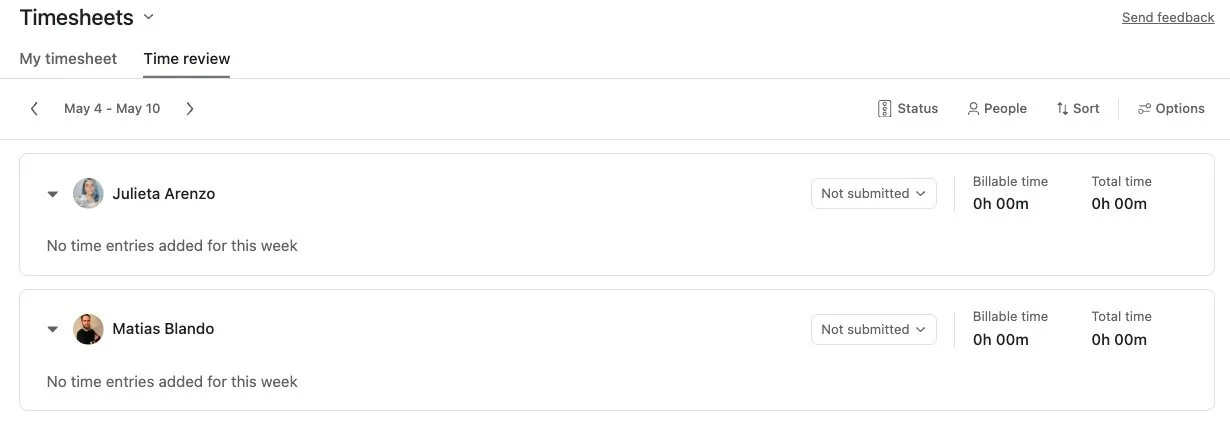
Time reviewers get access to a Time Review tab inside the Asana Timesheets area.
From there, reviewers can see submitted timesheets from their time submitters. They can expand each submission to review the time entries for the week, then approve or reject the timesheet.
If a timesheet is approved, the submitter receives a notification in their Asana inbox.

Time Review Filters and Sorting
As the list of time submitters grows, reviewers can filter and sort what they see.
As a time reviewer, you can:
filter by team member
sort alphabetically
sort by total time
sort by billable time
choose whether to display weekends
choose whether timesheet cards are open by default
save the view for future use
This is a small but important part of the workflow. If you review time for multiple people every week, the review experience needs to stay manageable.
How Project Budgets Work in Asana
The budget side of the add-on is where time tracking starts to connect to Asana project planning.
Project budgets can be configured by project admins. The project budget could be accessed from the project overview or from the project actions menu.
A project budget can be tracked in two ways:
by cost
by hours
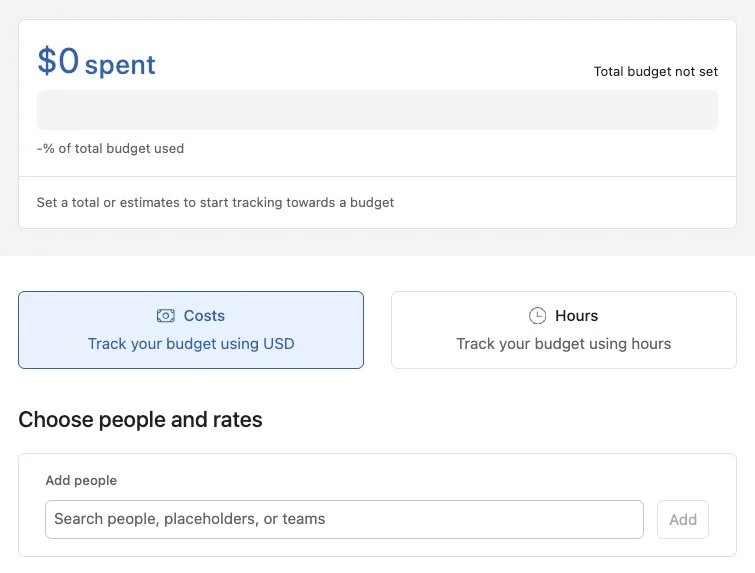
That gives teams some flexibility depending on how they manage work.
A client services team might care more about cost. An internal operations team might care more about hours. The setup can reflect that.
How to Track a Project Budget by Cost
When you track a project budget by cost, you need to define who is tracking time to the budget and what their rates are.
For instance, project admins could add:
individual users
placeholders
teams
That means you do not always need to know the exact person who will do the work right away. You can use a placeholder first, then fill in the details later.
Add Hourly Rates
For cost-based budgets, hourly rates matter.
When team members are added to the project budget, their hourly rates are used to calculate cost based on actual time tracked.

We’ve also discovered a faster way to handle rates: if rates are already stored on the team member profile through a team-level custom field, they can be brought into the project budget setup instead of being re-entered every time.
That is especially useful for teams managing many projects with the same group of contributors.
Total Budget, Estimated Cost, and Actual Cost
A cost-based project budget can include three important pieces of data:
Total budget
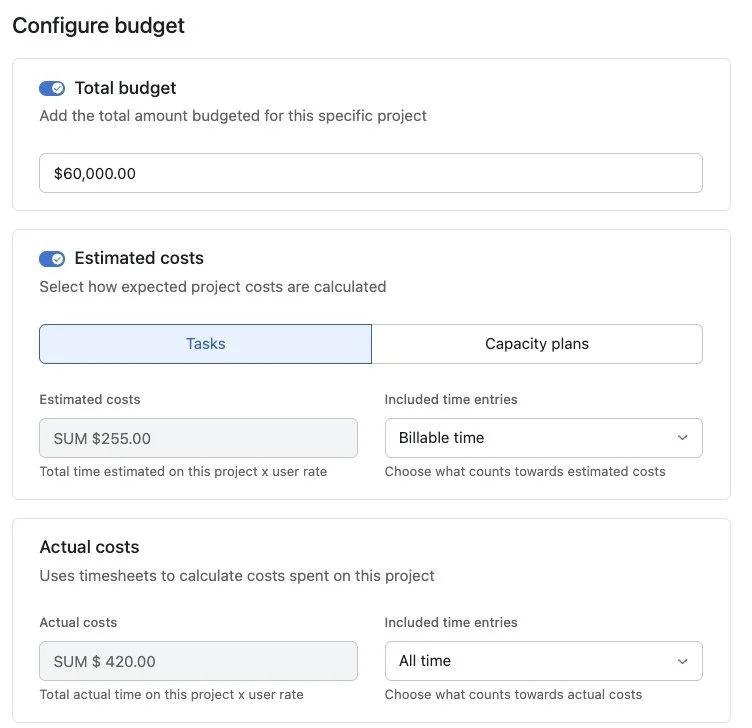
The total budget is the amount available to spend on the project.
For example, if the project budget is $10,000, Asana can compare actual cost against that total budget.
Estimated cost
Estimated cost is the forecasted cost of the project.
In the demo, estimated cost could come from:
estimated time added to tasks
capacity plans for Enterprise or Enterprise+ accounts
That gives teams options. If your team estimates work at the task level, you can use those estimates. If your team uses capacity plans, those hours can be used as the source for estimated cost.
Actual cost
Actual cost is based on actual time tracked against the project, multiplied by the relevant user rates.
You can decide whether actual cost should include:
billable time
non-billable time
all time
That distinction matters for teams that need to understand not only how much work was done, but how much of it was client-billable or internally absorbed.
How to Track Asana Project Budget by Hours
If your team does not need to track cost, you can track a project budget by hours instead.
In that setup, you define the total number of hours available for the project.
For example:
We have 100 hours available for this project.
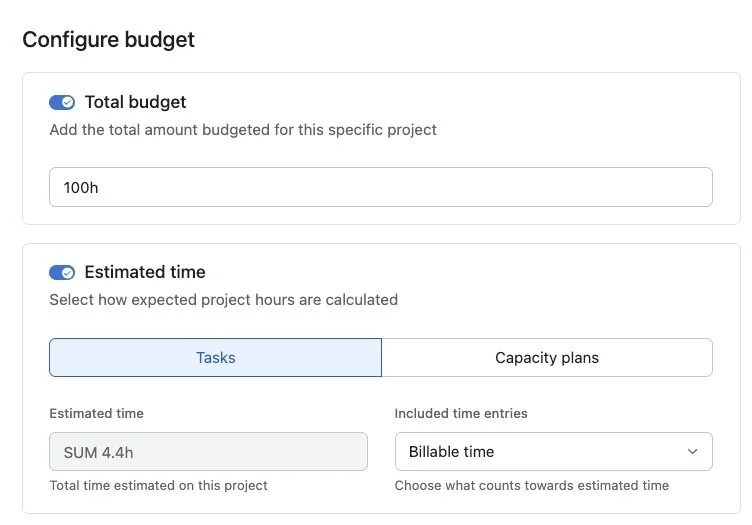
From there, Asana can compare actual time and estimated time against that hour budget.
Just like cost-based budgets, estimated time can come from tasks or capacity plans. Actual time can include billable time, non-billable time, or all time.
This is useful when the budget conversation is more about effort than spend.
How Budget Threshold Notifications Work
Project budgets can also include threshold notifications.
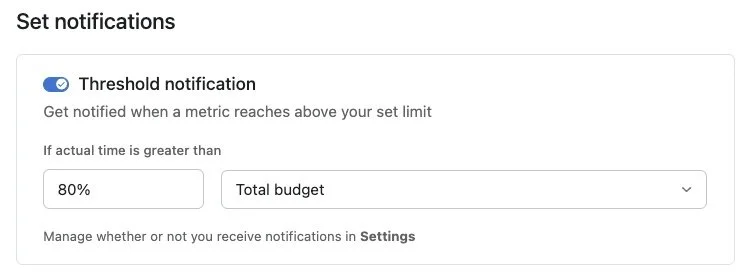
In the demo, the threshold could be set as a percentage of the total budget or estimated cost. For example, a team could choose to receive a notification when the project reaches 80% of the budget.
That threshold can be adjusted depending on when the team wants to be alerted.
This is one of the most practical parts of the add-on. A budget warning after the project is already over budget is not very useful. A threshold notification gives the team a chance to respond earlier.
How Timesheets Connect to Actual Time
One important detail: timesheets connect to the actual time field in the project.
As we mentioned earlier, when time was tracked to a task through the timesheet, that time appeared in the project’s actual time column. There was no separate manual update required.
In my opinion, this is the most important benefit this add-on provides because the timesheet is not disconnected from the work.
The time entered by users flows back into the project, which can then support:
actual time tracking
project budget calculations
dashboard reporting
workload and cost visibilityThat is what makes the add-on more useful than a standalone timesheet tool.
How to Report on Time and Budget Data in Asana
Once time and budget data are connected, reporting becomes much more useful.
Inside a project dashboard, teams can create charts using time entries instead of only work data. From there, they can report on time or finances.
Time Reporting
For time reporting, teams can build charts based on things like:
staff
billable or non-billable time
approval status
working date
Project
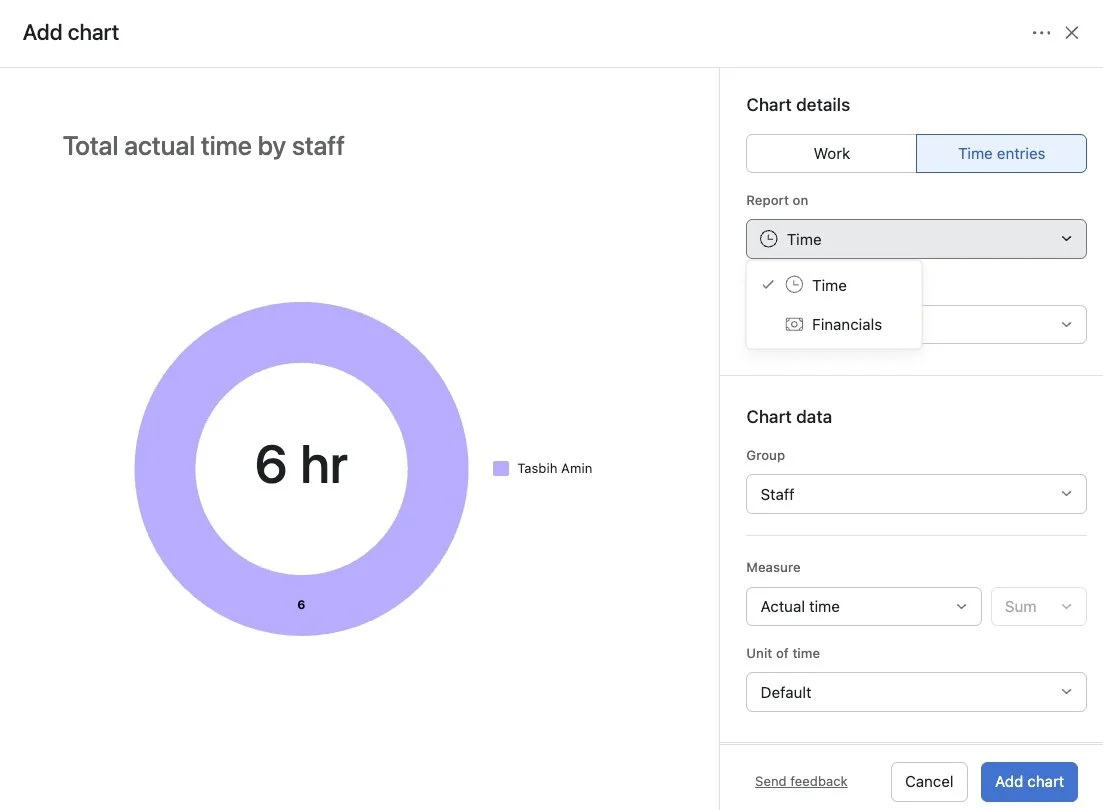
For the y-axis, teams can choose between actual time and estimated time.
Estimated time can come from:
tasks
capacity plans
both
Teams can also define the unit of time, such as hours, days, minutes, weeks, or years.
Financial Reporting
For financial reporting, teams can report on:
actual cost based on actual time tracked
estimated cost based on estimated time
That makes it possible to see more than just the overall project budget. You can also break down cost and time by team member, working date, billable status, or other reporting needs.
For you as a manager, this is where the feature becomes more than a time entry tool. It becomes a way to understand how project delivery is actually trending.
How to View Workload by Cost
I would also highlight an update to the workload tab.
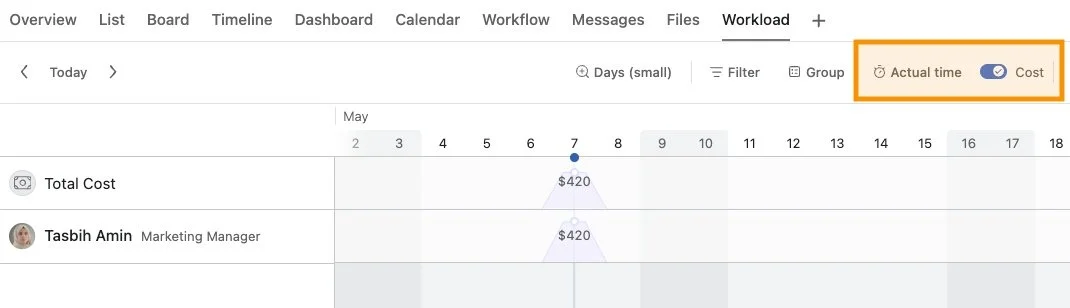
Previously, teams could use workload to view estimated time or actual time instead of only task count. With this add-on, teams can also toggle to see cost.
That means project workload can show estimated cost based on the hourly rates of the users added to the project.
This is useful because workload is not only about whether someone has enough hours available. It can also show the cost behind that allocation.
For teams managing project budgets, that adds another layer of visibility.
Admin Settings Worth Knowing
The add-on also includes admin-level settings that control how teams use timesheets and budgets.
From the admin console, admins can configure settings such as:
turning estimated time fields on or off
turning actual time fields on or off
deciding whether users can categorize work as billable or non-billable
choosing the default billable status
setting the project budget currency
using a submit-only workflow or an approval workflow
locking past time entries after a certain number of weeks
defining resourcing view access for capacity plans and workload views across projects and portfolios
Working with hundreds of teams in many industries and functions, we’ve learned that different teams manage time differently. Which makes these configurations in the Asana Admin console all the more significant when it comes to timesheet management.
Some teams want every time entry reviewed. Others may only need people to submit time without an approval step. Some teams care deeply about billable vs non-billable time. Others may want everything treated the same way.
If your team is also building automated handoffs around time tracking, our guide to Asana rules and automation is a useful next read.
Who Should Use the Asana Timesheets and Budgets Add-on?
Based on the workflow shown in the demo, this add-on makes the most sense for teams that need more structure around time, budget, and review.
It is especially useful if your team needs to:
submit and approve timesheets
track time to projects and tasks
separate billable and non-billable work
compare actual time against estimated time
track project budgets by hours or cost
report on time and financials
connect workload to cost
manage project budget thresholds
create visibility for managers and reviewers
This gives project managers, operations leads, and team leaders a better way to understand project effort, cost, and progress without hopping between tools.
What to Set Up First
If your team is getting started with Asana Timesheets and Budgets, do not start with every setting at once.
Start with the decisions that shape the system.
1. Decide if you are tracking hours, cost, or both
Some teams only need to know how many hours are being spent. Others need to understand project cost. Decide which matters most before setting up budgets.
2. Define who submits time and who reviews it
The timesheet workflow depends on clear submitters and reviewers. Decide who needs to track time and who is responsible for reviewing it.
3. Confirm your billable and non-billable approach
If billable time matters to your reporting, define what counts as billable before people start entering time.
4. Set up hourly rates if you are using cost budgets
Cost-based project budgets depend on user rates, especially if you’re working with freelancers and contractors. Make sure those are set up correctly before relying on budget data.
5. Choose where estimates come from
If you use estimated cost or estimated time, decide whether those estimates should come from tasks or capacity plans.
6. Set budget threshold notifications
Choose when you want to be alerted. Waiting until a project is already over budget defeats the purpose.
7. Build Asana dashboard charts for reporting
Once time is being entered, create dashboard charts that help your team review the data. Focus on the views managers will actually use.
The Key Takeaway
The Asana Timesheets and Budgets add-on turns time tracking into a fuller workflow.
Instead of only logging estimated and actual time, teams can now manage weekly timesheets, submit time for review, approve or reject entries, connect actual time to project budgets, and report on both time and financials.
For teams that need better visibility into project effort, billable time, budget usage, and workload cost, this gives Asana a much more complete time and budget management layer.
As we’ve previously recommended, the important part is setting it up carefully.
If your team is using this add-on, the value will not come from turning everything on at once. It will come from making clear decisions about how time should be tracked, who reviews it, how budgets are measured, and what reporting matters most.
If you want help configuring timesheets, project budgets, and reporting in a way your team will actually use, Cirface can help you think through the right setup.
Frequently Asked Questions About Asana Timesheets and Budgets
What is the Asana Timesheets and Budgets add-on?
The Asana Timesheets and Budgets add-on gives teams a dedicated way to track time, submit timesheets, review and approve time, connect tracked time to project budgets, and report on time or financial data inside Asana.
Can you track time to both projects and tasks in Asana?
Yes. In the demo, users could track time to a project as a whole or add specific tasks from that project to their timesheet and track time at the task level.
Can users start a timer in Asana timesheets?
Yes. We’ve tried this in many demos and learned that users could manually enter time or start a timer when tracking time to a specific task.
How do timesheet approvals work in Asana?
A time submitter enters time for the week and submits the timesheet. The timesheet then moves into review. The time reviewer can review the submitted entries and approve or reject the timesheet.
Can reviewers filter and sort timesheets?
Yes. In the demo, time reviewers could filter by team member and sort timesheets alphabetically, by total time, or by billable time.
Can Asana project budgets be tracked by cost or hours?
Yes. In the demo, project budgets could be set up using either cost or hours.
How does Asana calculate actual cost?
Actual cost was based on actual time tracked against the project and the user rates configured in the project budget setup.
Can estimated cost come from tasks or capacity plans?
Yes. In the demo, estimated cost could come from task-level estimated time or from capacity plans for Enterprise and Enterprise+ accounts.
Can Asana send budget threshold notifications?
Yes. In the demo, project admins could set a threshold notification, such as an alert when the project reaches 80% of the total budget or estimated cost.
Can you report on billable and non-billable time in Asana?
Yes. In the demo, time entries could be categorized as billable or non-billable, and dashboard charts could filter or report on that distinction.
How much does the Asana Timesheets and Budgets add-on cost?
The Asana Timesheets and Budgets add-on costs US$5.99 per user, per month when billed annually. It is available on Starter, Advanced, Enterprise, and Enterprise+ plans.
Is Asana Timesheets and Budgets included in Asana plans?
No. Based on Asana’s pricing information, Timesheets and Budgets is an add-on. That means it has an additional per-user cost on top of your Asana plan.