
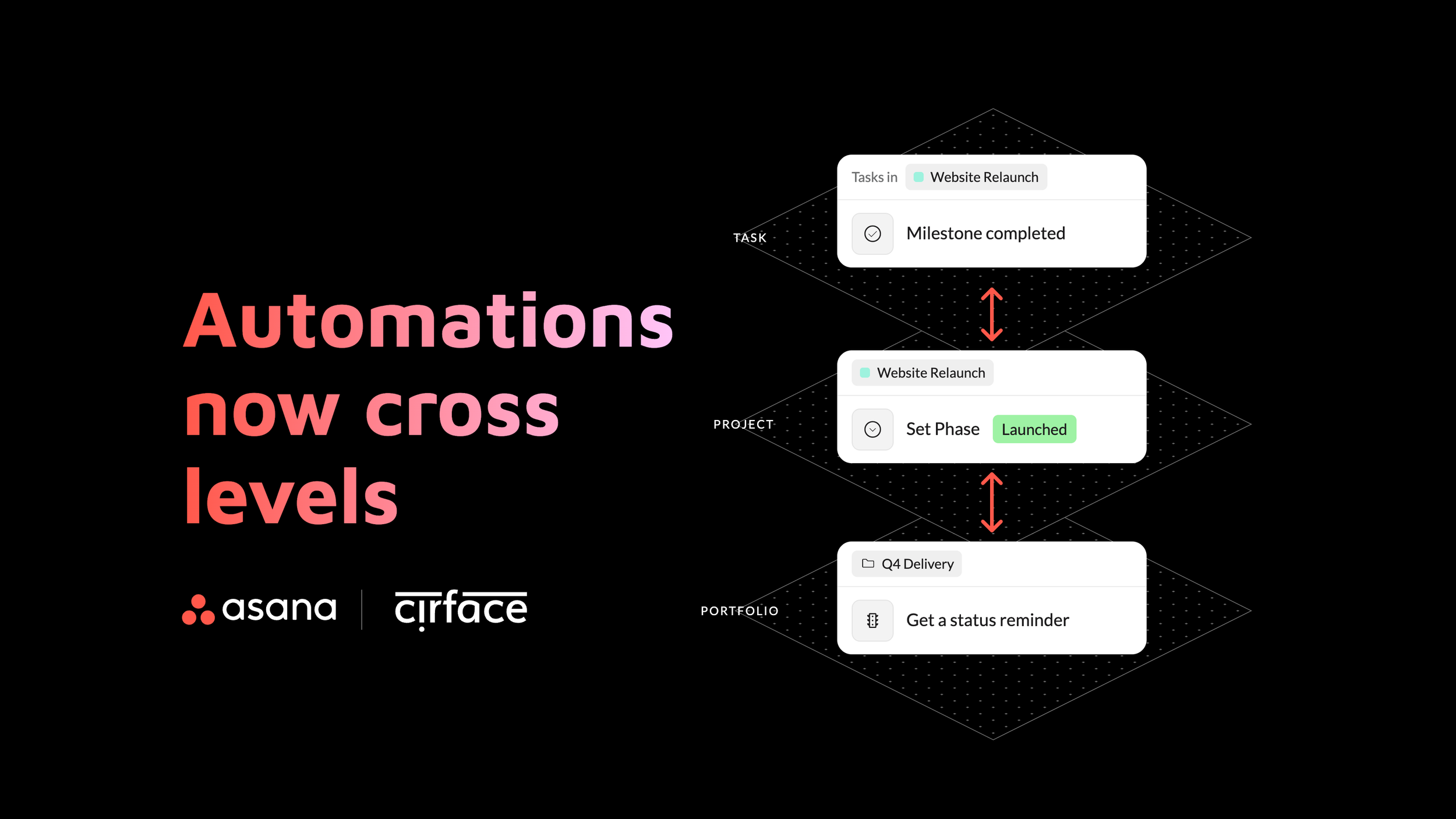
Short answer: In September 2026, Asana renamed rules to automations and replaced the rule builder with a vertical automation builder. The biggest change is scope: one automation can now watch tasks and update their project, watch a project and update its tasks, update a different project, or update a project's portfolio. AI Studio steps now work on projects and portfolios too, and existing automations keep running with nothing to migrate.
Rules are now automations. After years of saying "rules" in every client call, demo and training, I will be honest with you: I still slip. In our last Asana Office Hours I apologized in advance, because I knew I would say "rules" at least once. I did, more than once.
The name is the easy part. The new Asana automation builder also looks and works differently, and it takes a little time to get used to. The good news is that once it clicks, you can build things in Asana automation rules that simply were not possible before.
In this post I cover what changed, what the new scope settings make possible, six automations I built and tested, and the limits I hit along the way.
What changed in the Asana automation builder?
The Asana automation builder is the new place where you create and edit automations, the feature previously called rules. Asana announced the change on September 21, 2026, and it rolled out gradually.
Here is what is different from the rule builder you know.
| Area | Rule builder (before) | Automation builder (now) |
|---|---|---|
| Name | Rules | Automations |
| Layout | Three boxes left to right: trigger, conditions, action | A vertical flow: the trigger on top, then each step below it |
| Conditions | The middle box | Add step, then Flow controls, then Paths (shown as a “Check if” card) |
| What one automation can touch | Tasks in a project, or projects in a portfolio | Tasks, projects and portfolios in the same automation |
| AI Studio steps | Task level | Tasks, projects and portfolios |
| Existing rules | Built and edited in the rule builder | Keep running, nothing to migrate |
When you start a new automation, you first pick how it starts: something happens in Asana, something happens in a connected app (Slack, Jira, HubSpot, Salesforce and Zoom), a manual trigger, a schedule, or a webhook. Scheduled triggers only offer a smaller set of actions, so if an action is missing, check your trigger type first.

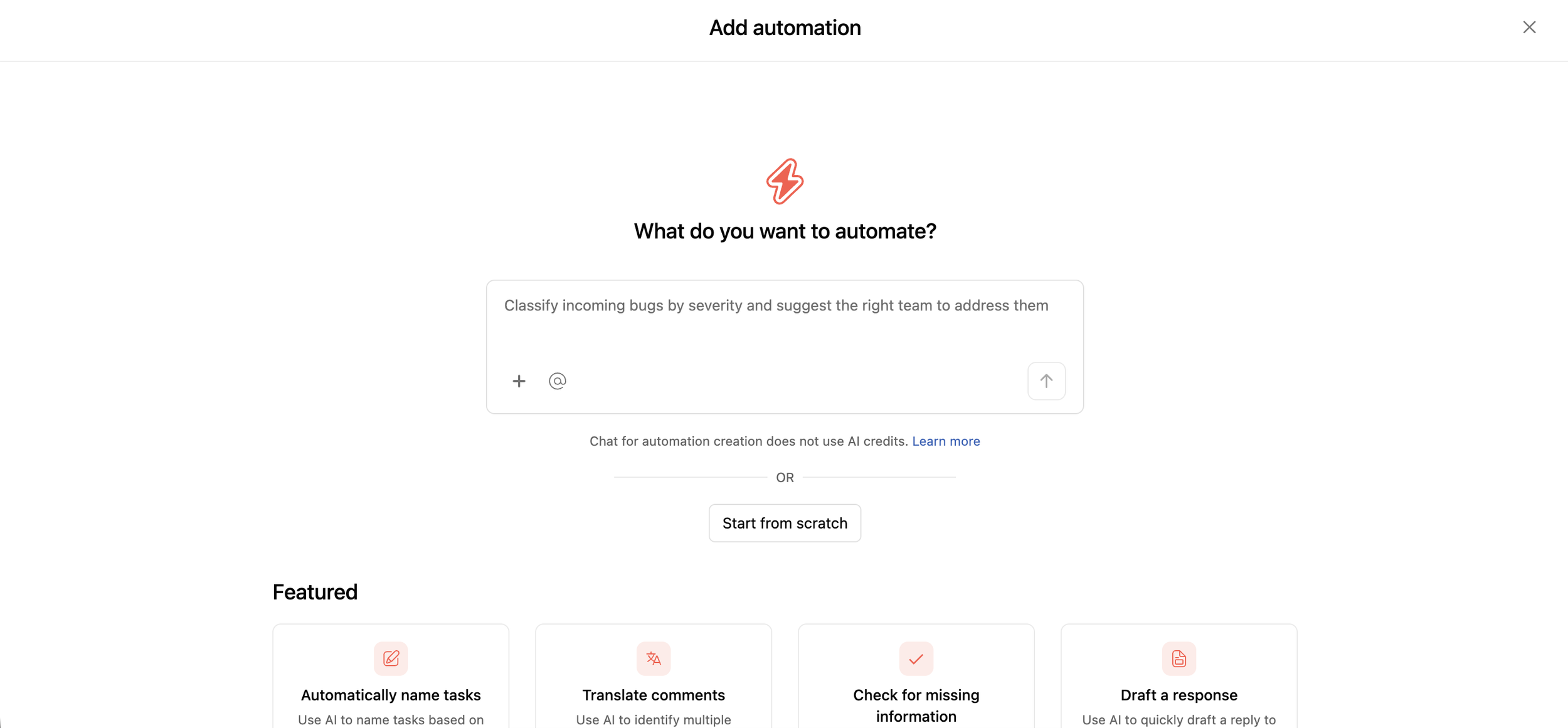
If you have AI enabled, you can also describe what you want in plain words and Asana AI drafts a first version of the automation for you. That is a great way to learn the new layout if you have never used the builder before.
Chatting to create an automation does not use AI credits, so it costs nothing to try. If you would rather build it yourself, click Start from scratch.
What is automation scope in Asana?
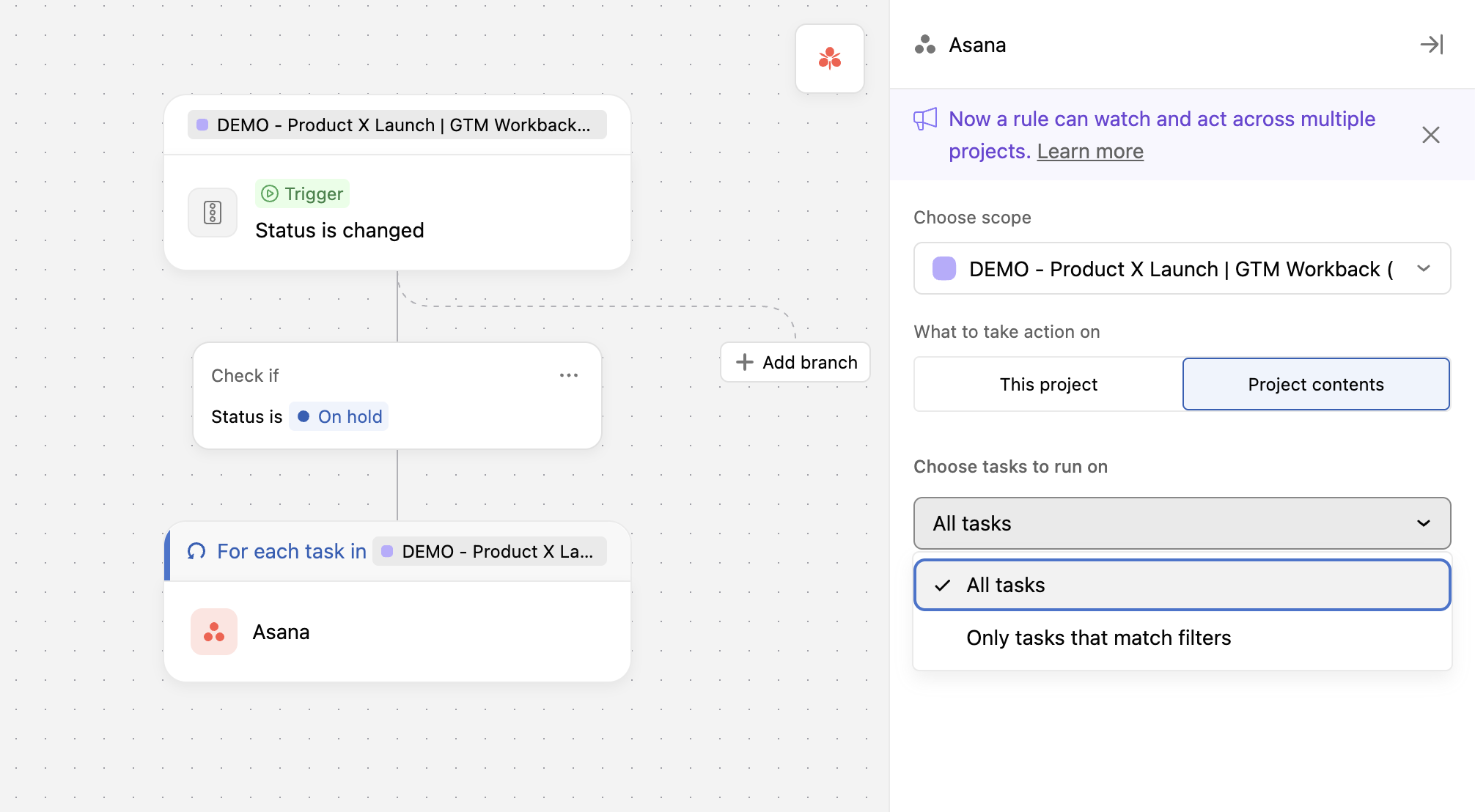
Automation scope is the setting on every trigger and action card that decides where the automation watches and where it acts. You set it by clicking the label at the top of a card, and it has two parts.
Choose scope picks the project or portfolio the card points to.
What to watch for changes (on the trigger) or What to take action on (on the action) picks the project or portfolio itself, or the work inside it.
"This project" means the project itself: its status, owner, due date and project fields. "Project contents" means the tasks inside it. Portfolios work the same way, with "This portfolio" and "Portfolio contents". Asana explains this in detail in its help article on automation triggers and actions.
Because the trigger and action scopes are set separately, you can combine them in new ways.
| Shape | What it does | Example from our builds |
|---|---|---|
| Tasks to tasks | A task change updates tasks, in the same or another project | The most common shape, and what rules always did |
| Tasks to project | A task change updates the project around it | A milestone moves the project to its next phase |
| Project to tasks | A project change fans out to the tasks inside | An At risk status flags this week’s work |
| Project to project | One project’s change updates a different project | When the Client Onboarding project’s status changes to Complete, the Client Delivery project’s Phase moves to In delivery |
| Project to portfolio | A project change updates its reporting portfolio | When any project in the portfolio is marked Off track, the portfolio’s Health field changes to At risk |
One tip that saved me time: set the scope before you choose the trigger or action. The builder only shows options that fit the scope you picked, so a trigger that seems missing usually means the scope is wrong.
What the new automation scope makes possible
The headline for Asana workflow automation is that a single automation can now cross levels. Portfolio rules already existed, but a change on a task could never update its project. When a milestone was completed or a launch date moved, anything at project level (the phase, the due date, the status) needed someone to update it by hand.
Now a task can move the project, a project can update its tasks, and one project can update another. AI Studio steps also work on projects and portfolios, so AI can read context and act at the project level, not only on a single task.
Variables matter here too. Fields from the place the automation watches can be used in the action, so a task's due date can become the project's due date.

6 Asana automation examples we built with the new builder
I built these in a Website Relaunch project. Each one uses a scope combination that was not possible with the old rule builder. Two of them use AI Studio.
| # | Automation | Watches | Acts on | AI Studio |
|---|---|---|---|---|
| 1 | A milestone moves the project to its next phase | Project contents | This project | No |
| 2 | The Go live date sets the project due date | Project contents | This project | No |
| 3 | A new project due date moves the Go live milestone | This project | Project contents | No |
| 4 | An At risk status flags this week’s work | This project | Project contents | No |
| 5 | AI drafts the launch wrap up | Project contents | This project | Yes |
| 6 | AI covers the handoff when an owner is away | This project | Project contents | Yes |
1. A milestone moves the project to its next phase
When the Design sign off milestone is completed, the project's Phase field changes to Build. Nobody has to remember to update the project, and anyone looking at the portfolio sees the right phase.
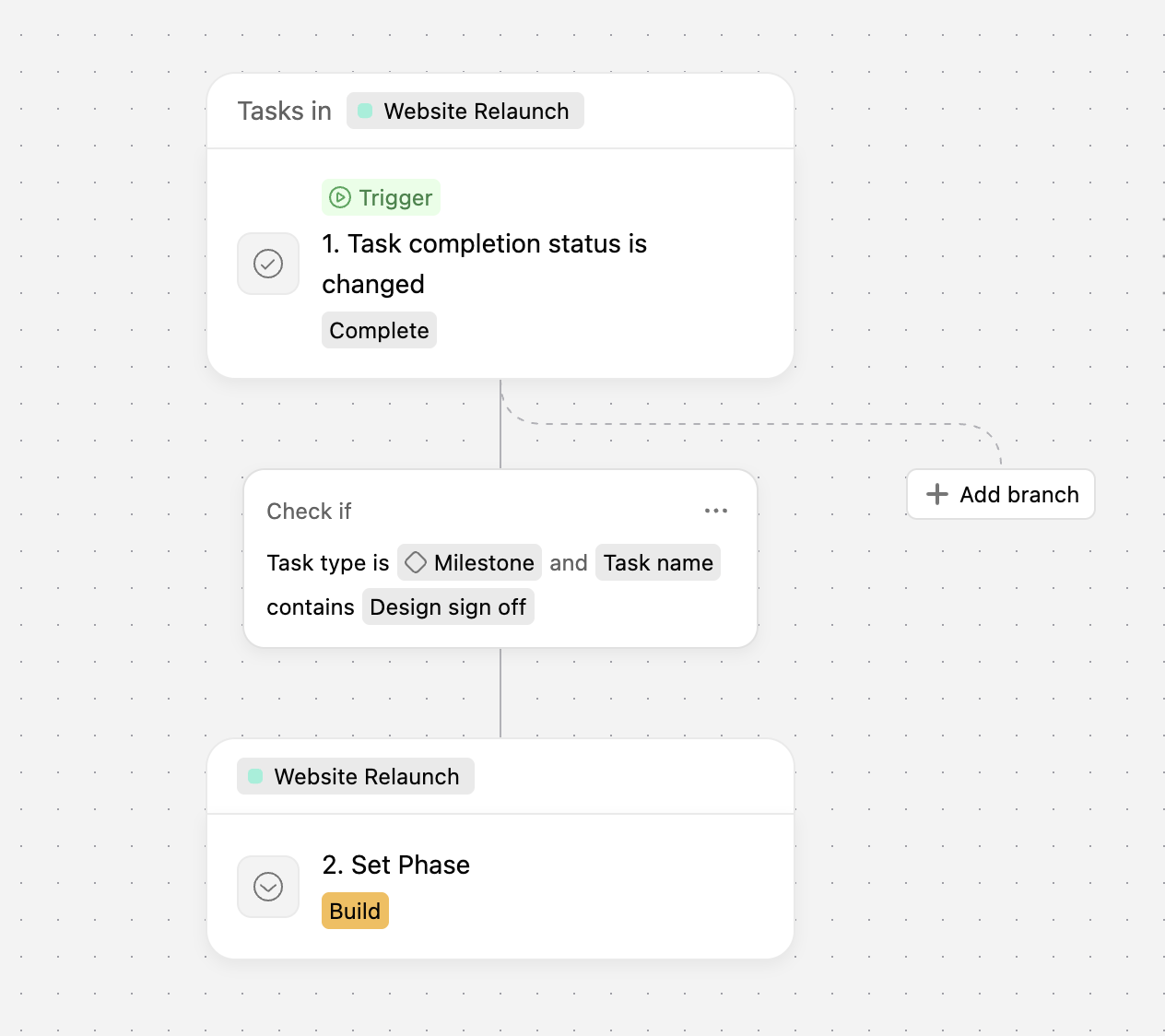
Trigger card: Tasks in Website Relaunch, trigger "Task completion status is changed" to Complete.
Check if: Task type is Milestone and Task name contains "Design sign off".
Action card: Website Relaunch (This project), set Phase to Build.
To cover the next phase, add a second branch with the same steps for the Build complete milestone that sets Phase to Launch. With one branch per milestone, the Phase field keeps up with the project on its own.
2. The Go live date sets the project due date
When the due date of the Go live milestone changes, the project's due date updates to match. This keeps the project date honest, because the date that really matters is the launch.
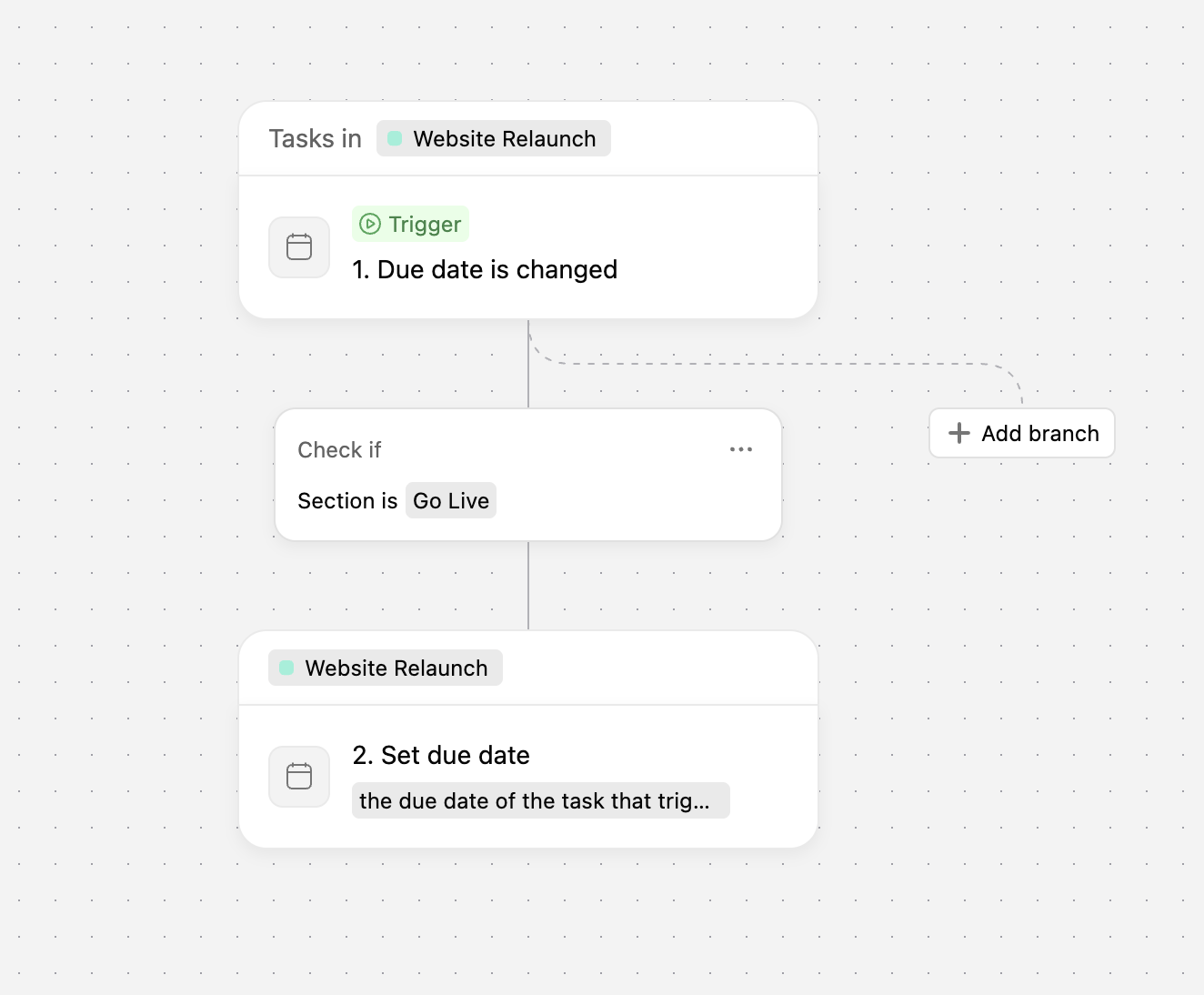
Trigger card: Tasks in Website Relaunch, trigger "Due date is changed".
Check if: Section is Go Live.
Action card: Website Relaunch (This project), set due date to the due date of the task that triggered the automation.
The action uses a variable from the trigger: the triggering task's due date. That variable is what makes this work across levels.
One catch with dependencies: if your dependencies are set to maintain the buffer, a delay on a task that blocks Go live shifts the milestone's due date automatically. In our testing, that automatic shift does not trigger this automation, so the project due date only updates when someone changes the Go live date directly.
3. A new project due date moves the Go live milestone
This is the same idea in the other direction. When the project's due date changes, every task in the Go Live section gets the new date.
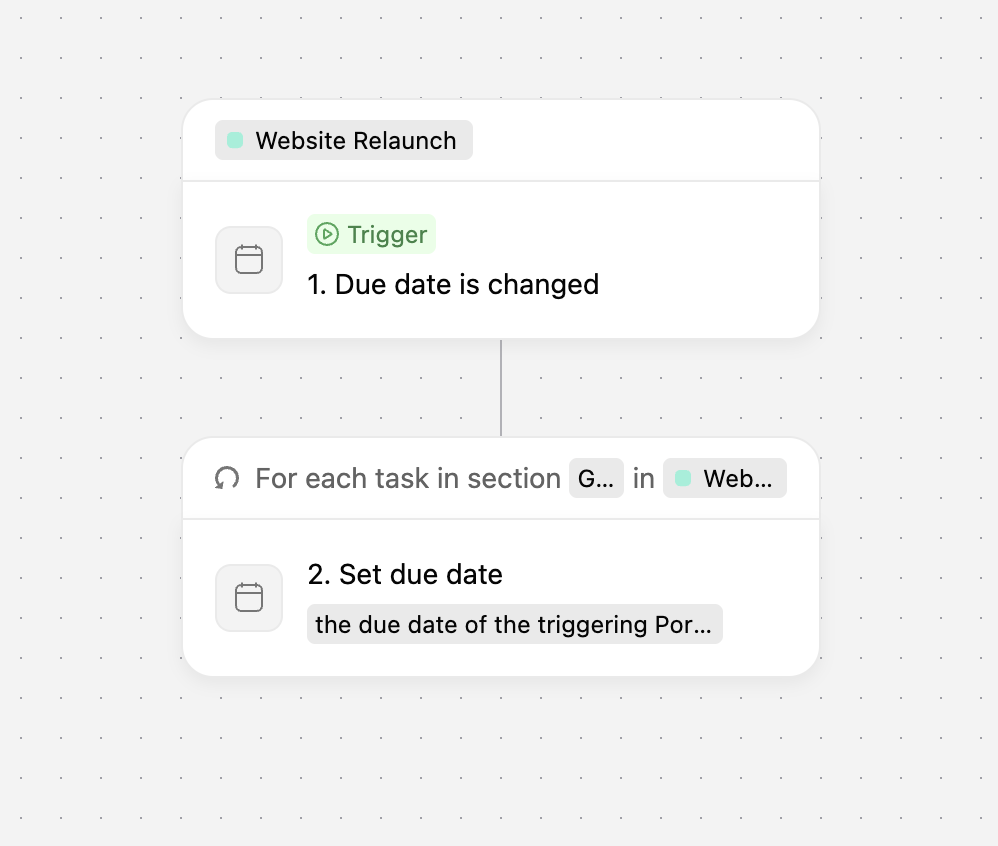
Trigger card: Website Relaunch (This project), trigger "Due date is changed".
Action card: Project contents, for each task in the Go Live section, set due date to the project's new due date.
Pick one direction per project. Automation 2 updates the project date when Go live moves, and automation 3 updates Go live when the project date moves. Run both on the same project and each one changes the date the other watches, so they can keep triggering each other.
4. An At risk status flags this week's work
When the project status changes to At risk, every task due this week gets its Priority set to High and a comment asking the assignee to review the timeline. One status update now reaches the people who can act on it.
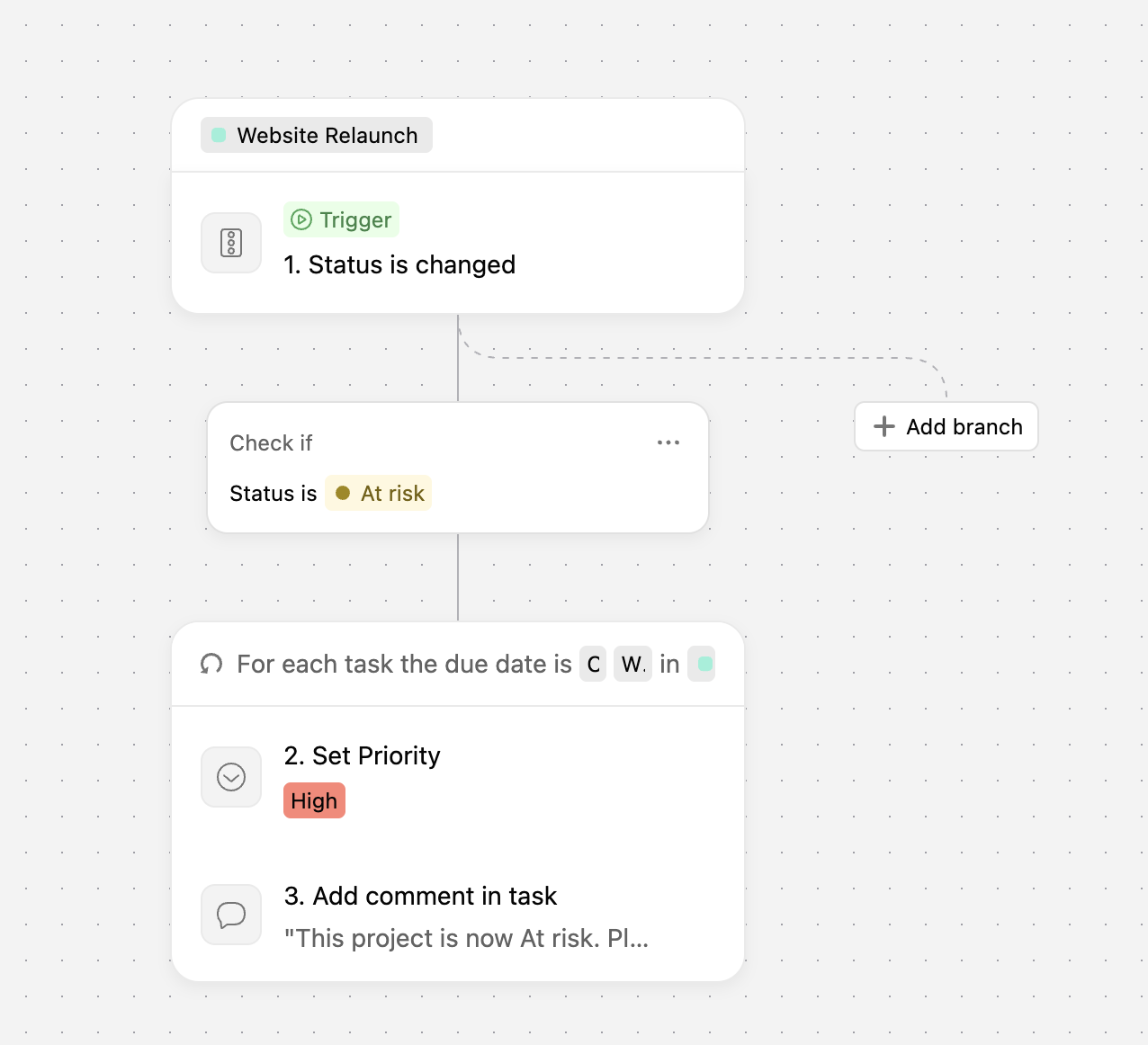
Trigger card: Website Relaunch (This project), trigger "Status is changed".
Check if: Status is At risk.
Action card: Project contents, for each task due this week, set Priority to High.
Second action: add a comment, "This project is now At risk. Please review your timeline."
Use the filters on the action card to keep the list tight. The builder shows how many tasks match, and an automation that matches more than 150 tasks does not run.
You can also add a second branch for Off track with a different action, or duplicate the branch and adjust it.
5. AI drafts the launch wrap up
When the Go live milestone is completed, AI drafts a project status update marked Complete that summarizes the launch. The draft is assigned to a person for review before it posts, so nothing goes out unchecked.
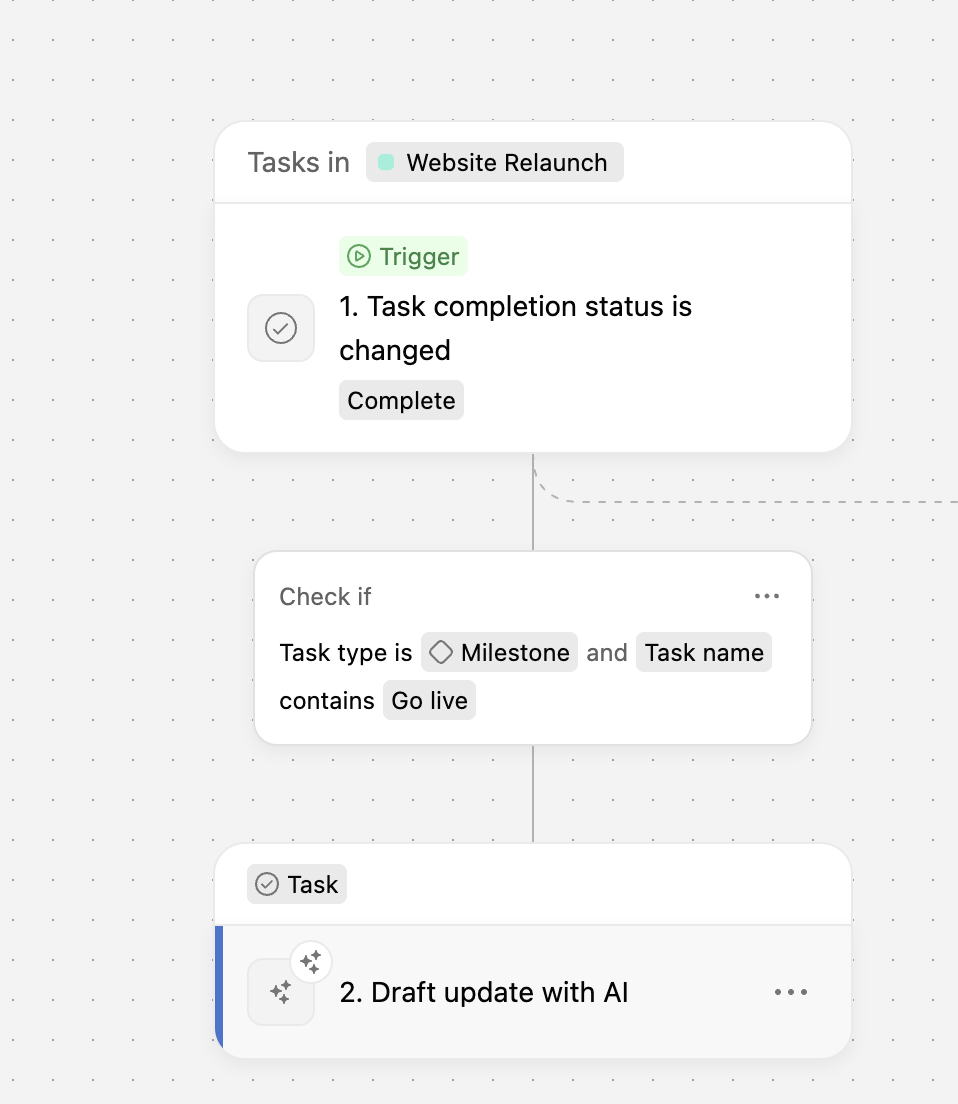
Trigger card: Tasks in Website Relaunch, trigger "Task completion status is changed" to Complete.
Check if: Task type is Milestone and Task name contains "Go live".
Action: "Draft an update with AI", set the status to Complete and the date range to "In the last two months".
These are the instructions I used. They are written for any kind of launch, so you can reuse them across projects.
Write a wrap up update for this project now that the launch milestone is complete. Open with one or two sentences confirming what launched and what that means for the team. Then cover the key milestones completed along the way, any tasks completed late and what caused the delay, blockers that came up and how they were resolved, and any open tasks that are still incomplete and who owns them. Close with a short thank you to the people who completed the most work. Keep it short and plain. Use only what's in the project's tasks, comments and fields. Don't guess at numbers or outcomes that aren't recorded.
6. AI covers the handoff when an owner is away
When the project field "Coverage needed?" changes to Yes, AI Studio reassigns the project's open tasks to the backup owner and leaves each new assignee a short handoff comment. The backup is recorded in a Backup Owner field on the project's row in the portfolio.
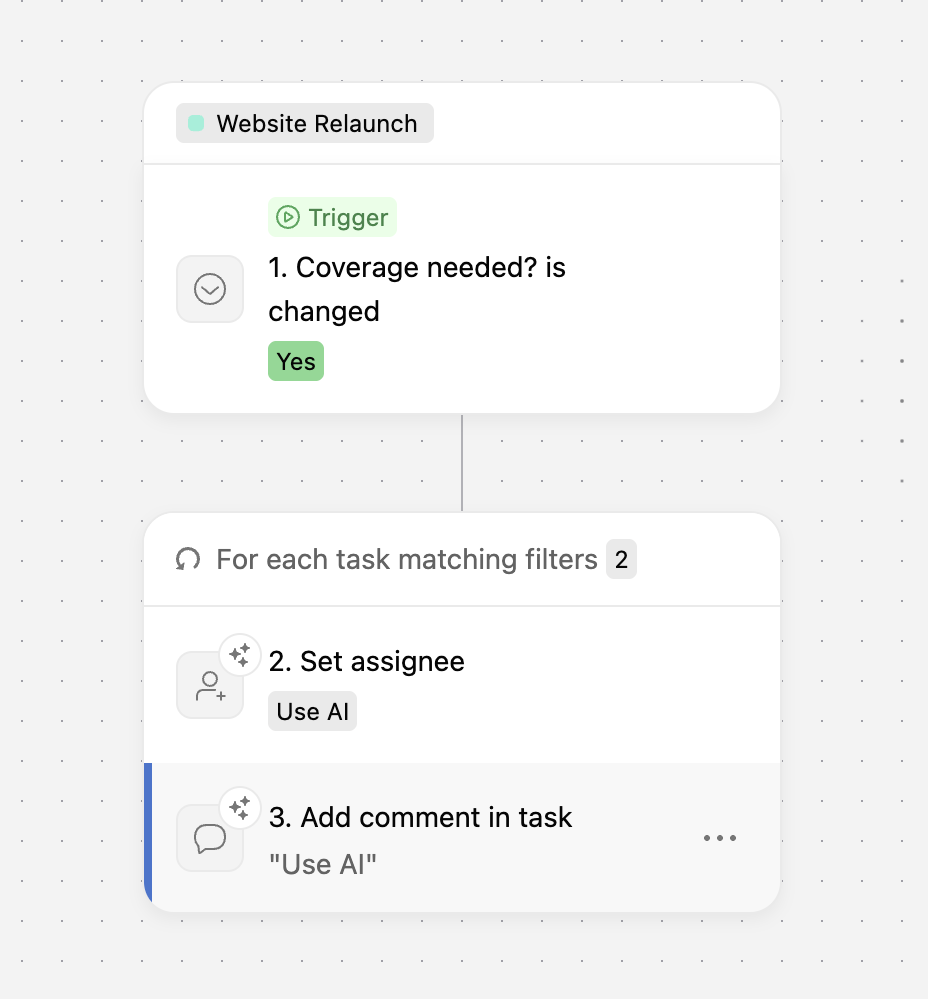
Trigger card: Website Relaunch (This project), trigger "Coverage needed? is changed" to Yes.
Action card: Project contents, for each task matching the filters (Incomplete tasks due in the next two weeks).
Set assignee: Use AI.
Add comment in task: Use AI.
I first tried this as a regular automation, with the assignee set from the Backup Owner field as a variable. The builder returned "This field doesn't belong to the automation's scope". AI Studio solved it, because AI can read the field on the project's row in the portfolio. These are the instructions that passed:
Operational condition: The project owner is unavailable, so coverage is needed. Role based assignment: Assign each task to the designated coverage owner. The coverage owner is the person recorded in the Backup Owner field on this project's row in [your portfolio]. Use only this field value to set the assignee. This assignment is not based on anyone's skills, traits, experience or performance. Do not assess or compare people when choosing the assignee. If the Backup Owner field is empty, leave the assignee unchanged and add a comment asking the project owner to fill in the Backup Owner field. Comment: After reassigning, add a comment for the new assignee. In two or three sentences, summarize what the task is about, where it stands based on its description, subtasks and comments, and the next step to move it forward. Mention the due date if there is one. Keep the comment plain and friendly. Only use information that's in the task or project, and don't guess at details that aren't recorded.
What are the limitations of the new automation builder?
The new scope is powerful, but it has clear edges. Some come from Asana's documentation, and some I found while building the six examples above.
| Limitation | What it means | Notes |
|---|---|---|
| 150 task limit | An automation that matches more than 150 tasks does not run | Add filters on the action card and check the match count |
| Portfolio triggers can only act on the portfolio (confirmed in our testing) | When an automation watches the portfolio itself, its actions can only change that portfolio. When it watches the portfolio’s work content, its actions can change projects | To update projects from a portfolio automation, set the trigger to the portfolio’s work content |
| App triggers act on a project only | Triggers from connected apps can’t act on tasks or portfolios | Set the action scope to This project |
| Webhook triggers always run on tasks | When a webhook is the trigger, the scope is always set to tasks and can’t be changed | To use a different scope, remove the webhook trigger first |
| Changing scope after adding variables | If you change a scope after setting a variable, actions that use it can stop working | Set both scopes first, then add variables |
| Owner permissions | The automation runs with its owner’s access | Make sure the owner can see every project, portfolio and field it uses |
| Not in this rollout | Sequential automations with multiple steps, and approval or human in the loop workflows | These will be added in a later update |
| Project people field variables in task actions (our testing) | A project people field could not set a task’s assignee | Use AI Studio, or pick a fixed person |
| AI update date range (our testing) | “Draft an update with AI” covers two months at most | Expect long projects to show only recent work |
| Project templates and bundles | Automations in project templates and bundles still use the old rule builder | The new builder will be available there soon |
Available triggers, actions and scope combinations may change as the rollout continues.
How to build your first automation in the new builder
Open a project, click Customize, then Automations, then Add.
Describe what you want in words, or start from scratch.
Pick how the automation starts: something in Asana, an app, manual, a schedule or a webhook.
Click the label on the trigger card and set the scope before you choose the trigger.
Add a step. Choose an action, or go to Flow controls and then Paths to add a "Check if" condition.
Click the label on the action card and set where it acts. For Project contents, add filters and check the match count.
Publish, test it once, and check the automation's execution history.
Other automation updates worth knowing
Two more updates came up in our Office Hours demo. Automations can now assign tasks round robin: you pick the people and their order, and the rotation skips teammates who are out of office. It doesn't look at workload yet, and it doesn't use AI credits because it is a native automation.
You can also ask Dash or an AI Teammate to build an automation for you. It asks follow up questions about what you want and then takes you into the builder.
If you use AI Studio steps, each automation shows its average credit usage, and you can switch to a lower cost model to save credits. For a full walkthrough of AI Studio credits, see our Asana AI Studio guide.
Need a second pair of eyes on your automations?
The new builder is a good moment to look at what is already running in your workspace. Our Asana Health Check reviews your most active projects, custom fields and automations, and now includes an AI audit that flags where AI Studio or AI Teammates could take work off your plate. You get a report with every recommendation, and you can build them yourself or hand them to our team.
Cirface is an Asana Solutions Partner and two time Asana Partner of the Year for the Americas (2025 and 2026). Book a call to get started.
Frequently asked questions
Are Asana rules now called automations? Yes. Asana renamed rules to automations in September 2026 and replaced the rule builder with a new vertical automation builder. The feature does the same job, and it can now act across tasks, projects and portfolios.
Do I need to rebuild my existing Asana rules? No. Asana confirmed that existing automations keep running, with nothing to rebuild or convert. You can open any existing automation in the new builder to edit it.
Can one Asana automation update both tasks and projects? Yes. Each trigger and action card has its own scope, so an automation can watch tasks and update the project, or watch the project and update its tasks. It can also update a different project from the one it watches.
Can an Asana automation update a portfolio? An automation can update a project's reporting portfolio when the project changes. It cannot act on Portfolio contents, which means it can't change the projects inside a portfolio. The builder blocks publishing when that option is selected.
How many tasks can one Asana automation update? An automation that matches more than 150 tasks does not run. Add filters on the action card to narrow the set, and check the match count the builder shows before you publish.
Which Asana plans include the automation builder? The automation builder is available on Starter, Advanced, Enterprise and Enterprise+ plans. AI Studio steps depend on your AI Studio access and credits.