
Short answer: An Asana workspace audit is a short review of what the year left behind: open tasks with no owner, overdue work, projects nobody closed, duplicate custom fields and automations nobody owns. It brings your workspace back in line with Asana best practices before January planning. Start with three saved searches in advanced search, then complete or archive finished projects, merge duplicate fields into your field library and review every automation in one list. Asana Dash can do much of the searching for you, and Claude can do it through the Asana MCP for teams without Asana AI.
Every January, teams start the new year on top of the old one. Most of the time nobody notices, because people learn to work around the clutter.
When I open a client's workspace for the first time, I see the same things almost every time. Marketing teams have last quarter's campaign projects still open, three versions of the creative request intake and a different Status field on every team. Product teams have launch projects that shipped months ago with tasks still open and no owner, and each squad tracks Priority its own way.
None of this breaks Asana, but it slowly makes it harder to trust. Reports stop adding up, people stop checking their task lists, and AI has messy data to work from.
What to look for in an Asana audit
Most of the clutter falls into five groups. Each one has a different place to look.
| What's left over | How it shows up | Where to find it |
|---|---|---|
| Forgotten tasks | Open tasks with no assignee, or overdue tasks nobody is chasing | Advanced search, with Type set to Task |
| Projects nobody closed | A campaign that ended in June but is still active | Advanced search, with Type set to Project |
| Duplicate projects | Three versions of the same intake, and nobody knows which one requesters use | Advanced search for intake | request, with Type set to Project |
| Duplicate custom fields | A different Status or Priority field on every team | Customize > Fields in each project |
| Automations nobody owns | The same automation copied across projects, or ones tied to fields you no longer use | Agents > Automations |
How to find forgotten work with Asana advanced search
Advanced search lets you filter tasks, projects and other work across your workspace, then save that search so you can run it again next quarter. It's available on the Starter, Advanced, Enterprise and Enterprise+ plans.
To build a saved search:
Click the search bar at the top of Asana.
Click Filters on the right side of the search bar. This opens advanced search.
Fill in the filters you need. Click + Add filter for more options.
Click Search.
To save it, click the star icon next to the search name. Your saved search appears under Starred in the sidebar, and you can rename it from the dropdown arrow next to its name.
I like to scope each search to a team or a portfolio first. A workspace wide search usually returns too much to act on.
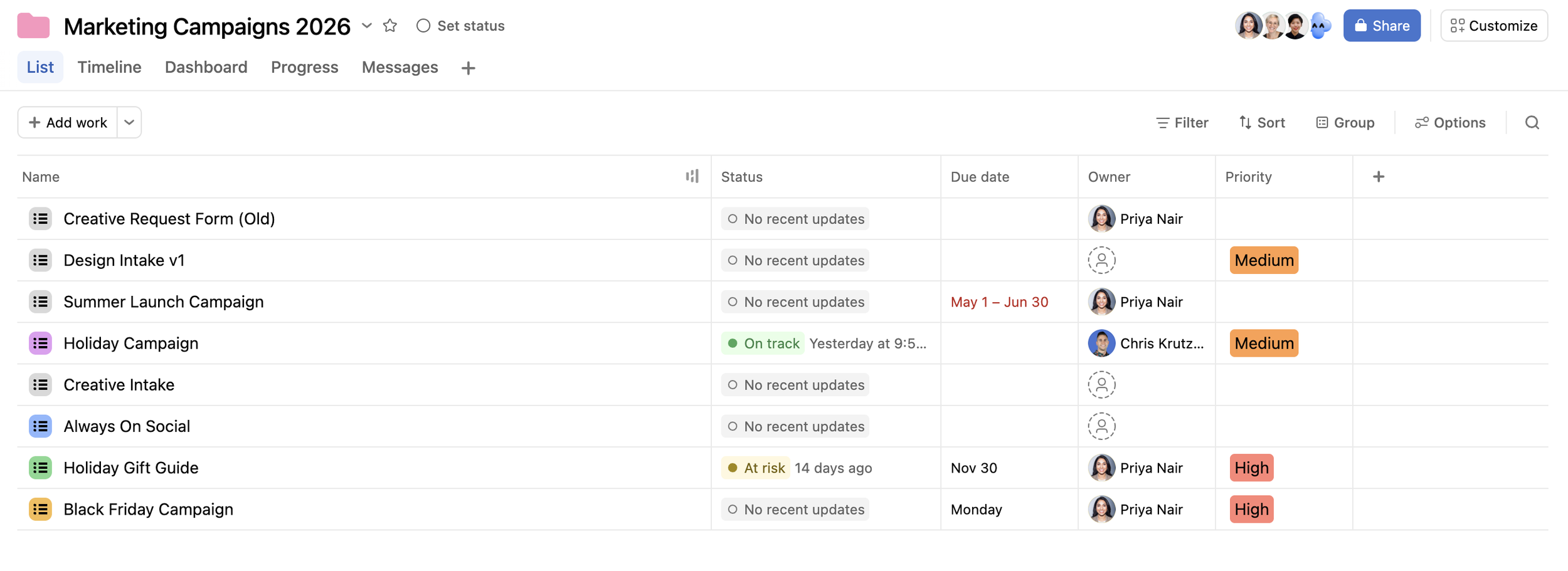
1. Open tasks with no assignee
This is the question every team lead should ask first: what's falling through the cracks? Type "Nobody" in the Assigned to field, set Status to Incomplete, and use Located to pick your team's projects or a portfolio.
In most workspaces this list is longer than people expect. Some tasks just need an owner, and some can be closed because the work already happened somewhere else.
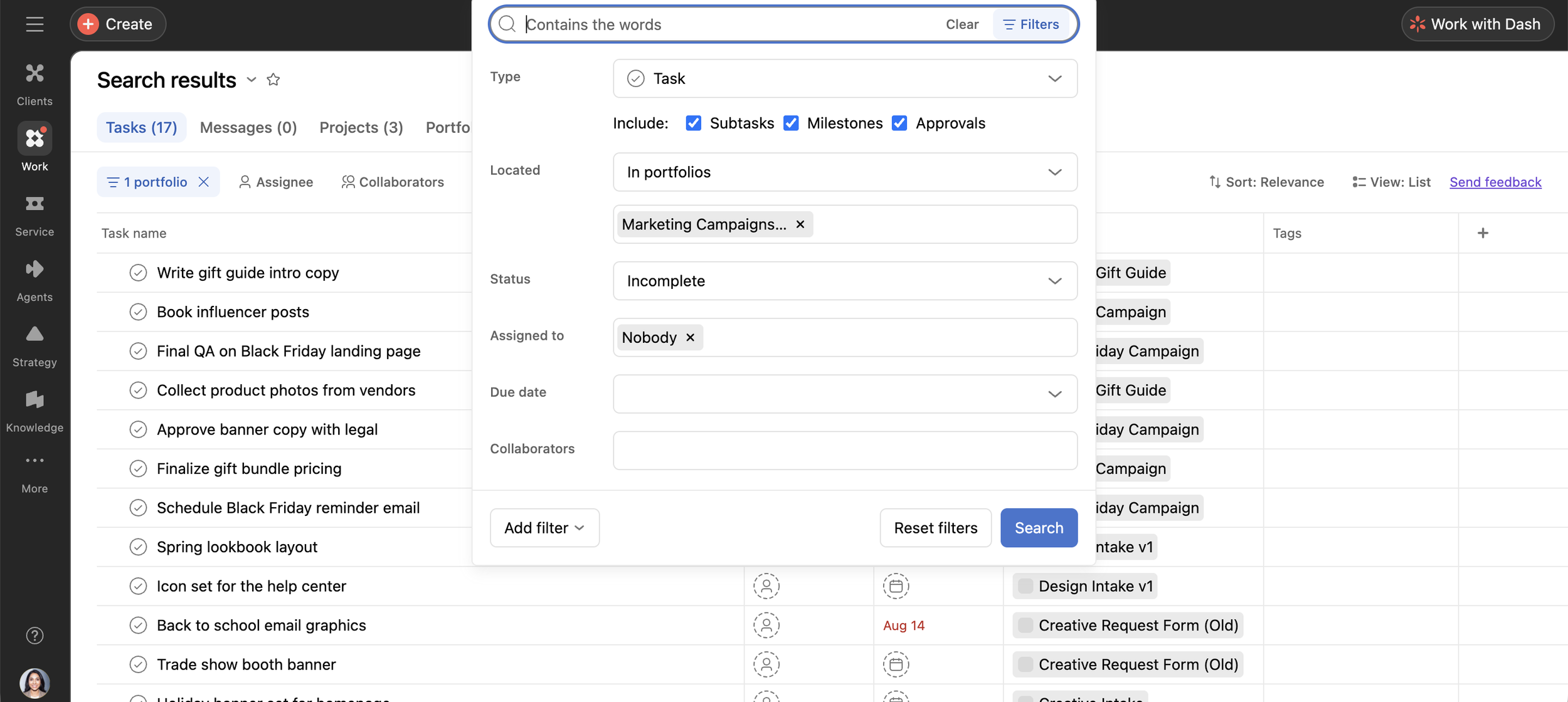
2. Overdue tasks, sorted by assignee
Set Status to Incomplete and set the Due date filter to **Between**, from the start of the year to yesterday. Then click **Sort** and choose Assignee. Sorting by person tells you two things at once: which tasks were abandoned, and who is carrying too much.
3. Tasks that aren't in any project
Set Located to "In any of these projects", type "No Project" in the field below it, and set Status to Incomplete. These tasks live outside every project, so they never show up in a project view and are easy to forget. Move each one into the right project or close it.
| Saved search | Filters | What it catches |
|---|---|---|
| Open tasks with no assignee | Status Incomplete, Assigned to Nobody, Located in your projects or portfolio | Work nobody owns |
| Overdue tasks | Status Incomplete, due date before today, sorted by assignee | Abandoned work and overloaded people |
| Tasks in no project | Status Incomplete, Located: No Project | Work outside every project |
One gap to know about: there's no filter for tasks without a due date. That's where AI helps, which I cover further down.
How to clean up projects in Asana
Tasks are only half of it. Advanced search also finds projects: in the advanced search window, set Type to Project. You can filter by Owner, Members and Status (active, closed or archived), and Add filter gives you associated teams, who created the project and dates such as due date and creation date. To search inside specific portfolios, set Located to In portfolios.
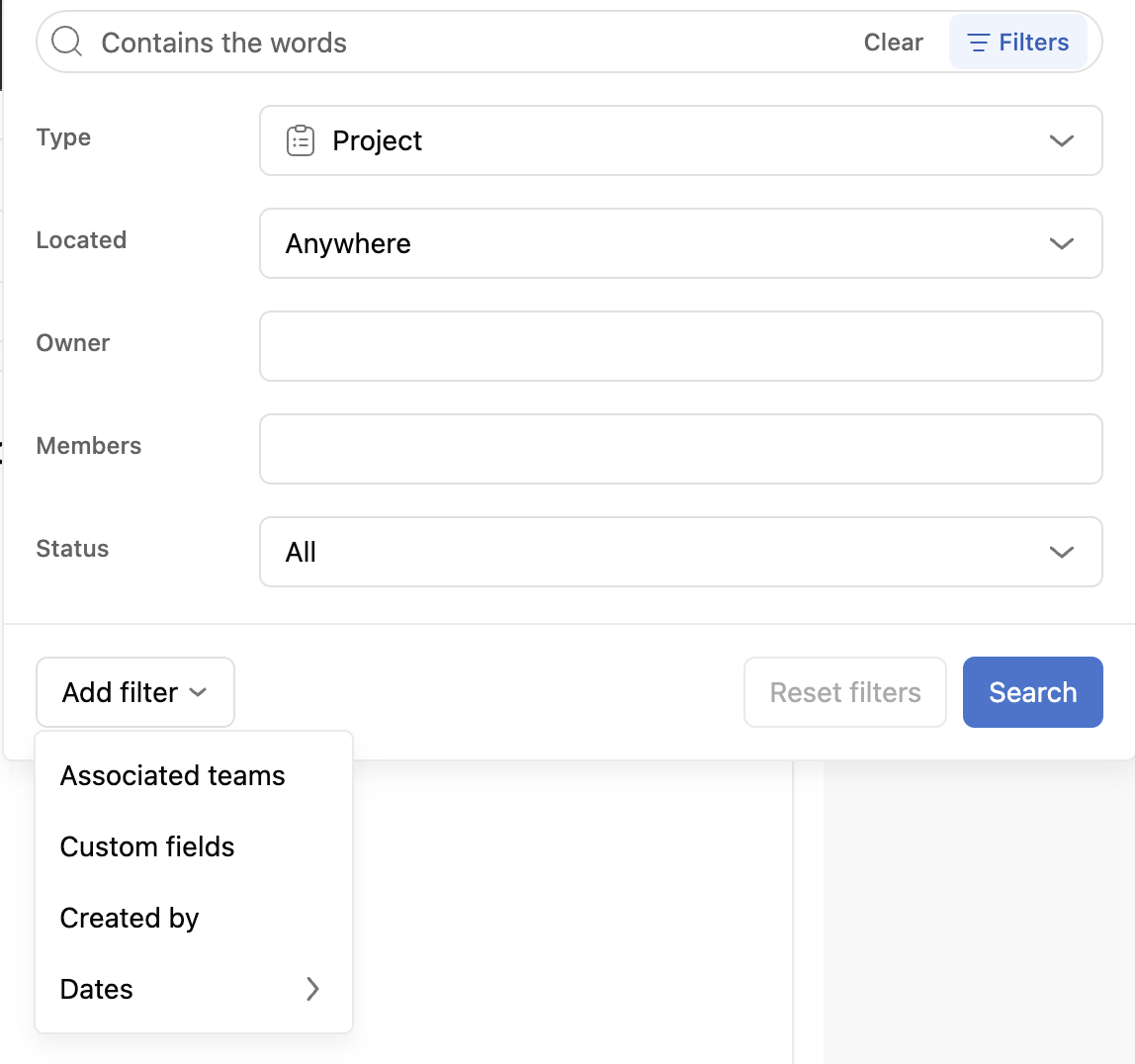
These are the project searches I run.
1. Finished but still open
Set Status to Active and add a Due date filter for dates that have already passed. This is the campaign that wrapped in June and is still sitting in your active list.
2. Old projects nobody closed
Set Status to Active and add a Creation date filter for anything created before this year. This catches pilots and one off projects that were never closed.
3. Duplicate intakes
Search projects for intake | request (the | means "or", so one search covers both), then sort by last modified. You see every version across all your teams in one list, including versions other teams built on their own, like a separate design intake, and the ones nobody uses sink to the bottom.
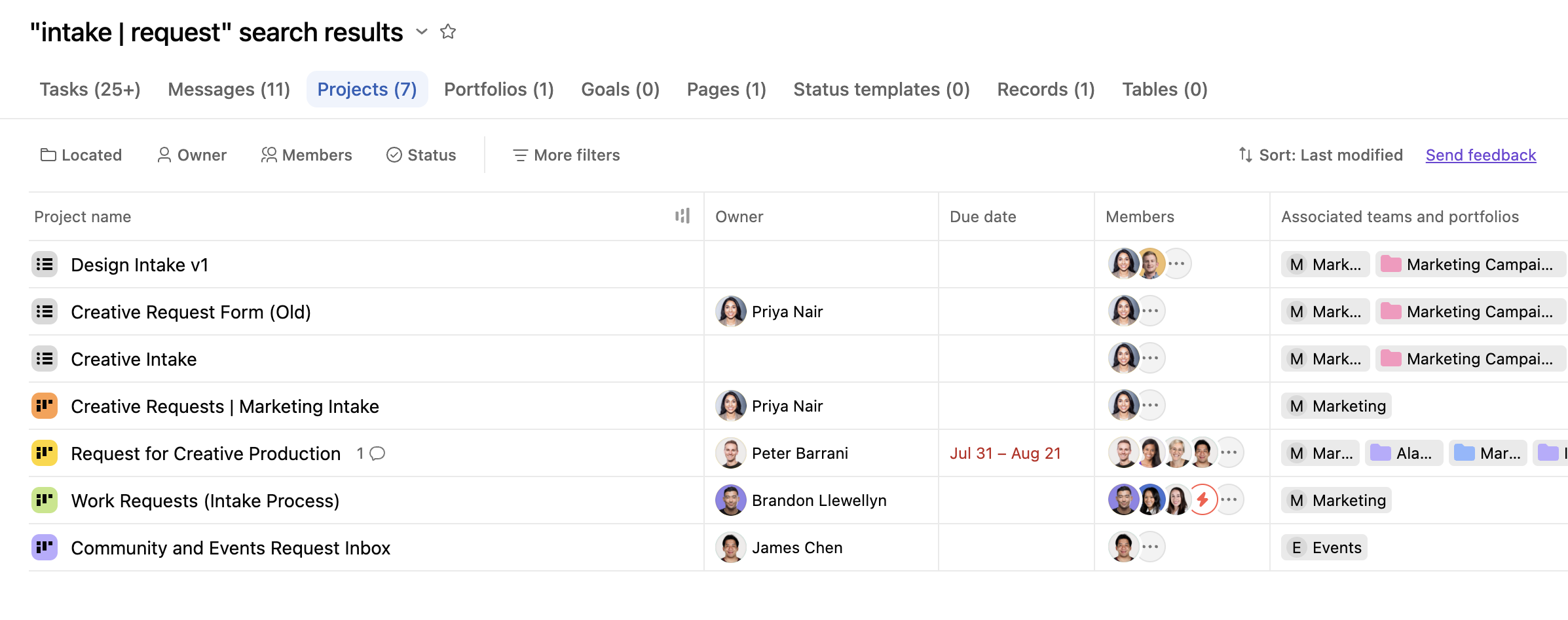
4. Projects with no owner
Set Status to Active and type "Nobody" in the Owner field. Every active project needs someone accountable, so give each one in the results an owner, or archive it if nobody needs it anymore.
| Project search | Filters | What it catches |
|---|---|---|
| Finished but still open | Status Active, due date already passed | Work that's done but still looks active |
| Old projects nobody closed | Status Active, created before this year | Pilots and one off projects |
| Duplicate intakes | intake | request, sorted by last modified | Old versions requesters might still use |
| Projects with no owner | Status Active, Owner set to Nobody | Active work nobody is accountable for |
Complete, archive, reassign or delete?
Every project you find needs one of four decisions.
| If the project is... | Do this | Why |
|---|---|---|
| Done, and the work was delivered | Mark it complete, then archive it | Keeps its history and clears it from active lists |
| Replaced by a newer version, like an old intake | Archive it, and point people to the current one | Requesters stop sending work to the wrong place |
| Still active, but its owner left or it has none | Assign a new owner | Every active project needs someone accountable |
| A test or a true duplicate with nothing worth keeping | Delete it | Archiving would just keep the clutter |
How to archive a project in Asana
Archiving hides a project from your active lists so your team can focus on current work. Archived projects never expire, you can still find them through search, and you can unarchive them from the same menu. Only project admins can archive a project.
Archiving doesn't update a project's status. If the work is done, mark the project complete in its status first. If it was cancelled or only partly delivered, mark it as Dropped instead, so your reporting shows what really happened. Then archive it.
Before you archive, complete or move the project's open tasks. Tasks don't inherit their project's archived state, so open tasks in an archived project keep showing up in searches and My tasks, and there's no filter to hide them.
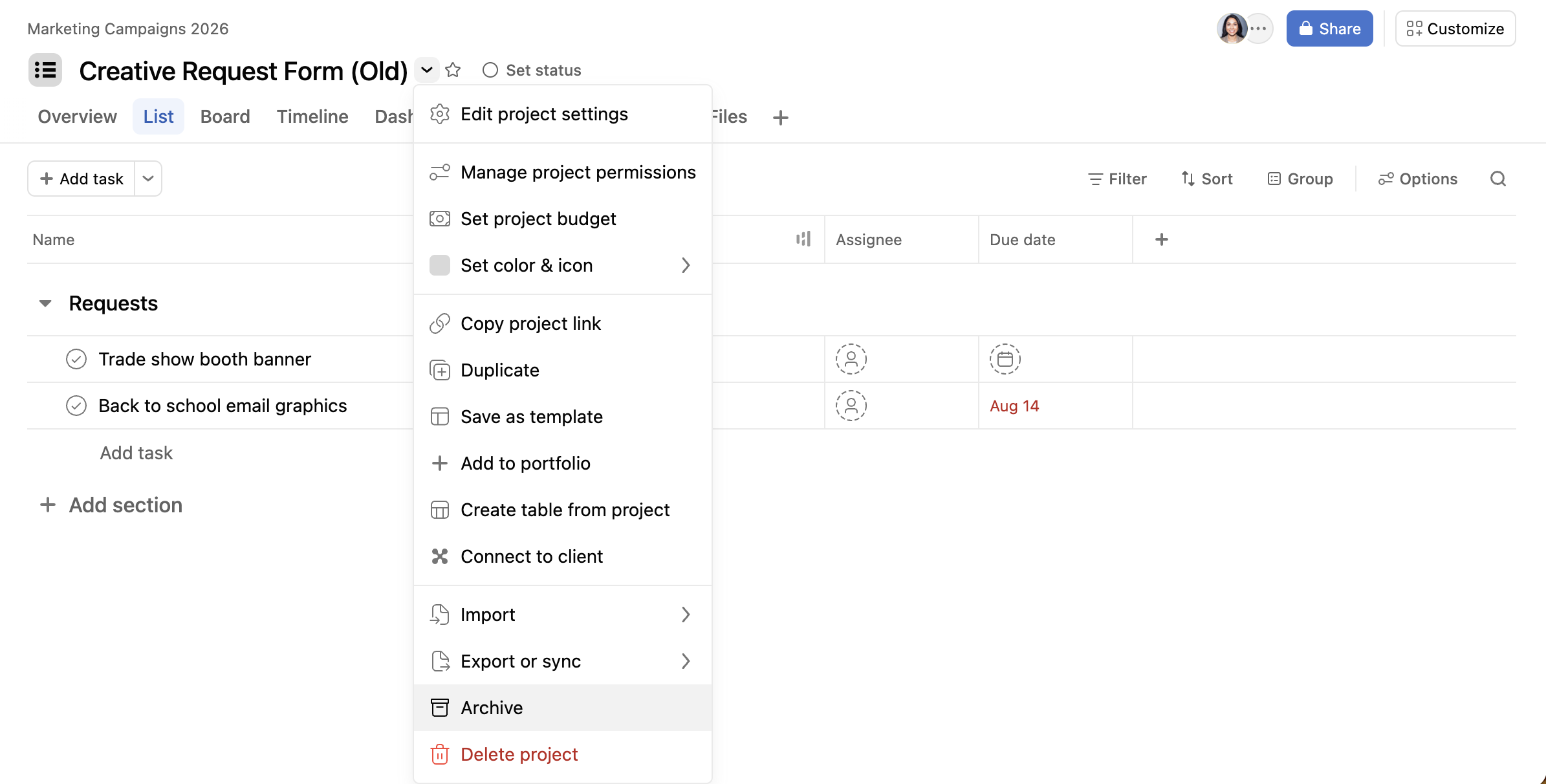
Open the project.
Click the dropdown arrow next to the project name.
Select Archive.
How to clean up custom fields in Asana
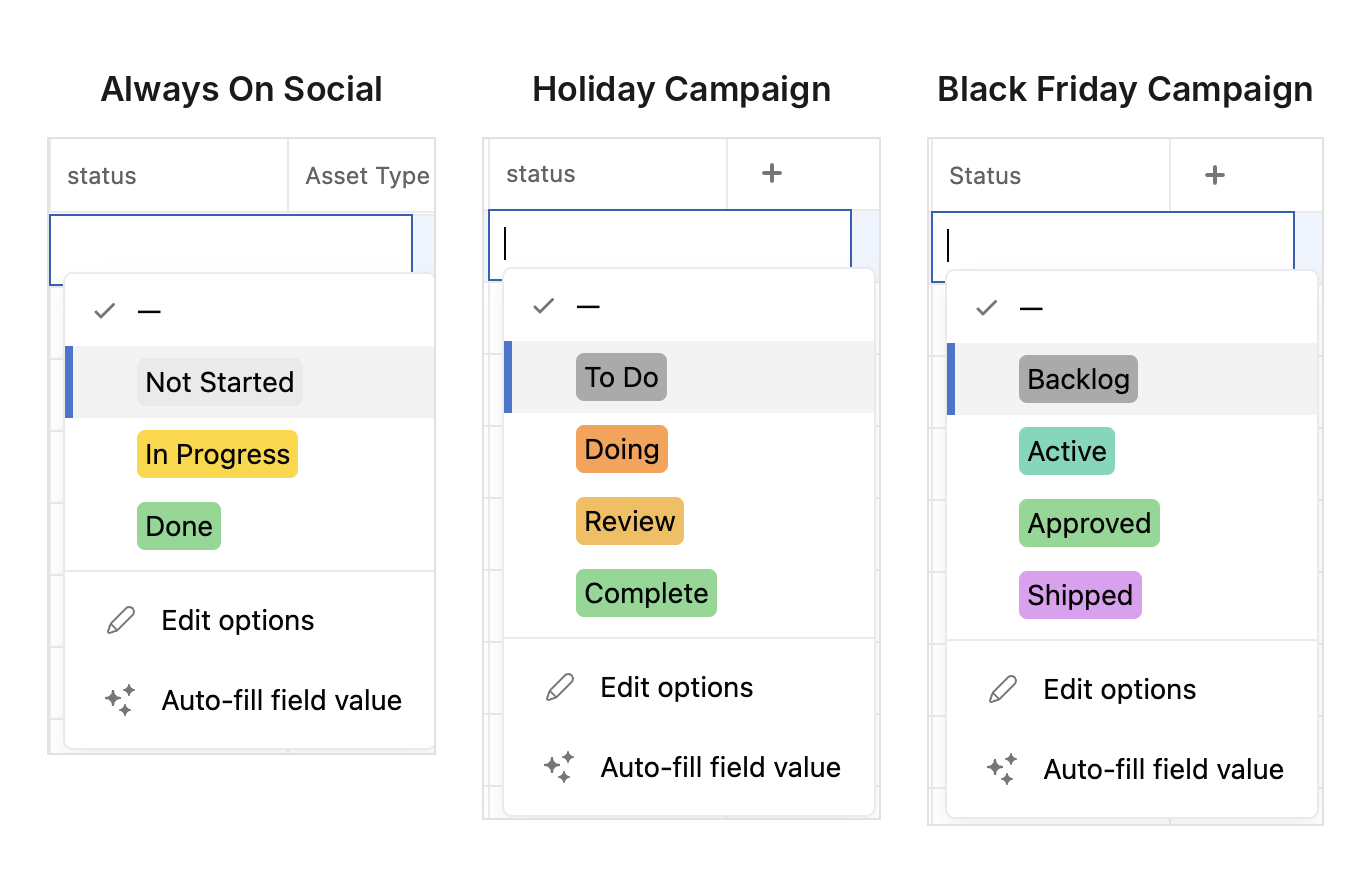
Duplicate custom fields are the most common problem I find, and the one that hurts reporting the most. When every team builds its own Status field, a dashboard across teams can't group the work, because each field has different options.
Local vs. global custom fields
A local field lives in one project or portfolio only. A global field is added to your organization's field library, so any project can reuse it with the same options. When you edit a global field, the change applies to every project that uses it.
Local fields are fine for something truly specific to one project. Anything you want to report on across projects, like Status, Priority or Channel, should be a global field. There's a search bonus too: only fields in your organization's field library show up as filters in advanced search.
You don't always need a single field for everything. If two teams really track different kinds of status, like a creative review flow and a campaign launch flow, separate fields can make sense. One shared field is just simpler to report on. If you keep separate fields, make the difference obvious:
Give each one a clear name, like "Creative review status" and "Launch status", instead of two fields both called Status.
Use the field description to say which team uses it and when it should be used. Anyone adding the field to a new project can see it right away.
How to merge duplicate fields
In each project, click Customize and then Fields to see every field it uses. Write down the ones that track the same thing under different names or options. For a whole portfolio at once, ask Dash or Claude to compare them for you (see the AI section below).
Pick one version to keep and agree on its options with the teams using it.
Make it a global field by adding it to your organization's field library. You can do this when you create a new field, or by editing a field that already exists.
Add the global field to each project from the Customize menu, under Fields, and move the values over from the old field.
Before you remove an old local field, check what still depends on it. Open the project's automations and look for any trigger or action that uses the field, open the project's forms and check which questions fill it in, and look at any dashboard charts that filter or group by it. Switch each one to the new field first.
Delete the old local field: click the dropdown arrow on its column header, select Edit field, then Delete field. Make sure the values are moved over first. If you delete the wrong one, deleted fields can be restored for 30 days.
Use a bundle to roll the field out to every active project at once. Our guide to Asana bundles walks through how.
The same goes for templates. If you have three versions of the campaign template, keep one approved template per process and delete the rest.

How to review your Asana automations
Asana rules are now called automations. Our post on what changed with Asana automations covers the new builder. For an audit, the useful part is that you can see every automation in one place.
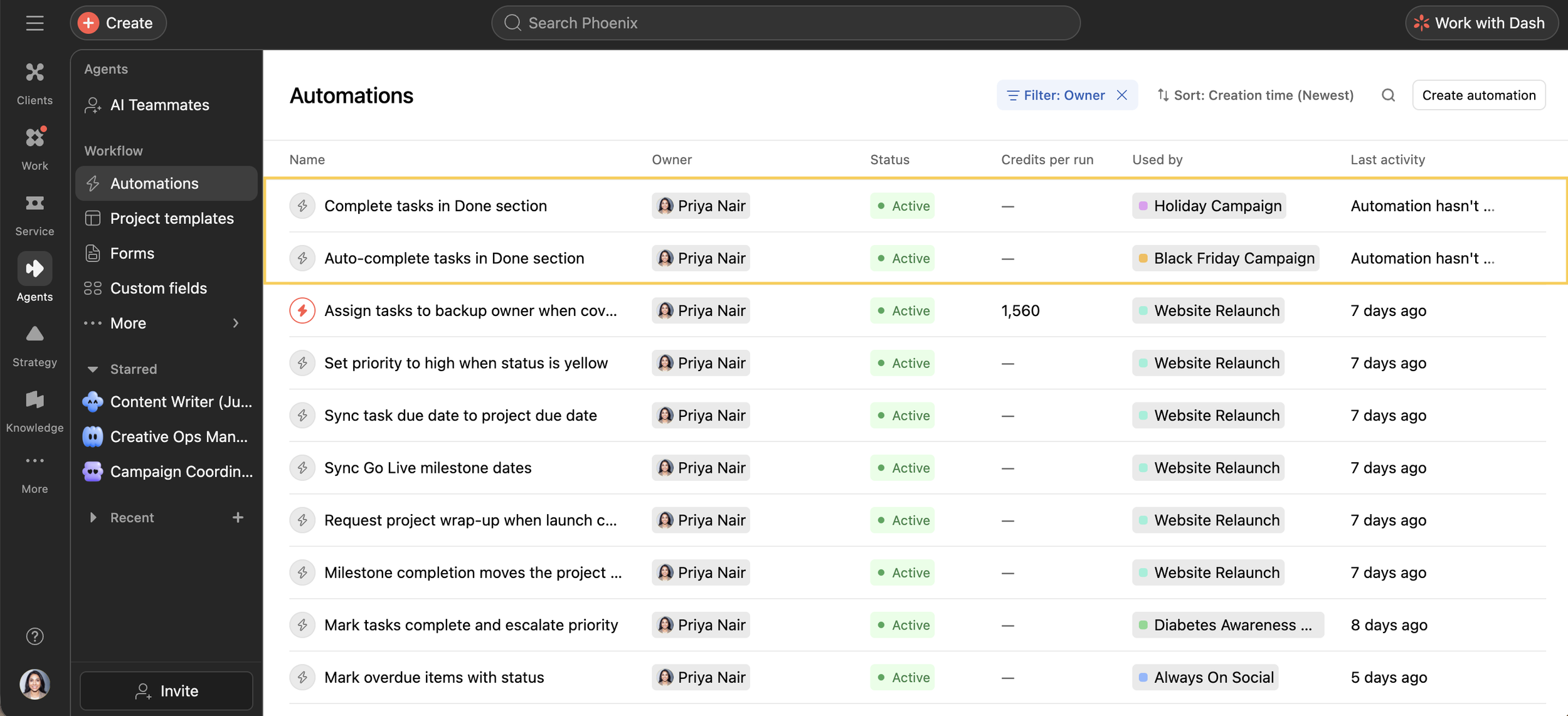
Go to Agents > Automations and look for three things:
Duplicates: the same automation copied into several projects. If it should run everywhere, it belongs in a bundle instead.
Automations nobody owns: ones built by someone who left, or that nobody on the team can explain.
Automations tied to old fields: anything that uses a custom field you're about to merge or remove. Update these before you delete the field, or they'll stop working.
How to audit Asana with AI
Saved searches are great for the questions Asana's filters can answer. AI is useful for the ones they can't, like tasks without a due date or projects nobody has touched in two months.
Ask Asana Dash
Dash is Asana's AI assistant. We shared more ideas in 5 things to try in Asana Dash. For an audit, these are the prompts I'd start with:
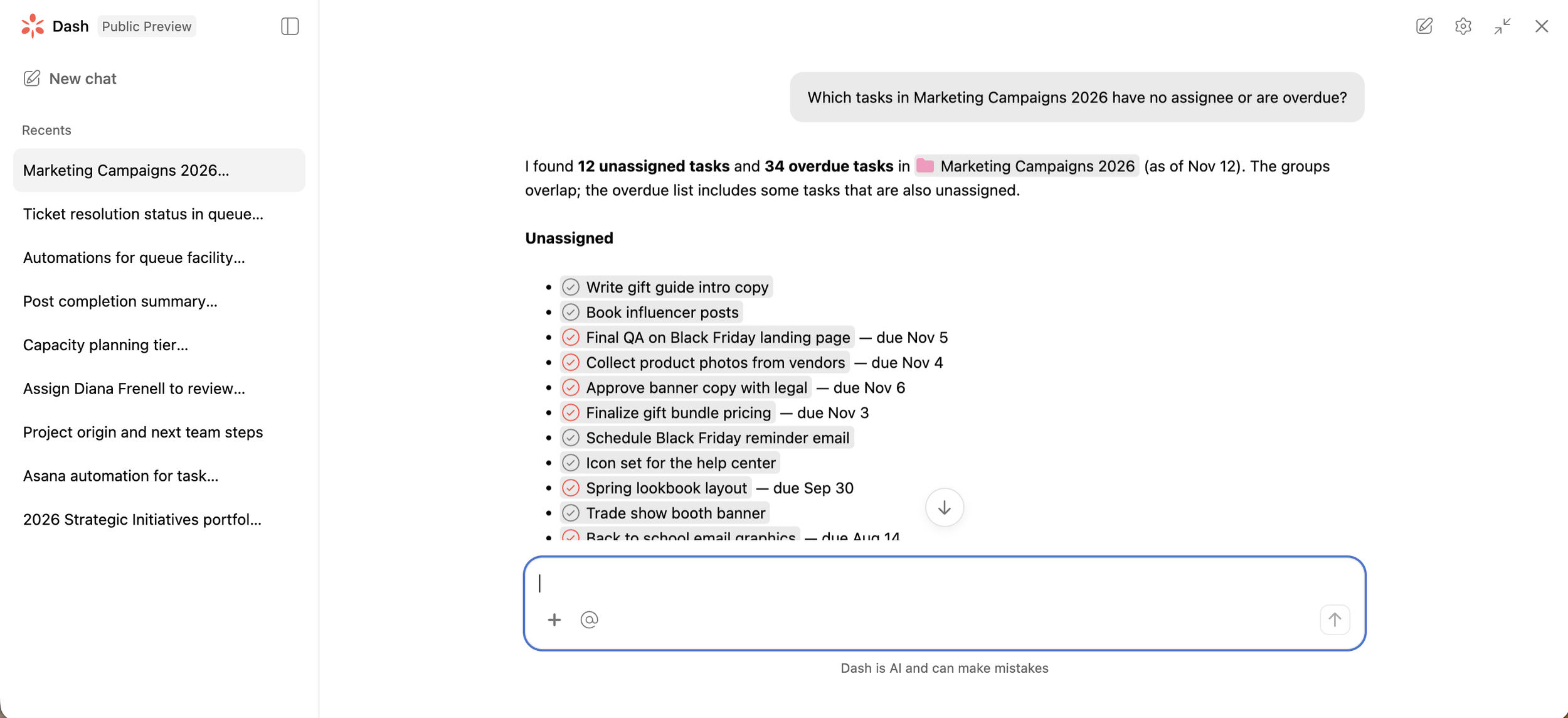
"Which tasks in [portfolio] have no assignee or are overdue?" This gives you the first two saved searches in one ask.
"Which open tasks in [portfolio] don't have a due date?" This covers the filter advanced search doesn't have.
"Which projects in [team] haven't had any activity in the last 60 days?" This finds stale projects without sorting through lists.
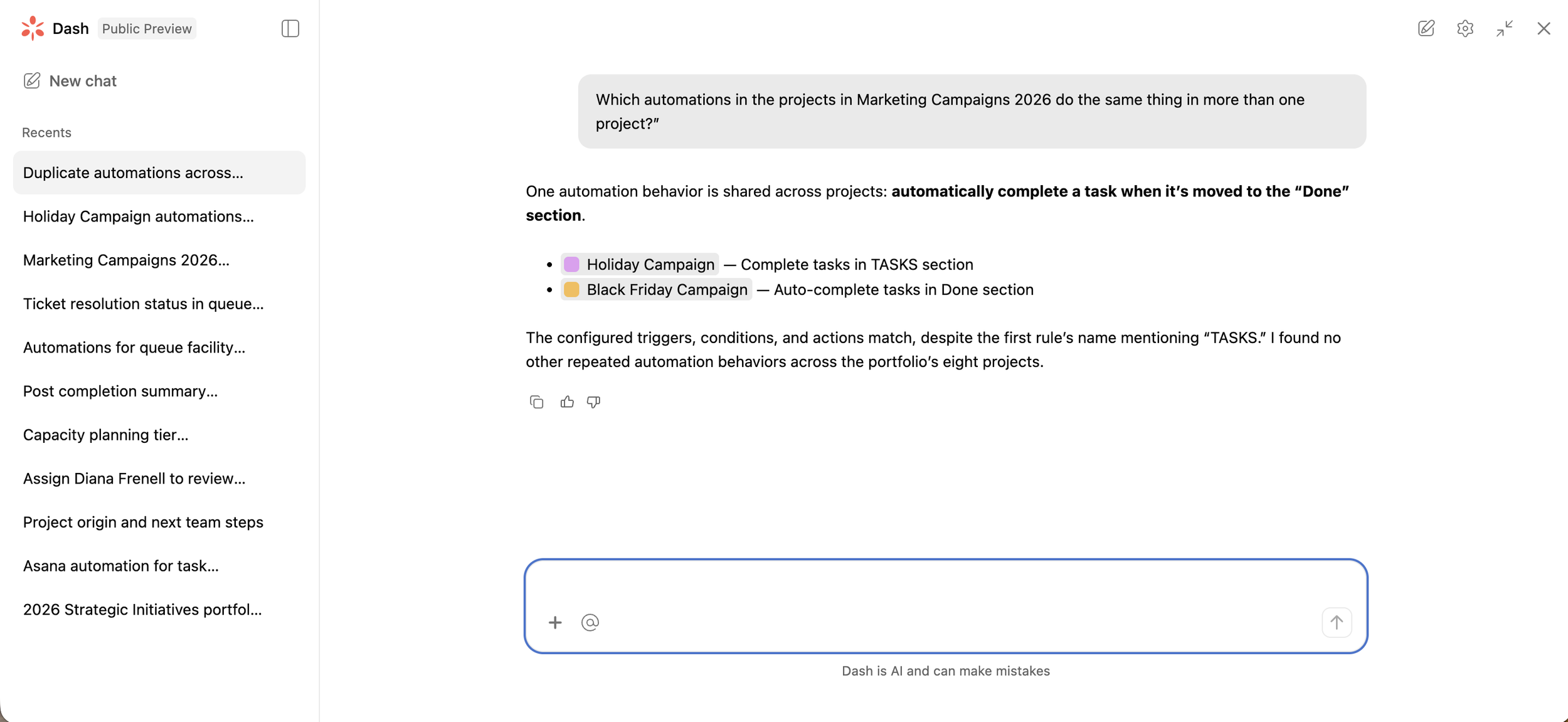
"Which automations in the projects in [portfolio] do the same thing in more than one project?" Dash can catch duplicates even when they have different names. In your own workspace, add "or haven't run in a while" to also find automations nobody needs anymore.
Use Claude with the Asana MCP
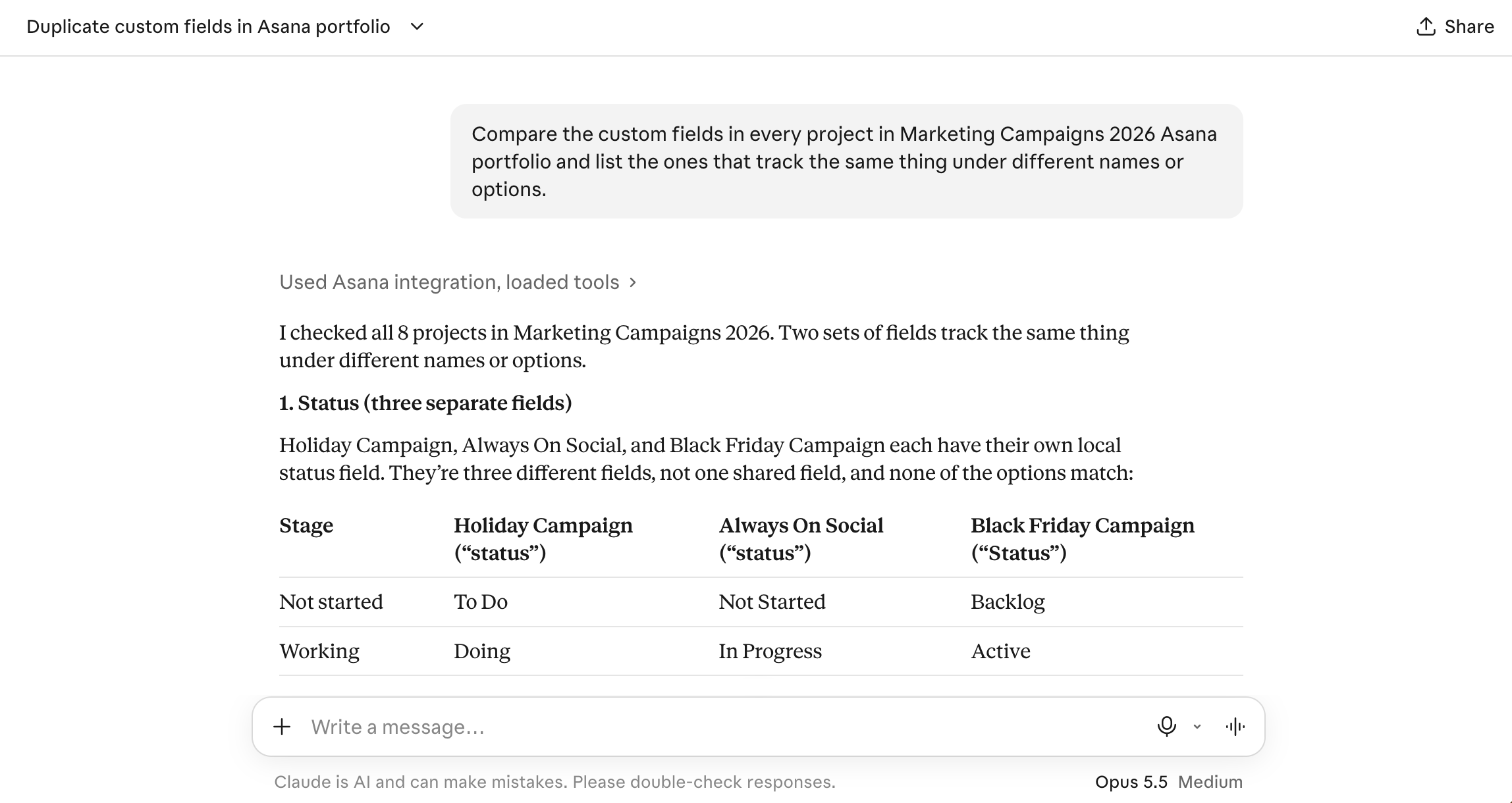
If your team doesn't have Asana AI, you can connect Claude to Asana through the MCP and ask it the same questions. It can pull unassigned and overdue tasks from your projects, and it can do something that's tedious by hand: compare the custom fields across every project in a portfolio and flag the duplicates.
Try: "Compare the custom fields in every project in [portfolio] and list the ones that track the same thing under different names or options."
The MCP can't see automations, so keep that part of the audit in Asana.
AI finds the problems. Someone still needs to decide what to standardize, and that part is a team conversation.
Your year-end Asana audit checklist
Run the three saved searches and give every open task an owner, a due date or a reason to close.
Search for projects and decide for each one: complete, archive, reassign or delete.
Archive old intake versions and point requesters to the current one.
Merge duplicate custom fields into one library field per thing you track.
Keep one approved template per process.
Review every automation in Agents > Automations and update the ones tied to old fields.
Ask Dash, or Claude through the Asana MCP, for anything the searches can't catch.
Asana best practices that keep the clutter from coming back
A cleanup fixes what's there today. If you're running the same searches every quarter and finding the same mess, the problem is usually the setup underneath: no shared fields, no clear owners or no agreed way of working across teams.
These habits keep a workspace clean between audits.
| Best practice | Why it matters |
|---|---|
| Every open task has an owner and a due date | Tasks without an owner or a date are the ones nobody chases |
| Every active project has an owner | Someone is accountable for closing it when the work ends |
| Finished projects are marked complete or dropped, then archived | Active lists show only current work, and reports show what really happened |
| Each type of request has one intake | Requesters always know where to send work |
| Fields you report on live in the field library | Dashboards can group work across teams, and the fields work as filters in advanced search |
| Each process has one approved template | New projects start from the same setup |
| Every automation has an owner who can explain it | When a field or process changes, someone knows what to update |
| Saved searches run every quarter, and a full audit runs every year | Clutter never has time to pile up |
Most of these start when you create a project: begin from the approved template, add fields from the library instead of creating new local ones, and give the project an owner on day one. For more best practices by topic, see our guides to Asana approvals, setting up Asana for a small team and using Asana for project management.
If the same problems still come back, that's what our Asana Health Check is for. In two weeks, our team reviews one stakeholder group and two of your critical projects, finds why the clutter keeps coming back, and tells you what to standardize and what to fix first. You get 3 to 5 high impact opportunities, including where AI Studio and AI Teammates can help, a report with clear next steps and a Loom walkthrough of the findings.
Want to know if your team needs one? Book a call and we'll talk it through.
Frequently asked questions
Which Asana best practices keep a workspace clean?
Give every open task an owner and a due date, and give every active project an owner. Keep the fields you report on in your organization’s field library, and use one intake and one approved template per process. Mark finished projects complete before you archive them, and make sure someone can explain every automation. Run your saved searches once a quarter and a full audit once a year to keep it that way.
How often should you audit your Asana workspace?
Run your saved searches once a quarter, so forgotten tasks never pile up for long. Do a full audit of projects, custom fields and automations once a year, ideally before January planning starts. Teams that grow fast or reorganize often may need the full audit twice a year.
Can Asana advanced search find projects, not just tasks?
Yes. In the advanced search window, set Type to Project. You can then filter projects by owner, members, status (active, closed or archived), associated teams and dates such as due date and creation date.
What's the difference between archiving and deleting a project in Asana?
Archiving hides a project from your active lists, but keeps everything in it. Archived projects never expire, still show up in search and can be unarchived anytime. Deleting removes the project for everyone, and the person who deleted it gets a recovery link that expires after 30 days. Archive anything you might need later, and delete only test projects or true duplicates.
What's the difference between local and global custom fields in Asana?
A local field lives in one project or portfolio only. A global field is added to your organization's field library, so any project can reuse it with the same options. Global fields make reporting across projects work, and only fields in the library show up as filters in advanced search.
Can AI audit an Asana workspace?
AI can do a lot of the searching. Asana Dash can surface unassigned and overdue work across a team or portfolio, and point out automations that could be merged. Teams without Asana AI can connect Claude to Asana through the MCP to pull the same task lists and compare custom fields across projects. AI finds the problems, but your team still decides what to standardize.
What is an Asana Health Check?
An Asana Health Check is Cirface's version of an Asana audit. In two weeks, our team reviews one stakeholder group and two critical projects, identifies 3 to 5 high impact opportunities, including where AI Studio and AI Teammates can help, and delivers a report with a Loom video walkthrough. It's a good fit when the same problems keep coming back after every cleanup.