
Short answer: Asana Dash is Asana's AI assistant, the updated and renamed version of Smart chat. You chat with it from any project, portfolio or task. It can flag overdue work and risks, draft status updates, turn transcripts into tasks, set up rules and suggest AI Teammates. Dash can see what you can see in Asana, and your chats stay private to you.
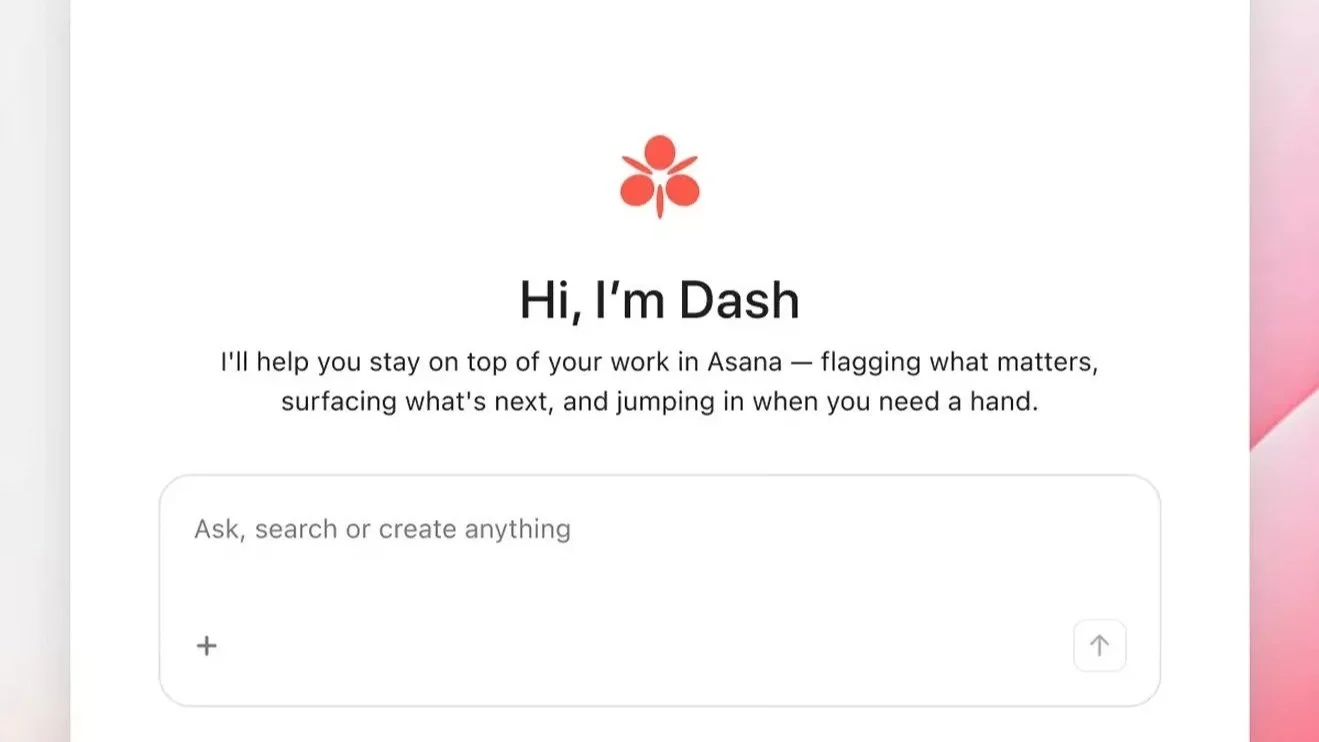
Asana does a lot, and that depth can slow people down. Even Spencer Herrick, Asana's AI product lead, called it "a complicated product" in his conversation with our founder, Marquis Murray, at Asanathon 2026.
Spencer's view is that "Dash completely eliminates a lot of those barriers." It's good at questions such as how to do something, what's going on with a project and who to talk to. He also said, "I'm getting more out of Asana as a tool than I ever have because of Dash."
We put Dash through its paces in a demo of our own. Below are five things to try this week, each with a prompt to start from, plus Spencer's advice on getting real value from AI in Asana. The full conversation is on the Asanathon replay page.
If you came here for Asana's reporting dashboards, our Asana dashboards and reporting guide covers them.
What is Asana Dash?
Asana Dash is the AI assistant built into Asana, which Asana calls your AI chief of staff. It replaces Smart chat with a more action-oriented experience, so it can create and update work as well as answer questions.
In our demo, Dash sat behind the Work with Dash button at the top right of the screen. It opens as a sidebar, so you can move between projects and portfolios with Dash still open. Full screen shows your past chats.
Dash also knows where you are. Open a project, a portfolio or a task, and it picks up that context, so "this project" is enough.
Your chats with Dash are private. Dash can see any Asana data you have permission to view, and no one else can use your Dash. Spencer described it as "a partner that can see what you can see in Asana."
Asana lists Dash on the Starter, Advanced, Enterprise and Enterprise+ plans, and your organization needs AI turned on. What you see depends on your setup and Asana's rollout, so if Dash isn't there yet, ask your Asana admin.

Asana Dash prompts to try this week
Start with these five prompts, then read on for what happened when we tried each one.
| What to try | Prompt to start with | What Dash does |
|---|---|---|
| 1. Check what's overdue and at risk | “Which tasks in this project are overdue, and what's at risk?” | Lists the overdue tasks with links, names the main risk and suggests next steps |
| 2. Draft a status update | “Create a status update for this project to share with my manager.” | Drafts the update in your saved format for you to paste in |
| 3. Turn a transcript into tasks | “Review this transcript and create tasks in this project based on the action items.” | Creates tasks with descriptions in the right sections, then assigns them once you approve |
| 4. Create a rule | “Every time a task is overdue, remind the assignee to update it.” | Opens the rule builder with your request and creates the rule |
| 5. Find the right AI Teammate | “Is there an AI Teammate that could help me report on this project and the others in its portfolio?” | Recommends the best-fit AI Teammate and explains what it does |
1. Ask what's overdue and at risk, without naming the project
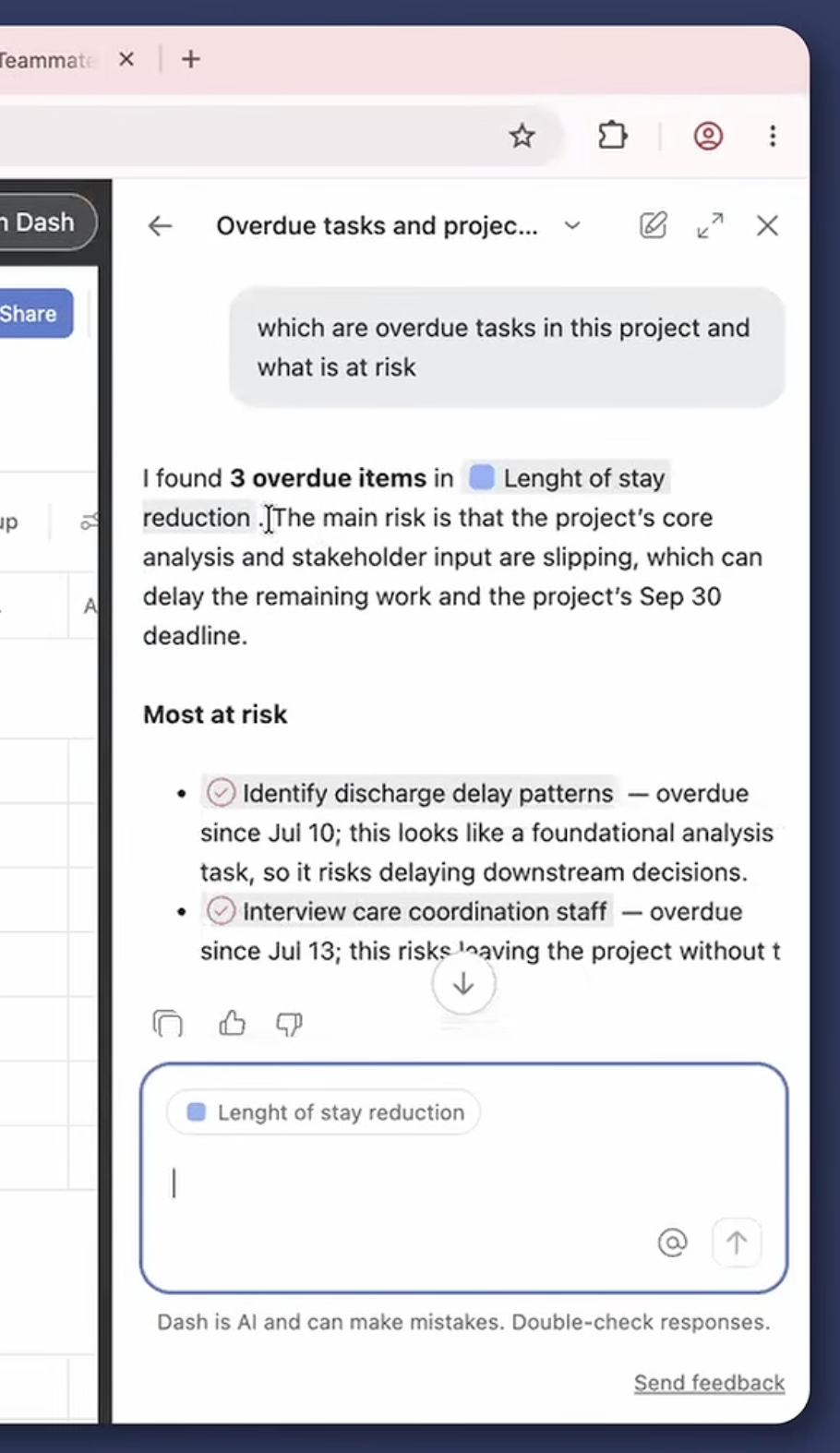
Dash knows which project you're in, so you can skip the project name. In our demo, we opened a project called Length of Stay Reduction and asked which tasks were overdue and what was at risk.
Dash found three overdue tasks and named the main risk. It linked each task with how overdue it was and its specific risk. Then it offered to break the results down further or to summarize project risk as a green, yellow and red status.
Spencer uses Dash the same way to plan his day. One of his examples is "What is most urgent for me to work on today?" Because his email and Slack are connected to Dash, he also asks, "Across my email and my Asana, my Slack, what should I be prioritizing for the next hour?"
Connected apps work with your own access, and Dash asks you to connect an app the first time it needs one. Prompts that pull from other apps count as integrations, which use AI requests (more on that in the FAQ).
2. Draft status updates in the format your leaders expect
Dash learns your preferences over time. Tell it once how you like status updates structured, such as three set sections, and it keeps using that format. That's why our demo offered a green, yellow and red summary; we'd described that format to Dash in an earlier chat.
Then ask, "Create a status update for my manager." Dash drafts the update in the chat. It doesn't post it for you, so copy the draft into the project's status update and post it yourself.
Spencer's advice on agents explains why this works. He said agents do best with "a clear definition of done" and "clear examples of what good looks like." A saved format gives Dash both.
3. Turn a meeting transcript into assigned tasks
Start a new chat when you have a file to share.
We attached a call transcript and asked Dash to review it and create tasks in the project from the action items. It created each task with a description and placed it in the right section of the project.
Placement improves with feedback. In an earlier test, Dash put new tasks in the untitled section at the top. We asked it to use the right sections, and by the second or third request it did so on its own.
Next, we asked Dash to assign the tasks to a colleague. Dash asked for our approval before making the change. Once we approved, it assigned the task and offered to assign the rest.
Spencer delegates the same way. One of his examples is "Follow up with John about this project, write up all the tasks for him, and set due dates." Once Slack is connected, he also asks Dash to "go through my Slack and create tasks for everything that I need to follow up on."
You can also ask Dash for a project's risks, then have it create follow-up tasks for them.
4. Create a rule with Asana AI by describing it
Dash connects to Asana's rule builder, so you can describe an automation in plain words. Asana's help centre has started calling rules automations, so you may see either name.
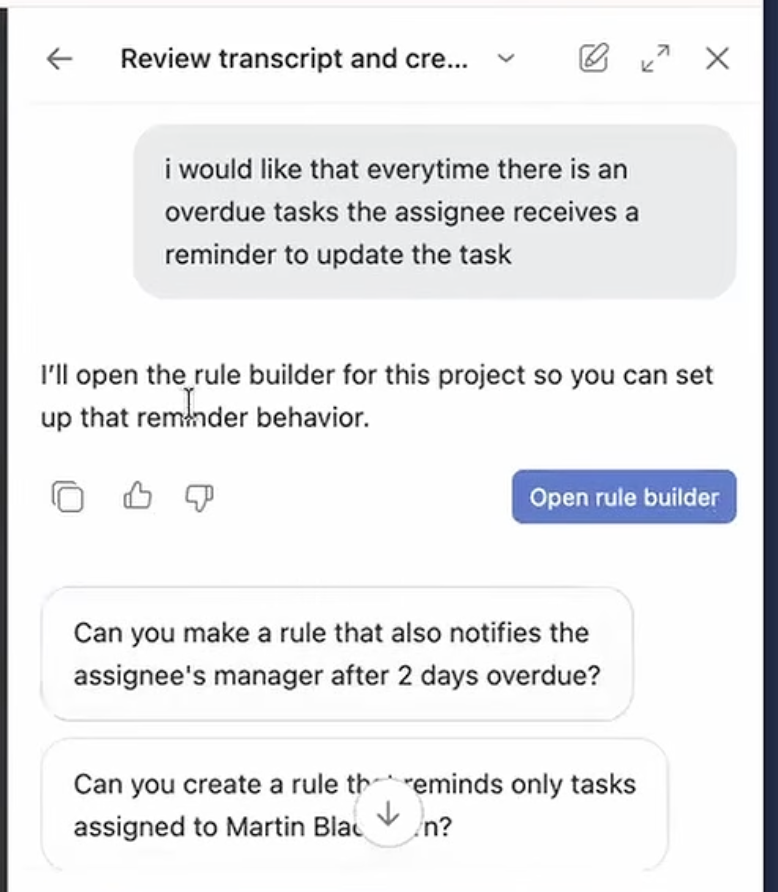
We asked for a reminder every time a task goes overdue. Here's how it went:
Ask Dash for the rule, such as "Every time a task is overdue, remind the assignee to update it."
Select the button Dash offers to open the rule builder. Your request carries over to the AI inside the rule.
Review the rule it creates. Ours ran when a task was one day overdue, checked that the task was incomplete and added a comment written by AI.
Answer the follow-up questions. The AI asked if the reminder should mention the assignee directly, and if it should remind once or keep reminding while the task stays overdue.
Adjust the comment if you need to. The AI instructions come pre-written and you can edit them. For this reminder, we switched off the dynamic content, added the assignee from People and wrote a plain message asking for an update.
You can keep refining the rule in chat, or close the chat and edit the rule yourself. In most of our tests, the suggested rule used an AI comment. You can convert an AI Studio rule into a normal rule when you don't need AI at all.
Spencer called AI Studio "truly a workflow builder tool." He also named the jobs where AI does best: "intake, status monitoring, scaled actions that you want to perform many times at a consistent rate, those are really good AI use cases." An overdue reminder fits that list.
His test for any AI task is to imagine handing it to an intern. If you couldn't explain the job to them, "that's going to be kind of hard for an agent as well."
You don't need to choose a model either. AI Studio picks one by default, and Spencer calls choosing your own a power-user feature. For when to use rules, AI Studio or AI Teammates, see our Asana automation guide.
5. Ask Dash which AI Teammate should take the work
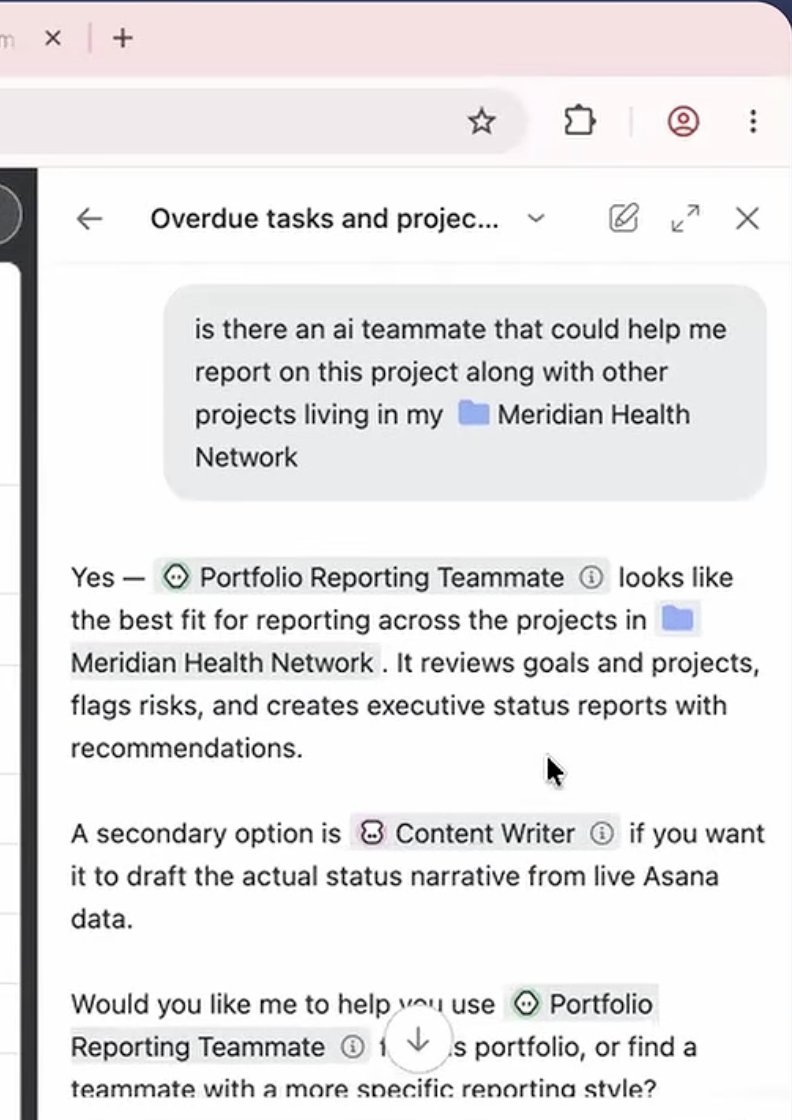
Dash is your private assistant, while AI Teammates are shared agents that teams set up for ongoing workflows. When a job suits a Teammate better, Dash can say so and, where that workflow is available, hand the work off.
We asked if any AI Teammate could report on a project along with the others in its portfolio. Dash recommended a portfolio reporting teammate. It reviews goals and projects, flags risks and creates executive status reports with recommendations.
Spencer suggests a simple path for teams new to AI Teammates. Ask Dash, "What should I work on this week?" Then ask what your team should work on, and then which projects AI Teammates could help with.
In his words, Dash will point to "out-of-the-box teammates" and "the types of tasks that you're repeating a lot." Marquis added that the same questions are a good way to win leadership buy-in.
If governance is the worry, Spencer's answer is that AI Teammates work like human users in Asana. They get scoped access, the same admin controls and a full record of what they did. As he put it, "you kind of get governance for free when you deploy your agents in Asana."
What we noticed while testing Asana Dash
A few limits and quirks showed up in our testing, and they're worth knowing before you roll Dash out to a team.
| What we tried | What happened | What to do |
|---|---|---|
| Adding a file mid-conversation | Dash couldn't take an attachment once a chat had started | Start a new chat when you have a file |
| Creating tasks from a transcript | Dash created tasks directly in one test and asked for approval in another | Check the project after any bulk request |
| Assigning tasks | Dash asked for approval before changing the assignee | Approve each change, or say yes when it offers to do the rest |
| Drafting a status update | Dash drafted the update but didn't post it | Paste the draft into the project's status update |
| Placing new tasks | The first time, new tasks landed in the untitled section | Tell Dash once which sections to use |
One more comes from Asana's own FAQ. When Dash replies in a shared task, it draws on everything you can access, so a reply can surface details from private projects you can see. Asana is still expanding Dash, so some of these may change.
Where to start this week
Pick one project and one prompt from the table above. Spencer's advice is to start with Dash because it's the most approachable way into AI in Asana for someone new to it.
Keep the bigger picture in view as well. As Spencer put it, "you can't just expect to drop it in a workflow and the world to change overnight." The big gains come when you redesign how work flows, then hand the repeatable parts to Dash and AI Teammates.
His personal goal is to cut about an hour a day of work about work. He also pointed out that "there is some work about work that is just work," and that's where AI in Asana can help most.
Cirface is an Asana Platinum Solutions and Services Partner and a two-time Asana Partner of the Year for the Americas. Our AI enablement work adds a deeper AI layer to that Asana and workflow practice. If you want help choosing where AI fits in your Asana workflows, book a call with our team.
Frequently asked questions about Asana Dash
Plan details below were checked against Asana's help centre in October 2026.
What is Asana Dash?
Asana Dash is the AI assistant built into Asana, which Asana calls your AI chief of staff. It replaced Smart chat and can answer questions about your work, draft content and create or update tasks and projects. You open it from the Dash chat in Asana, and it uses the context of whatever you're viewing.
What happened to Asana Smart chat?
Asana replaced Smart chat with Chat with Dash. Dash still answers the questions Smart chat could, such as which tasks in a project are overdue. It also turns conversations into action, so it can create tasks, draft status updates and set up rules.
Are Asana Dash conversations private?
Yes. Your conversations with Dash are private to you, and no one else can use your Dash. Dash can see any Asana data you have permission to view. When it replies in a shared task, that reply can draw on private projects you have access to, so check what it shares.
Is Asana Dash included in my Asana plan?
Asana lists Dash on the Starter, Advanced, Enterprise and Enterprise+ plans, and your organization needs AI turned on. Most Dash chats are included with your licence, such as requests to create, assign or update tasks. Web search, integrations, complex research and long-form content use AI requests. Each user starts with a small allowance of included requests, shared between Dash and AI Teammates.
Which apps can Asana Dash connect to?
Asana's help centre lists tools such as Google Drive, Gmail and Slack. Spencer Herrick, Asana's AI product lead, also mentioned Microsoft Teams and Outlook. Connected apps act with your own access, and Dash asks you to connect an app the first time it needs one. Asana is still expanding the list.
How do you create a rule using Asana AI?
Ask Dash to set up the rule in plain words, such as reminding the assignee when a task is overdue. Dash opens the rule builder with your request, and the AI there creates the rule and asks follow-up questions. You can refine it in chat or edit it yourself, and you can convert an AI Studio rule into a normal rule.
Can you attach files to Asana Dash?
Yes, but attach the file when you start a new chat. In our testing, Dash couldn't take an attachment once a conversation had started. Once the file is attached, Dash can turn a call transcript into tasks in your project.
Does Asana Dash remember my preferences?
Yes. Dash learns your preferences over time, so a format you describe once, such as three set sections for status updates, carries into later chats.